What the progress bar does
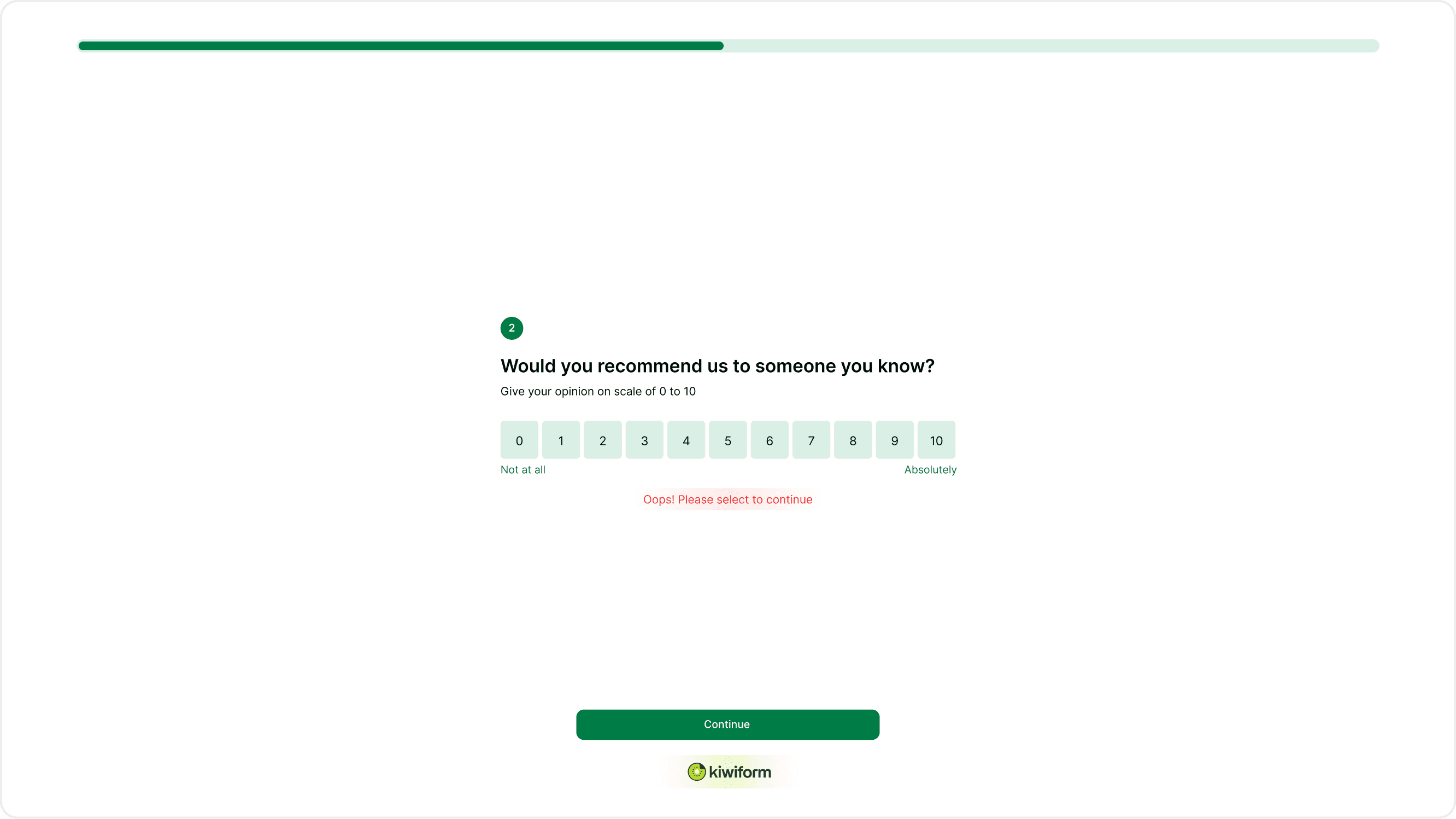
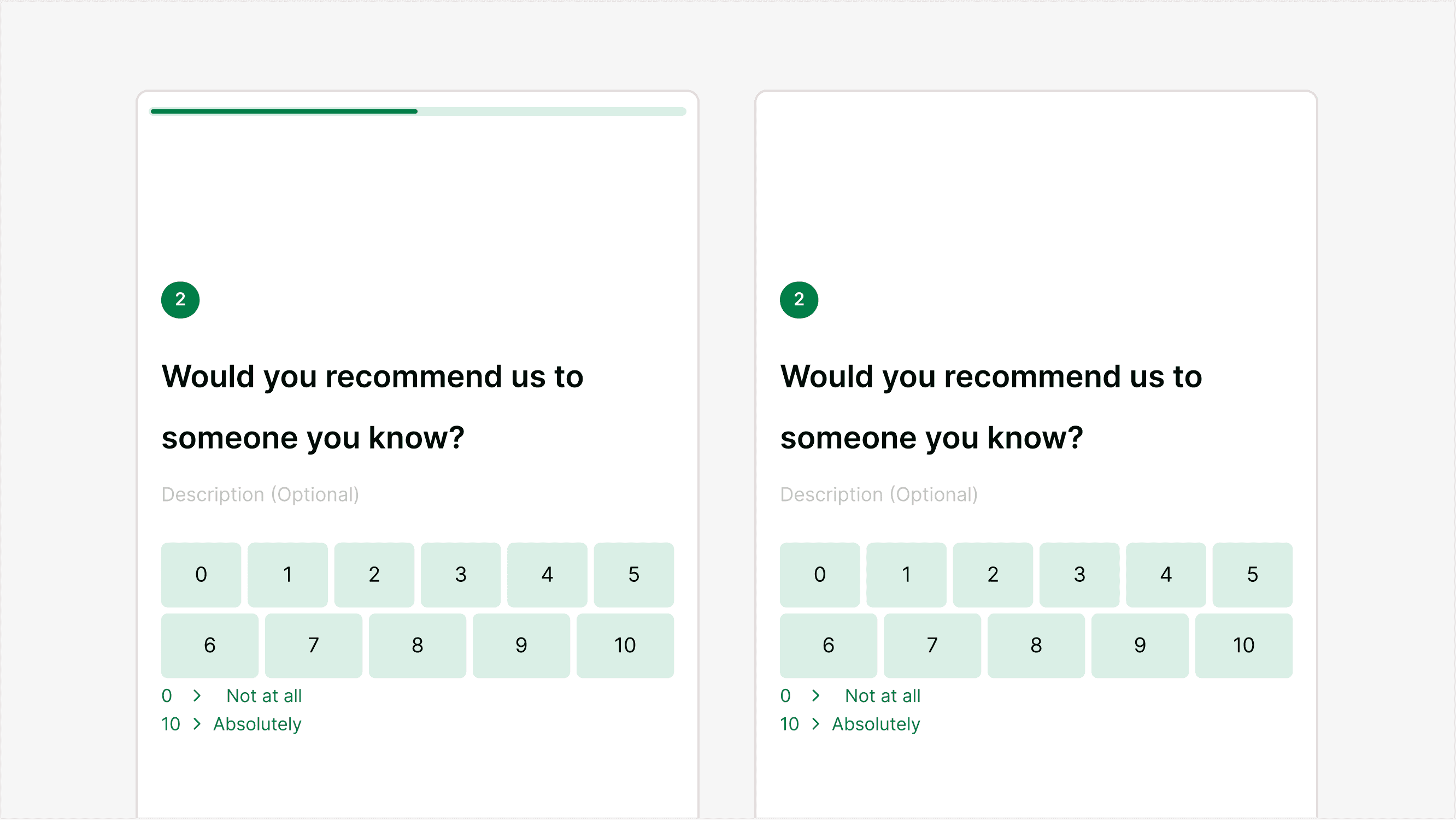
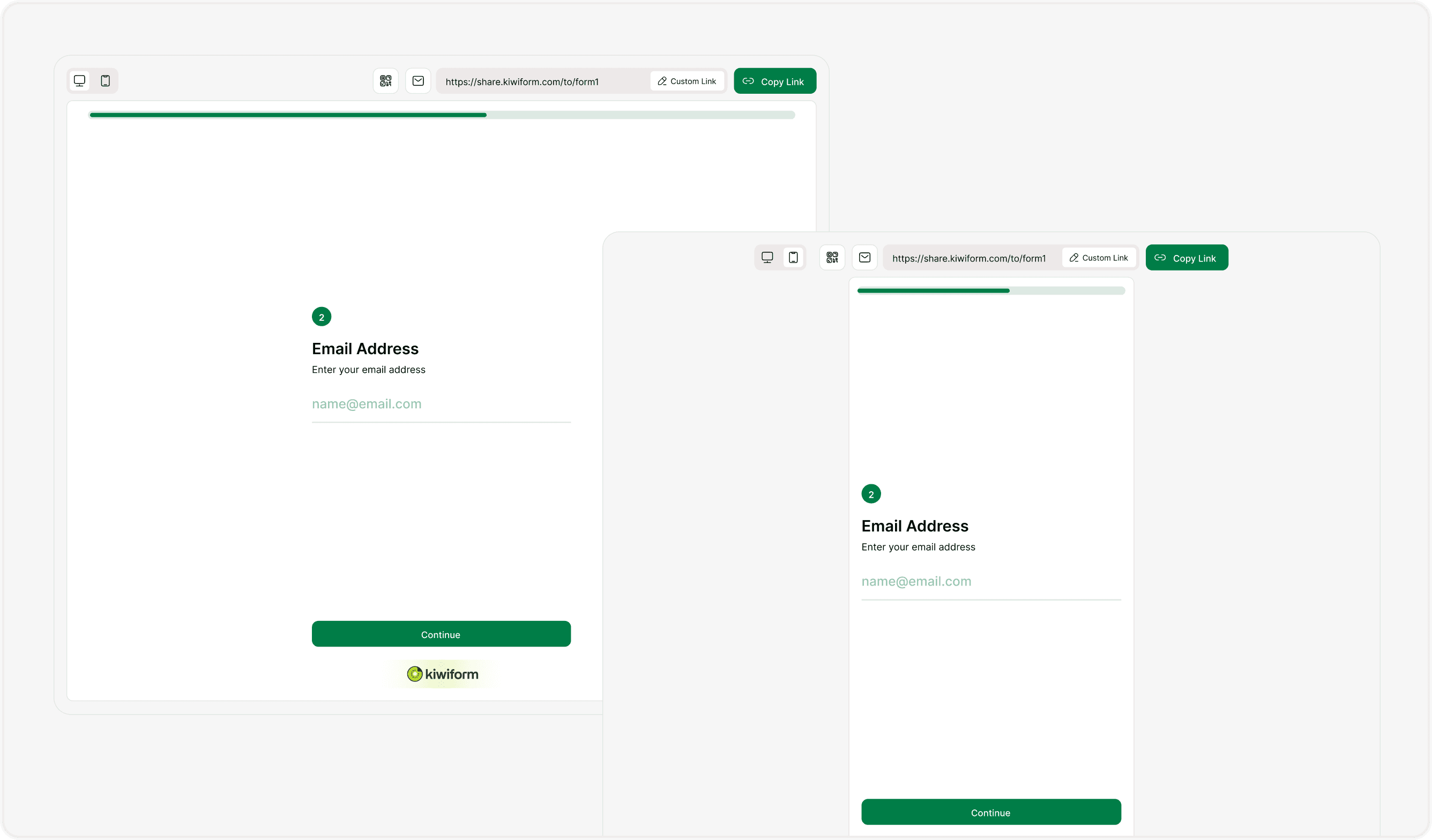
The progress bar appears at the top of a form and visually shows how much of the form has been completed. As respondents move through each step, the bar fills to reflect their progress. This simple indicator helps people feel oriented and reduces uncertainty, especially in forms with multiple questions or sections.
When respondents know how much is left, they are more likely to continue and finish the form. The progress bar supports a smooth, step-by-step experience by giving clear feedback without interrupting the flow.
Why it improves completion rates
Longer forms can feel overwhelming when respondents don’t know how many questions remain. The progress bar solves this by setting expectations early. It helps people stay engaged because they can see that the form is moving forward and nearing completion.
This is especially useful for applications, surveys, onboarding flows, and registrations. Any form that takes more than a few steps benefits from showing progress. Even shorter forms can feel clearer when respondents know they are moving toward completion.
How it works with multi-page forms
Kiwiform forms are structured step by step, so the progress bar updates automatically as respondents move from one question to the next. Each completed step advances the bar, giving a clear sense of movement and pacing.
If your form uses logic or branching, the progress bar adjusts as respondents follow different paths. This keeps the experience consistent even when some steps are skipped or personalized based on answers.
When to use the progress bar
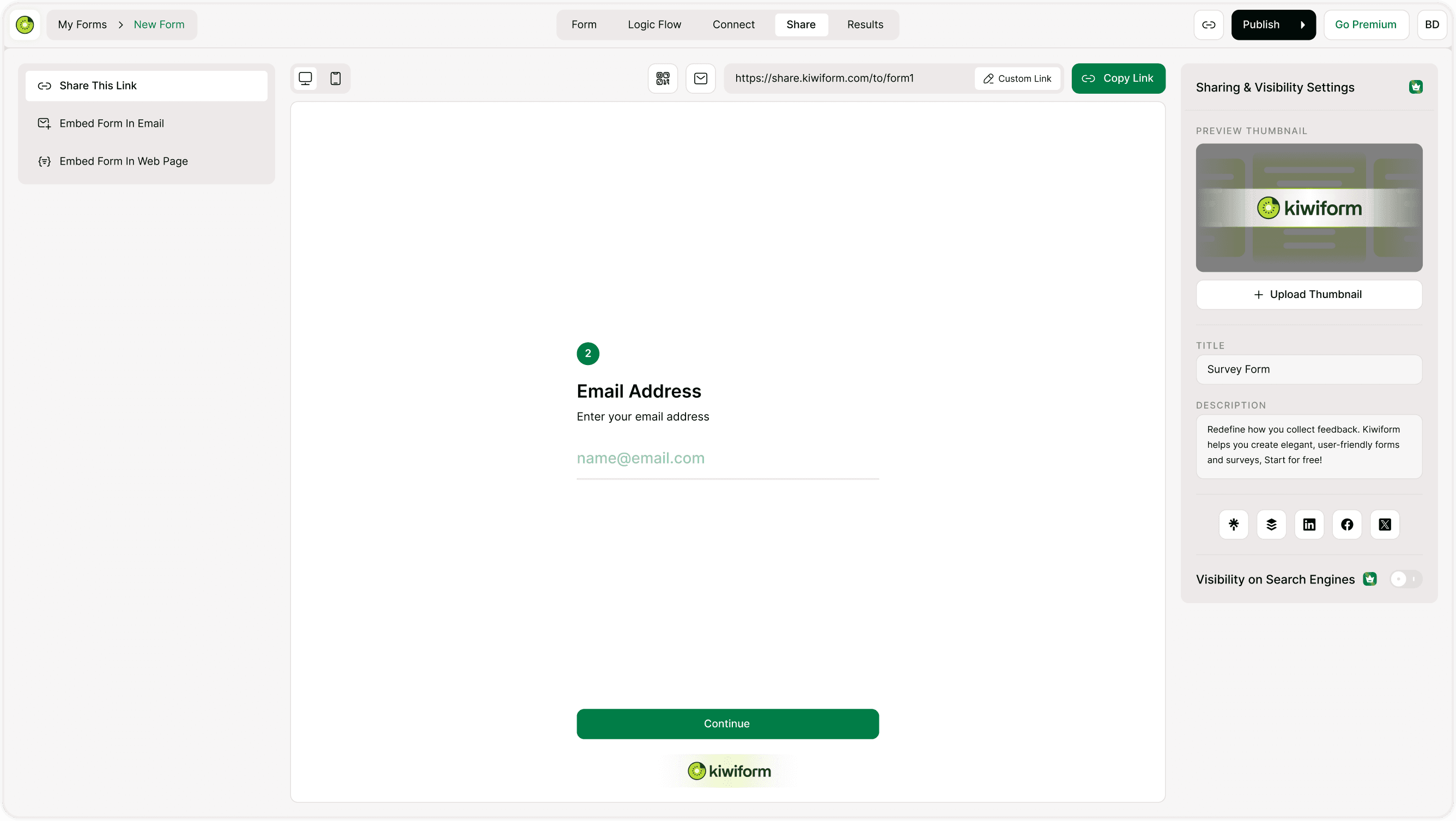
Use the progress bar when your form includes several questions or sections and you want to reassure respondents that the process is straightforward. It works well for feedback forms, lead forms, applications, quizzes, and registrations.
If your form is very short, the progress bar may feel less necessary. For anything that takes more than a few steps, showing progress helps maintain trust and clarity.
Preview and test before publishing
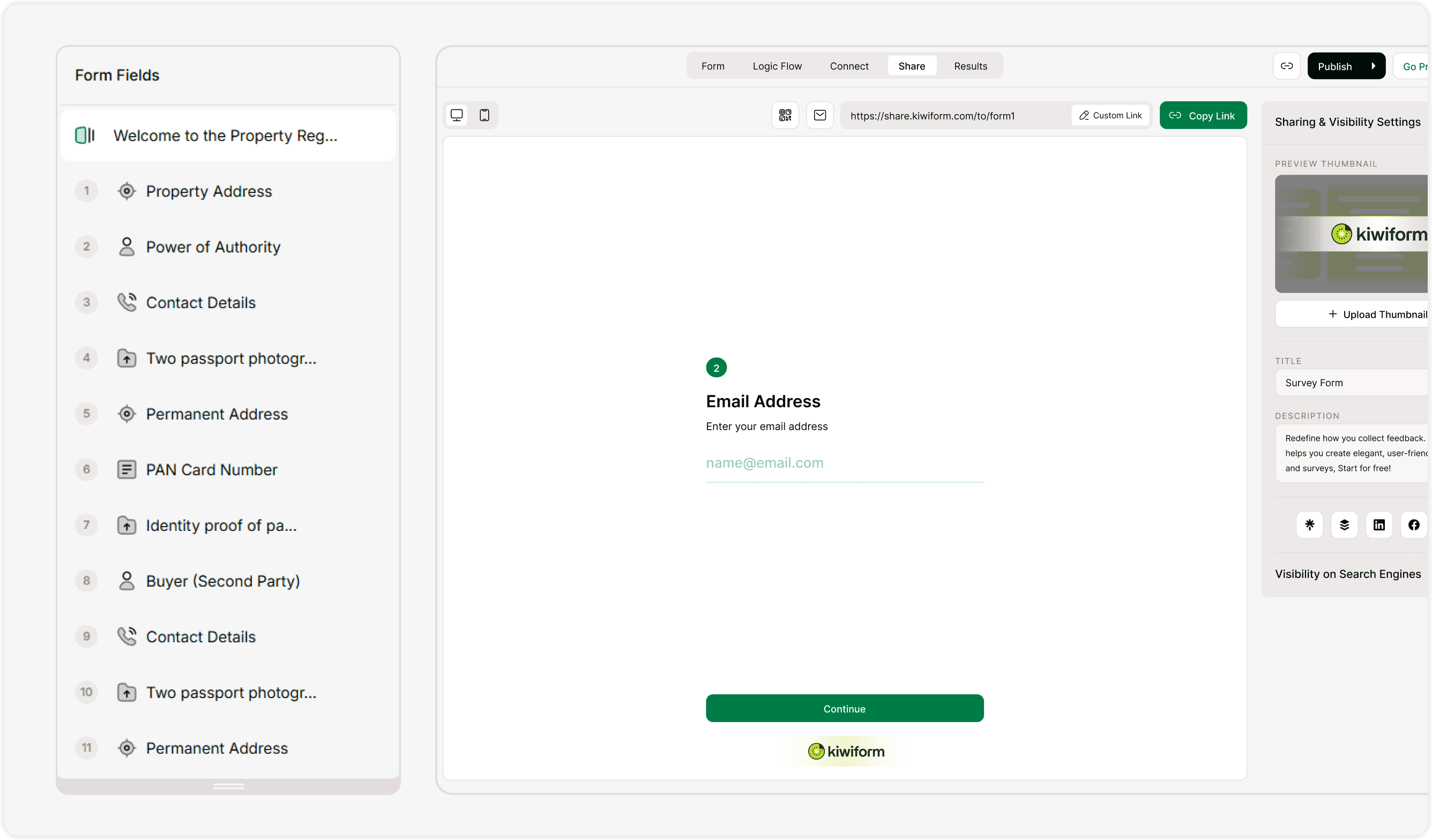
Before sharing your form, preview it to see how the progress bar behaves. Check how it appears on desktop and mobile views and make sure it updates smoothly as you move through the form. This helps you confirm that the pacing feels natural and that respondents can easily understand their progress.
Testing also ensures that logic paths and endings still feel clear when the progress bar updates across different flows.
Summary
The progress bar keeps forms clear, reassuring, and easy to complete. It shows respondents where they are, how much is left, and helps maintain momentum through the form. When combined with a step-by-step structure, it supports a more focused and confident response experience from start to finish.