What the Quote field does
The Quote field is not a question. It is a display element used to show text, statements, or instructions to respondents between questions. It helps improve readability, pacing, and clarity in your form without requiring any input from the respondent.
You can use it to introduce sections, highlight key information, add motivational text, or guide users before the next step. Because forms are conversational in Kiwiform, this field helps maintain flow and engagement.
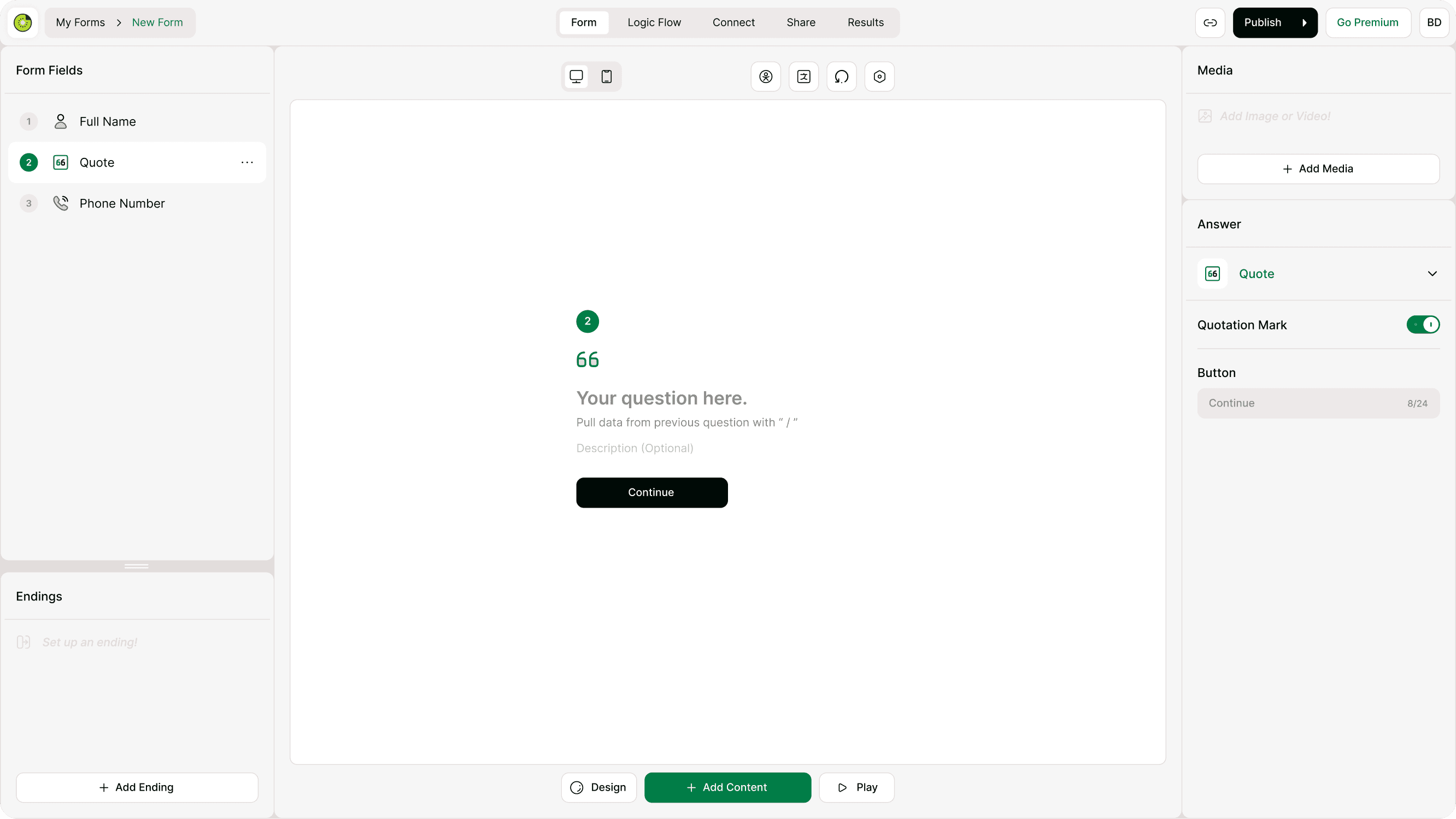
Where to use the Quote field
The Quote field works best when you want to:
Introduce a new section in a form
Provide instructions before a question
Display a testimonial or message
Add context between questions
Create a pause before sensitive or important questions
Guide respondents through longer form
It is commonly used in onboarding forms, surveys, feedback forms, applications, and multi-step flows where context improves completion rates.
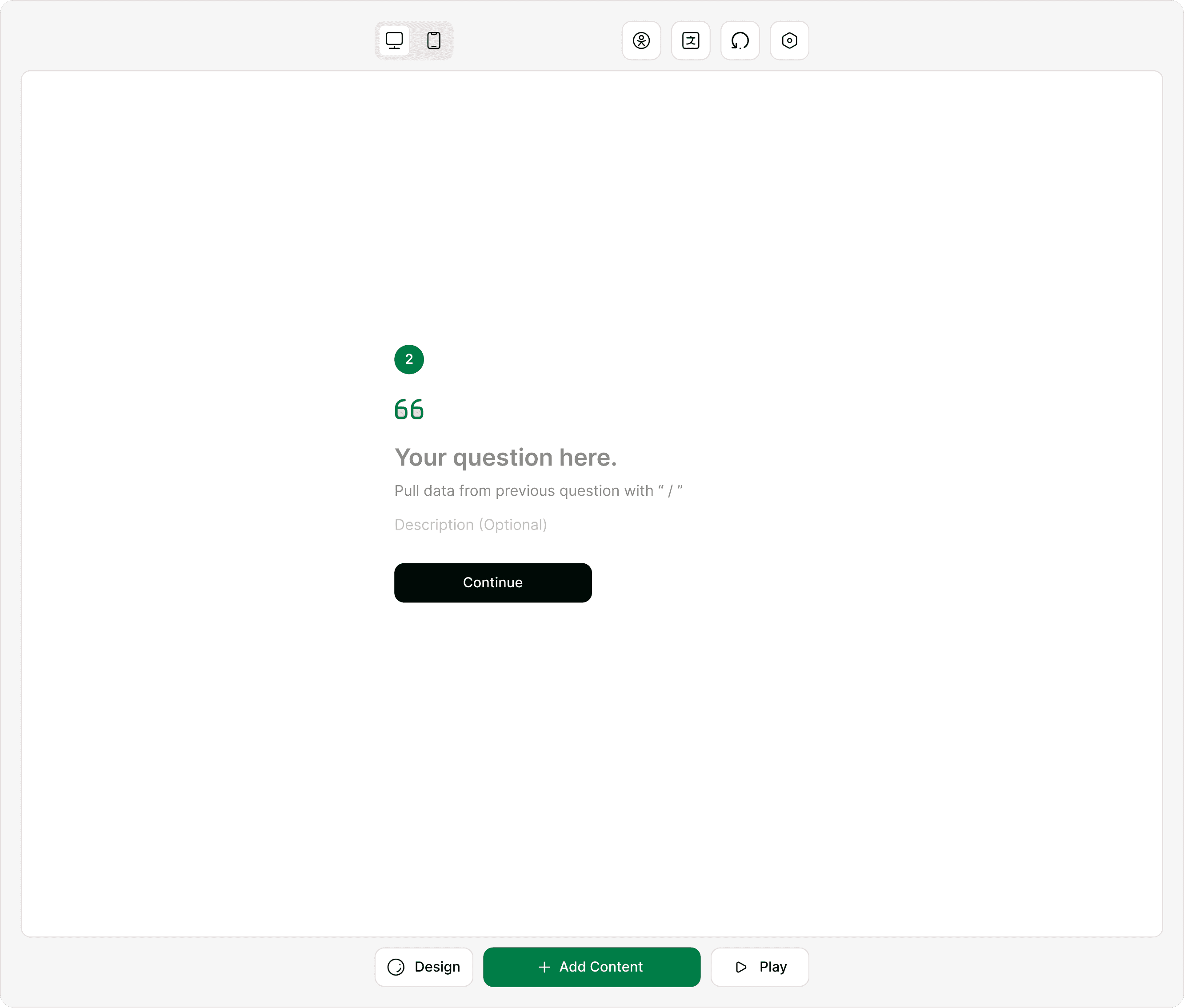
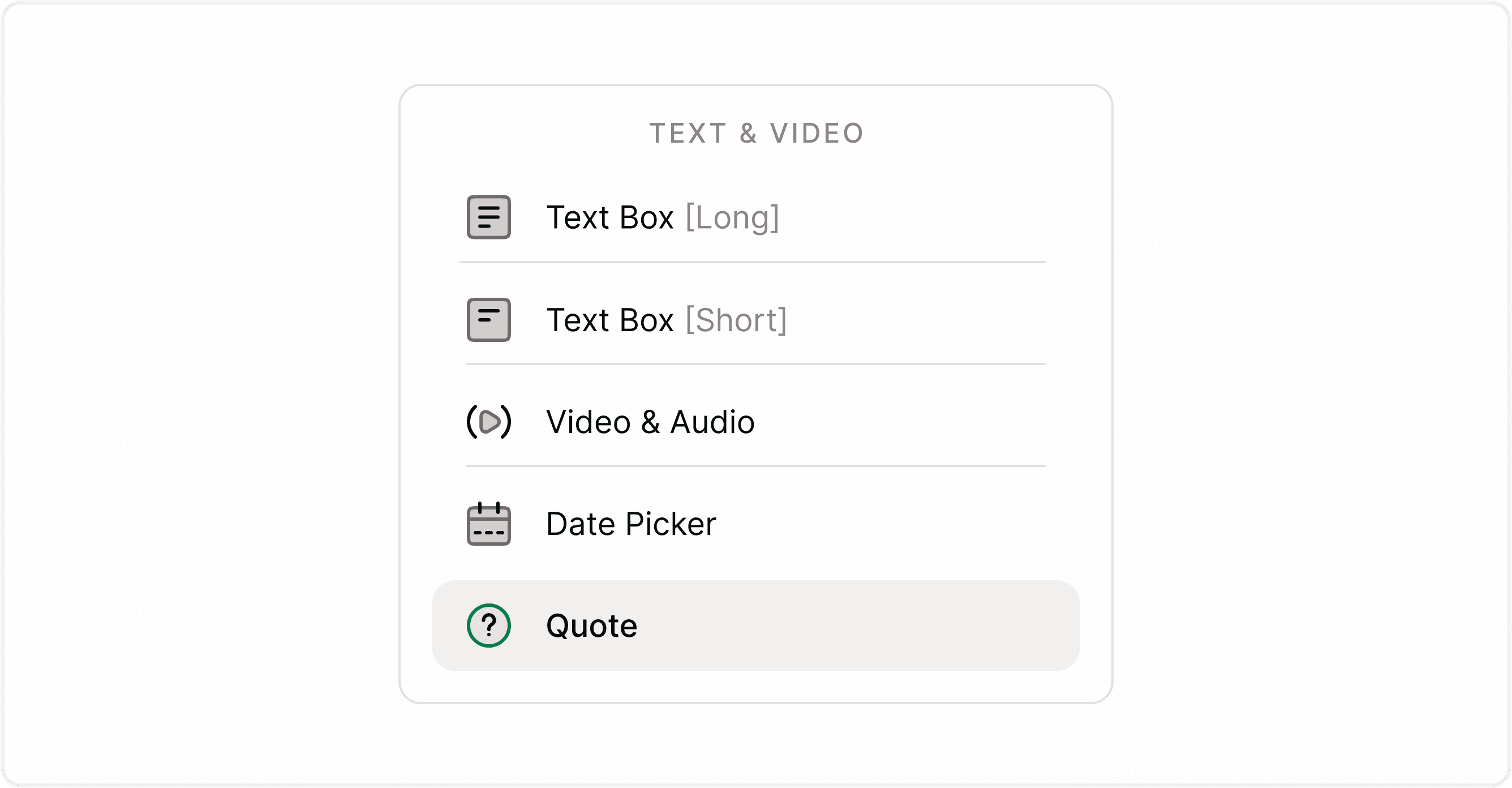
How to add a Quote field
Open your form in the builder.
Click Add Content.
Select Quote from the form fields list.
Enter the text you want to display.
Adjust the settings in the Answer panel if needed.
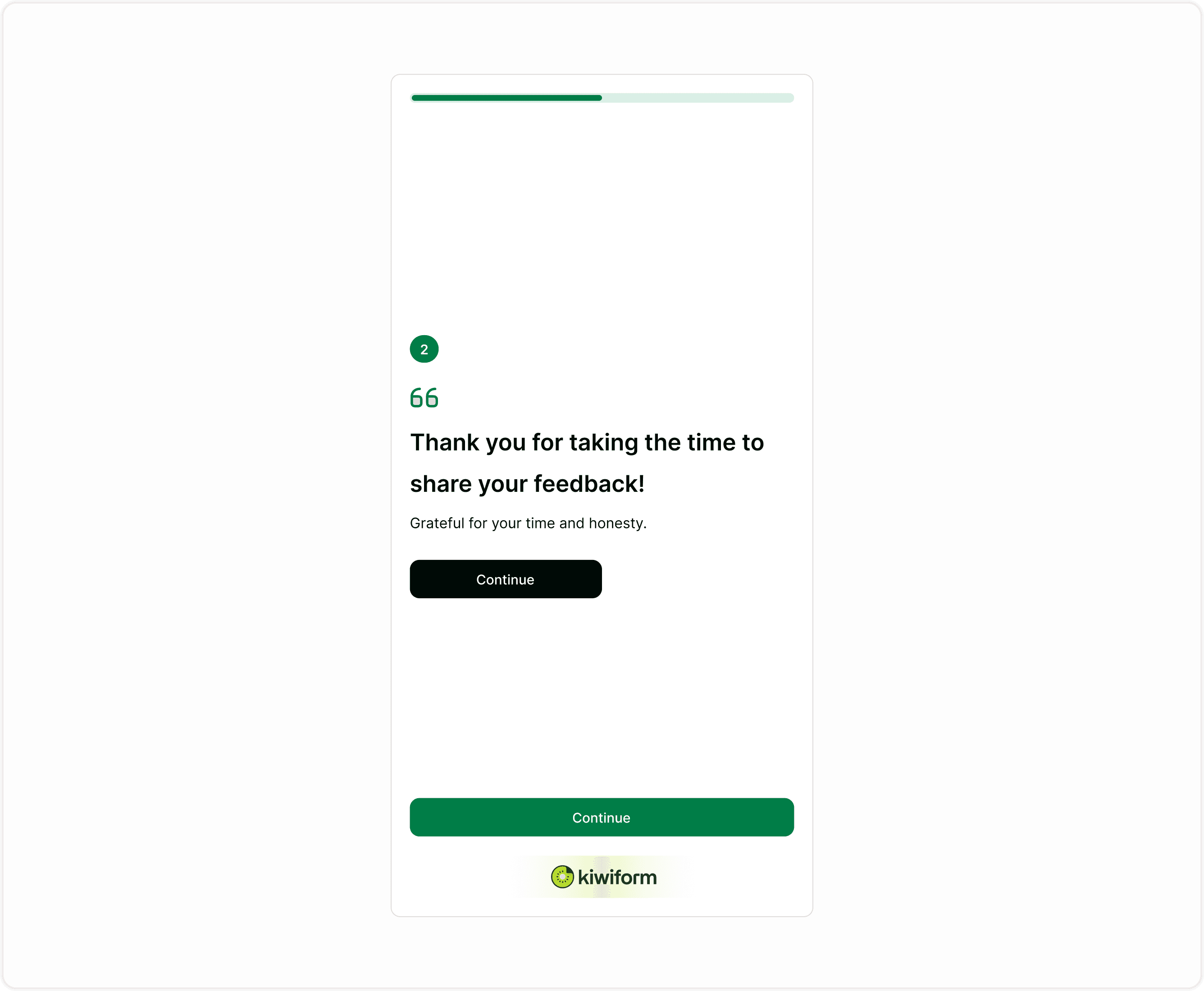
Once added, the Quote field appears as a statement screen between questions in the respondent flow.
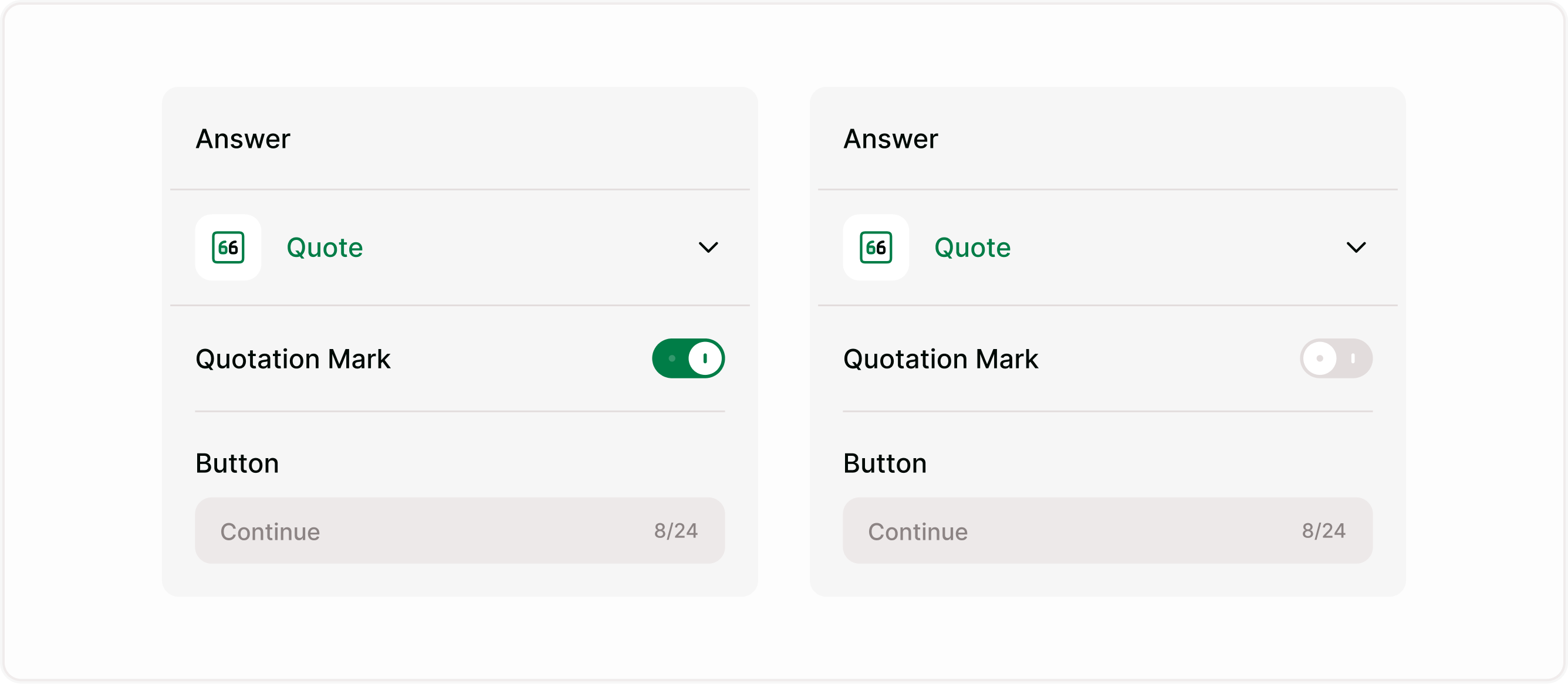
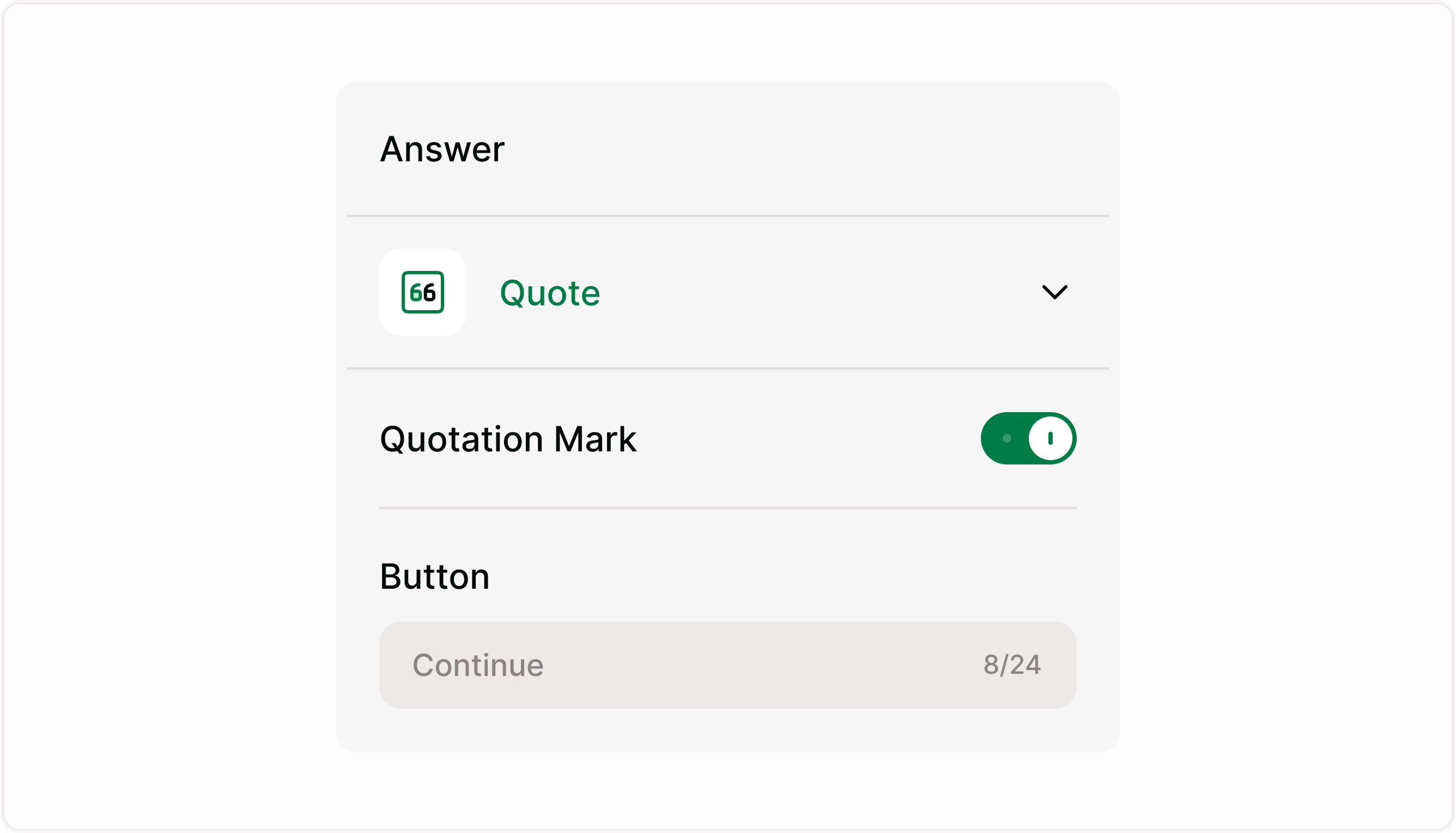
Configure the Quote field in the Answer panel
Quotation Mark
You can enable or disable quotation marks around the text. This helps you decide whether the text appears as a styled quote or as a clean statement.
Turn it on when:
Showing testimonials
Highlighting a message
Displaying a quote or emphasis text
Turn it off when:
Showing instructions
Adding section headers
Displaying neutral guidance text
Button text
You can customize the button label that appears below the quote. This controls how respondents move forward in the form.
Common examples:
Continue
Next
Start
Got it
Let’s go
Use short, clear labels that match your form tone. This keeps the experience smooth and conversational.
How it appears to respondents
In the live form, the Quote field appears as a full screen statement with a button below it. Respondents read the message and click the button to continue.
This creates a natural pause and helps guide them through the form journey without overwhelming them with too many questions at once.
When to use instead of a question
Use a Quote field when you want to communicate something without collecting input. If you need a response, use a Text, Choice, or other input field instead.
Best practices
Keep it short and clear
Use for transitions
Guide the flow
Match your tone
Don’t overuse
Summary
The Quote field helps you guide, inform, and structure your form experience. It allows you to add statements, instructions, or transitions that make forms easier to follow and more engaging. When used thoughtfully, it improves clarity, pacing, and completion rates by giving respondents context at the right moment.