What the Rating field does
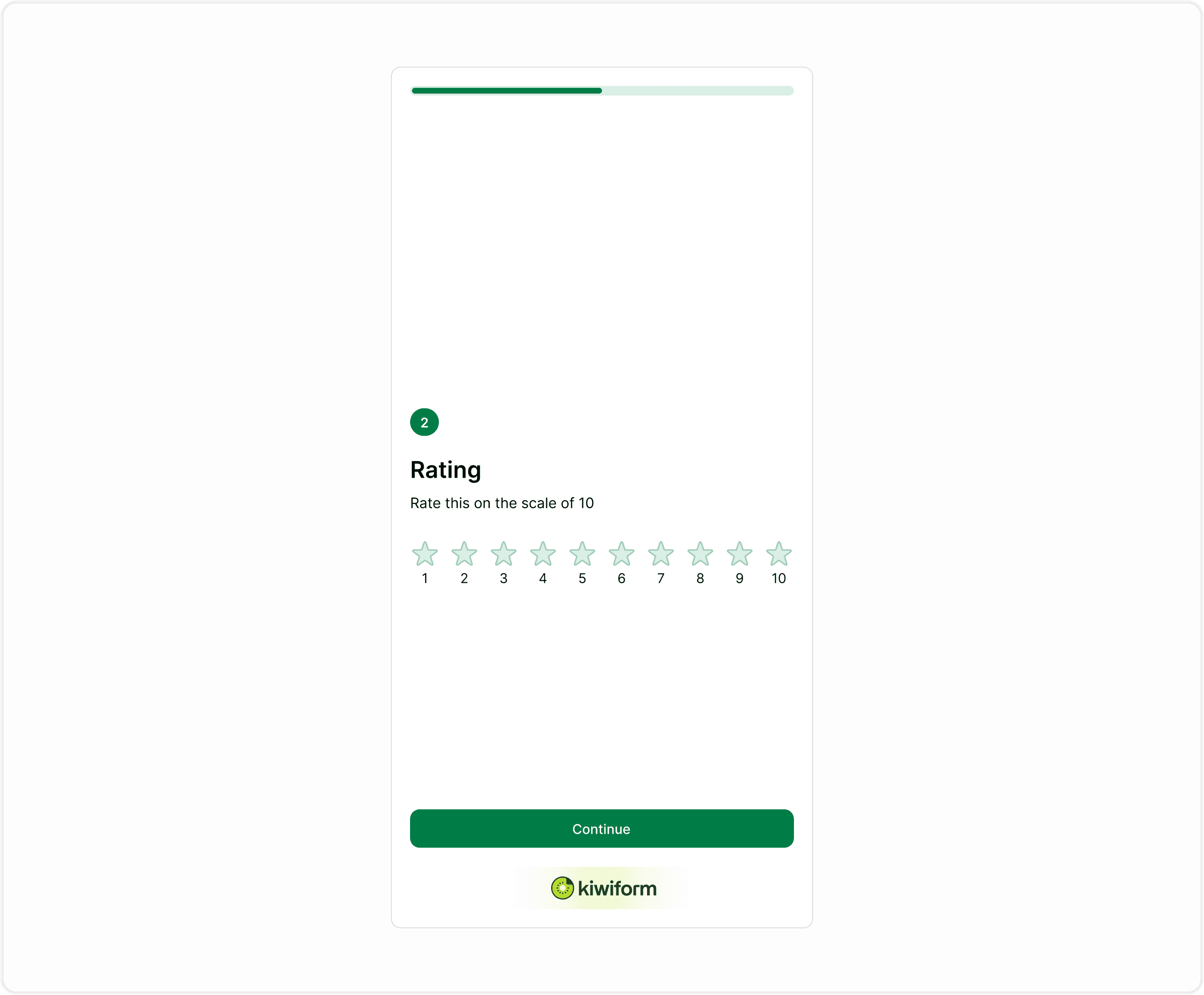
The Rating field allows respondents to select a number of stars to express how they feel about something. This makes it ideal for collecting fast feedback without requiring long answers. It works well in surveys, feedback forms, support forms, and post-purchase experiences where you want a quick sentiment signal.
You can use the Rating field to understand satisfaction levels, evaluate services, or measure how users feel about a specific interaction. Because it uses a familiar star system, respondents can answer quickly without confusion, improving completion rates and response clarity.
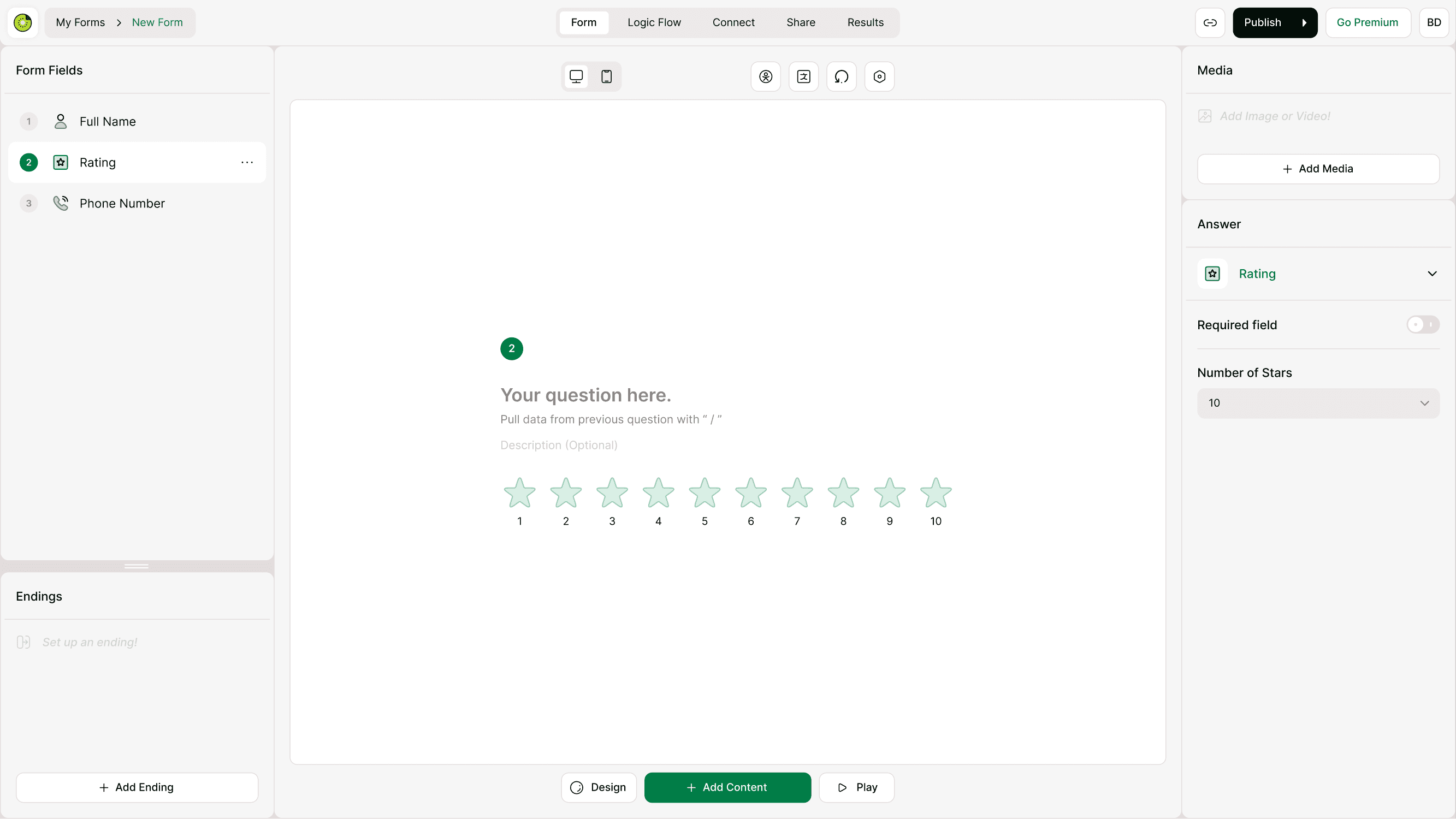
Add a Rating field to your form
To add a Rating field:
Open the form builder.
Click Add Content.
Choose Rating from the list of form fields.
Enter your question or prompt.
Adjust the number of stars if needed.
Preview the form to test how it appears to respondents.
Once added, the Rating field appears in the form flow like any other form field and can be reordered or edited at any time.
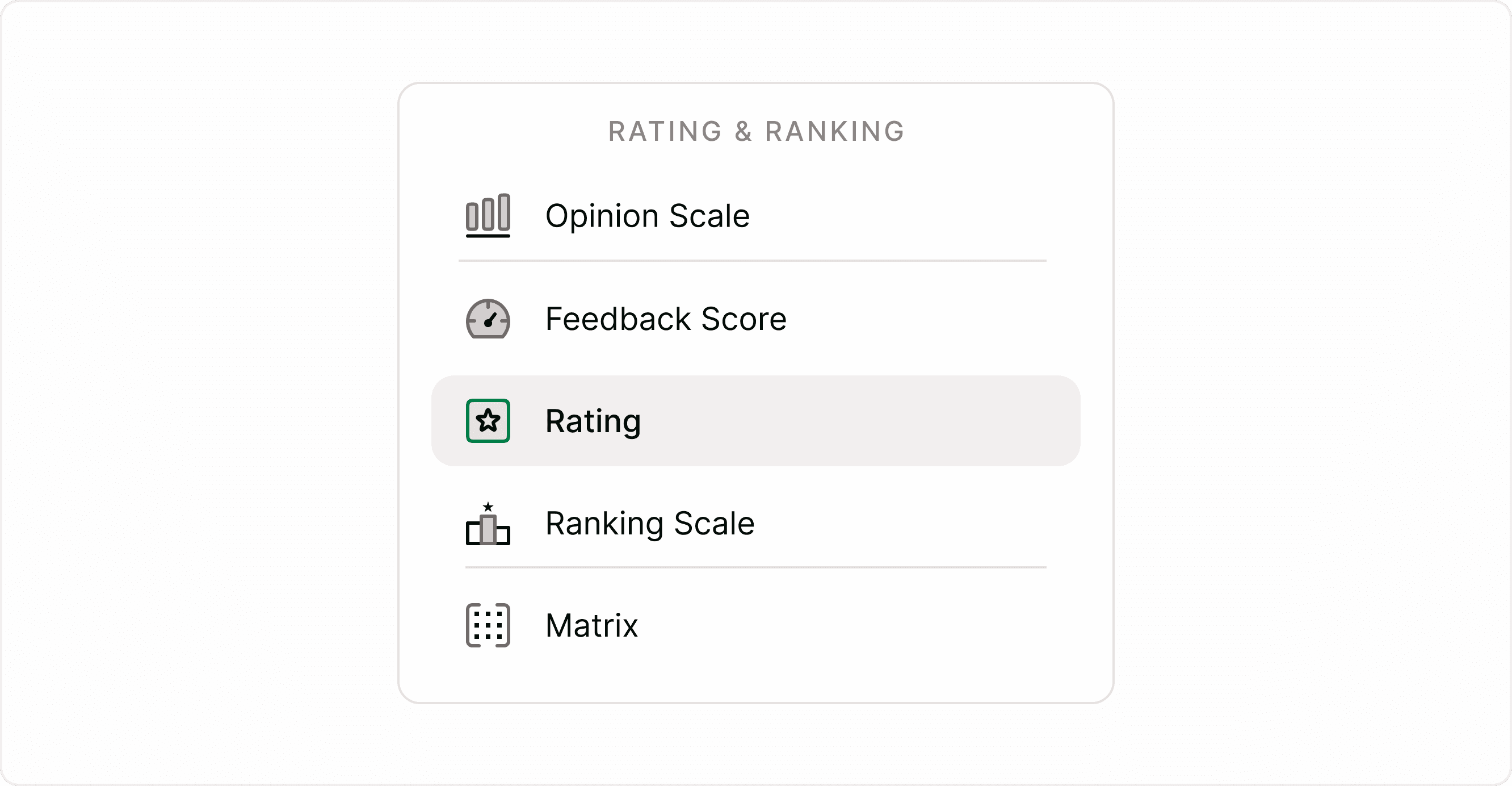
Customize the Rating field
You can configure how the Rating field works to match your use case.
Set the number of stars
Choose how many stars respondents can select. For example, a 5-star rating is common for satisfaction, while a 10-star scale may provide more detailed feedback.
Make the field required
Turn on the Required field option if you want respondents to answer before moving forward. This ensures you collect rating data for every submission.
Add context with descriptions
You can add a short description below the question to explain what the rating represents. This helps respondents understand what each star level means.
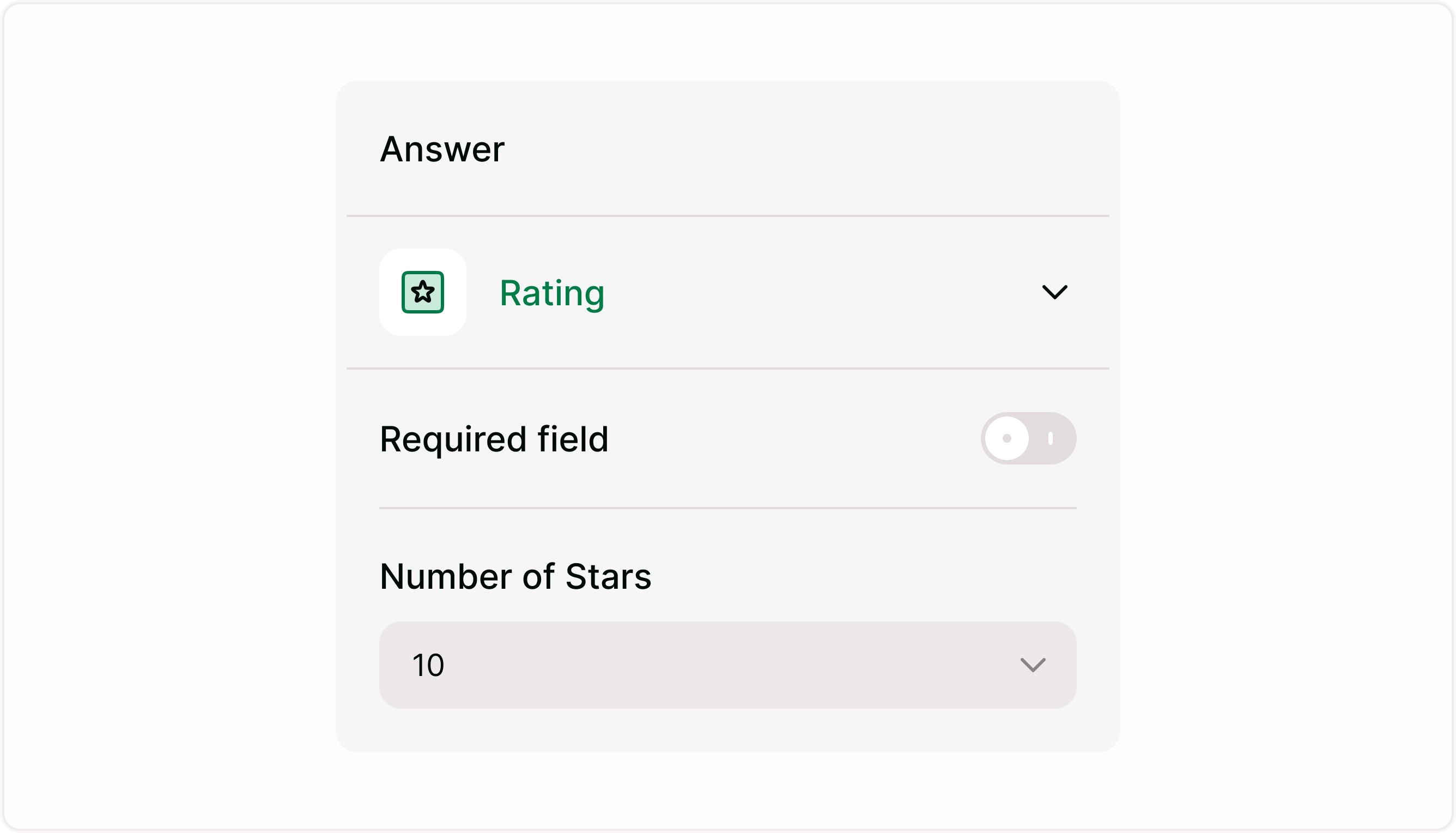
Combine Rating with other fields
You can pair the Rating field with other form fields to create richer feedback flows.
For example:
Add a text field after a low rating to understand issues.
Use logic to show follow-up questions based on star selection.
Send automated messages depending on rating outcome.
This helps you turn simple ratings into actionable insights.
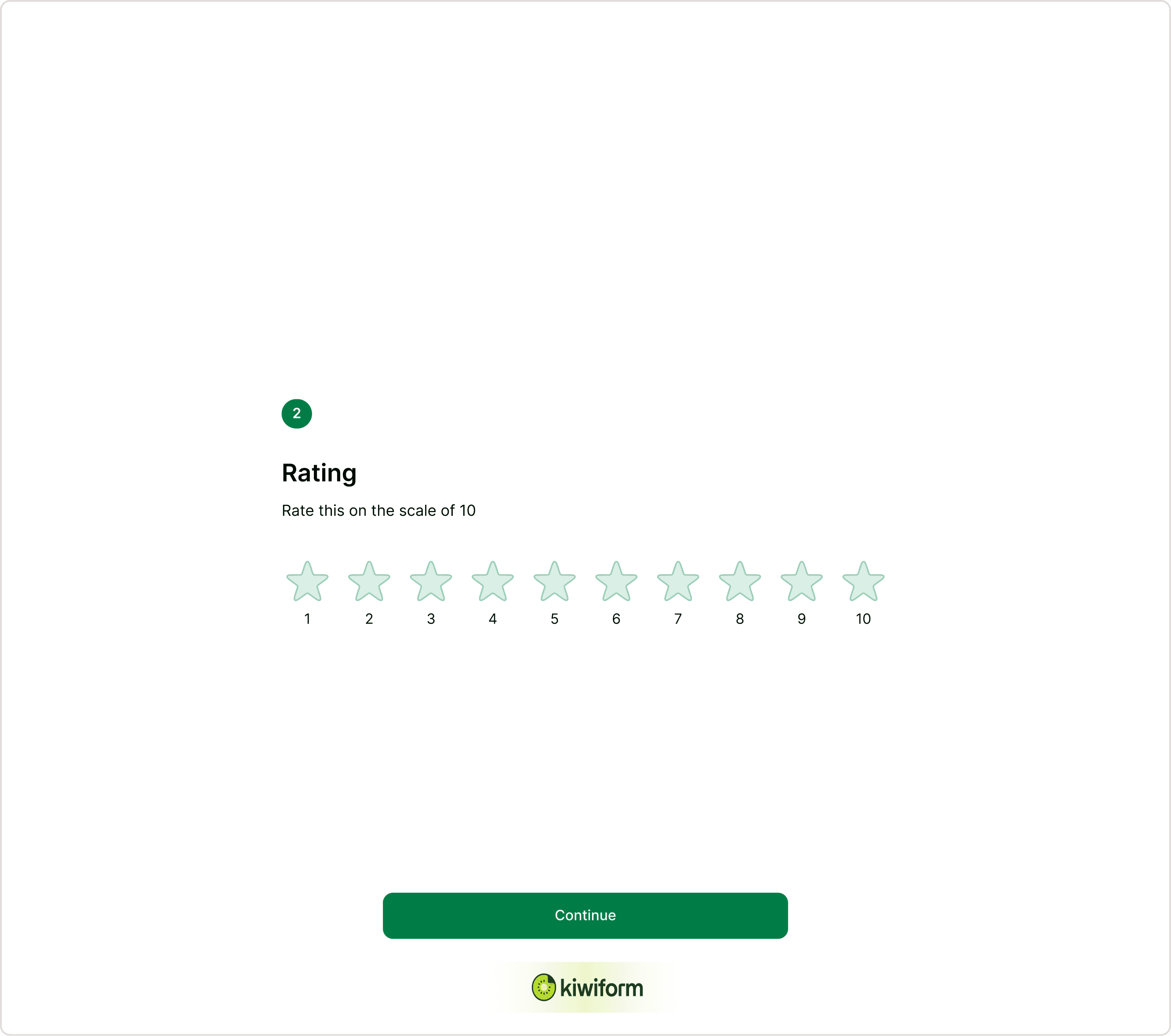
How Rating data appears in results
Responses collected through the Rating field appear in the Results section alongside other form responses.
You can:
View individual ratings
Filter responses
Export data
Analyze trends
This makes it easier to track satisfaction over time and identify patterns.
When to use the Rating field
The Rating field works well when you need fast, simple feedback.
Common use cases include:
Customer satisfaction after a purchase
Service or support feedback
Event or workshop ratings
Product experience feedback
Website or app experience
Course or training evaluation
Use it when you want a quick signal rather than detailed written feedback. For deeper insights, you can follow it with a long text field asking respondents to explain their rating.
Best practices
Keep the question clear and specific.
Explain what the stars represent if needed.
Avoid placing too many rating fields in a row.
Use consistent scales across the form.
Test the form before publishing.
Using these practices leads to more reliable rating data and better insights.
Summary
The Rating field helps you collect fast, visual feedback using a familiar star-based system. It is useful for measuring satisfaction, evaluating experiences, and gathering quick insights without adding friction to your forms. By combining it with logic and follow-up fields, you can turn simple ratings into meaningful feedback that supports better decisions.