Where to Find the Share Link
To access your form link:
Open your form.
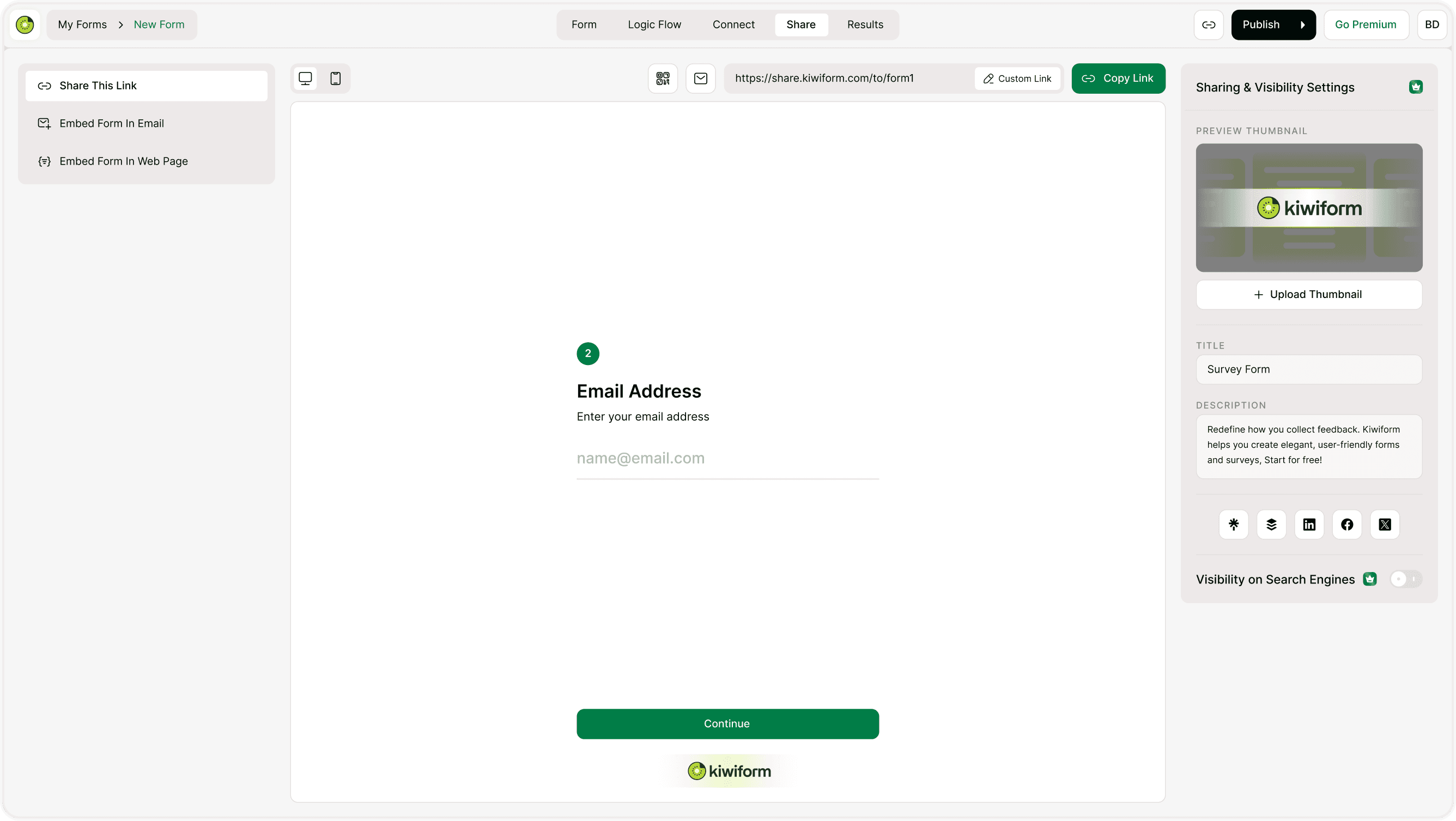
Click the Share tab.
Select Share this link.
Click Copy Link to copy the public URL.
You can now share the link via email, social media, messaging apps, or your website.
What Is the Public Share Link?
Anyone with this link can access and submit your form.
There’s no login required for respondents.
Customize Your Share Link
You can personalize your form link for branding and clarity.
Custom Link
Click Custom Link to create a cleaner, branded URL.
Custom links are easier to remember and look more professional when shared.
Sharing & Visibility Settings
On the right side of the Share page, you can control how your form appears when shared.
Preview Thumbnail
Upload a thumbnail image that appears when your form link is shared on platforms like:LinkedIn
Facebook
X (Twitter)
Messaging apps
This improves click-through rates and gives your form a professional appearance.
Title & Description
Edit the share title and description to control how your form appears in link previews.
This is especially useful for:Marketing campaigns
Lead generation forms
Client-facing surveys
Public research forms
Clear titles improve engagement.
Visibility on Search Engines
You can toggle whether your form is visible to search engines.
Enabled → Your form may appear in search results.
Disabled → Your form remains private and accessible only via direct link.
Use this setting depending on whether your form is public-facing or internal.
How to Share Your Form
Once you copy the link, you can:
Send it via email
Add it to social media posts
Include it in newsletters
Share it in WhatsApp or Slack
Add it to bio links
Use it in paid ads
Include it in QR code
The share link works across all devices.
Device Preview Before Sharing
In the Share tab, you can preview your form in:
Desktop view
Mobile view
Always check mobile view before sharing widely, especially if most of your audience uses smartphones.
When Should You Use Share Link?
The share link is ideal when:
You need quick distribution.
You don’t have a website.
You’re collecting responses from social media.
You’re running email campaigns.
You’re gathering event registrations.
You’re conducting online research.
It’s the simplest distribution method.
Best Practices for Higher Response Rates
Use a clear and action-driven title.
Add a compelling description.
Upload an engaging thumbnail image.
Shorten your link with a custom URL.
Share at optimal times based on your audience.
Test the link before sending it widely.
Better presentation increases response rates.
Summary
The Share link feature allows you to publish your form and distribute it instantly using a public URL. Customize link previews, control visibility, and share your form anywhere with ease.