What does “Show/Hide Fields” mean?
Show/Hide fields allow you to control whether a specific question appears based on a respondent’s answer to a previous question.
Instead of sending users to a completely different section (like branching does), show/hide logic controls visibility within the existing flow.
This is useful when:
You want to reveal a follow-up question
You need extra details only in certain cases
You want to keep your form short and relevant
You’re building progressive disclosure forms
It keeps your form dynamic without changing the overall structure.
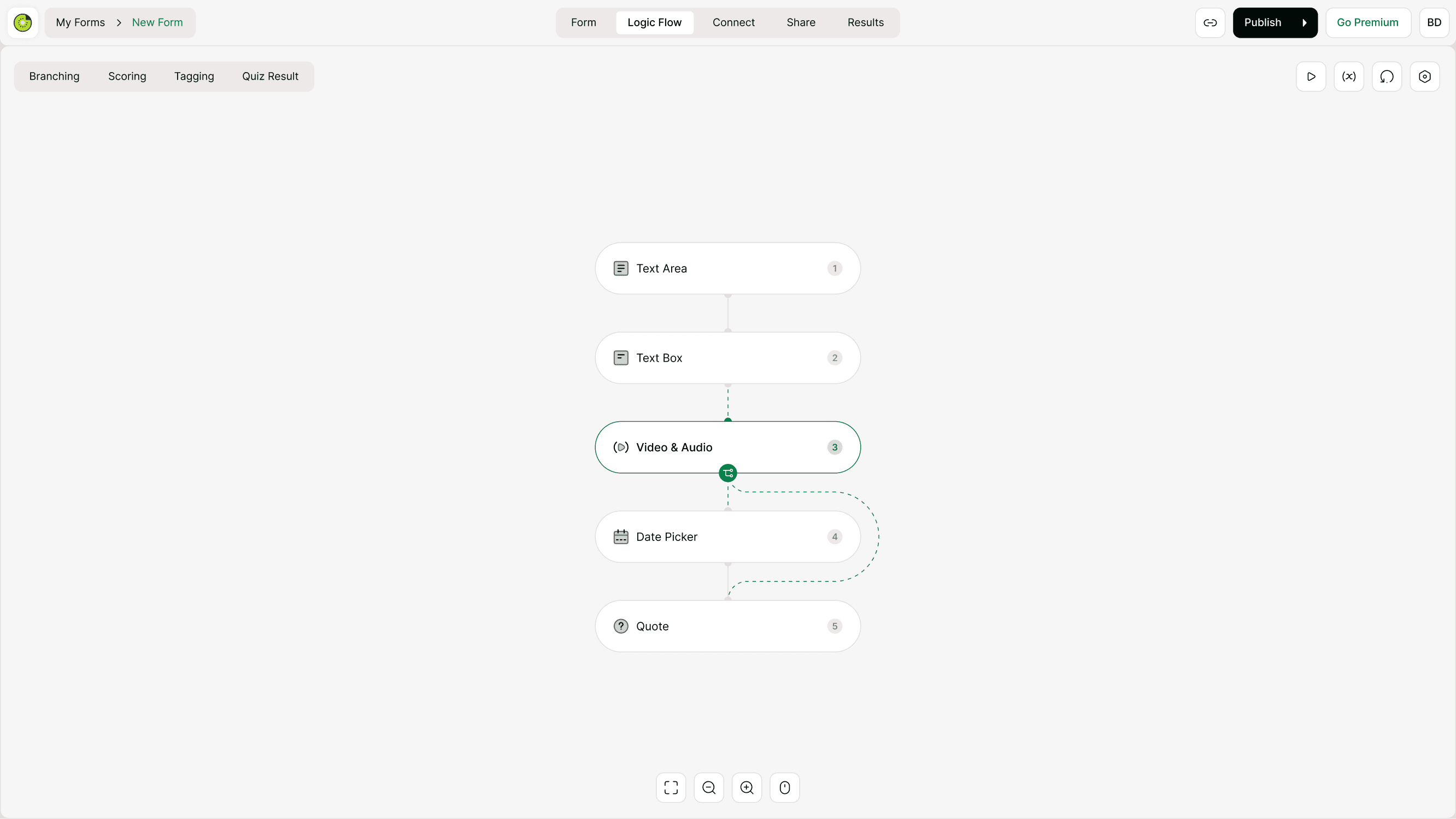
Show/Hide vs Branching
It’s important to understand the difference:
Branching changes where the respondent goes next
Show/Hide fields controls whether a question appears or stays hidden
Example:
If user selects “Yes” to “Do you need installation?”
→ Show “Preferred installation date”
The respondent stays in the same flow, but the additional field becomes visible.
Where to configure Show/Hide fields
Open your form
Click Logic Flow in the top navigation
Select the field you want to control
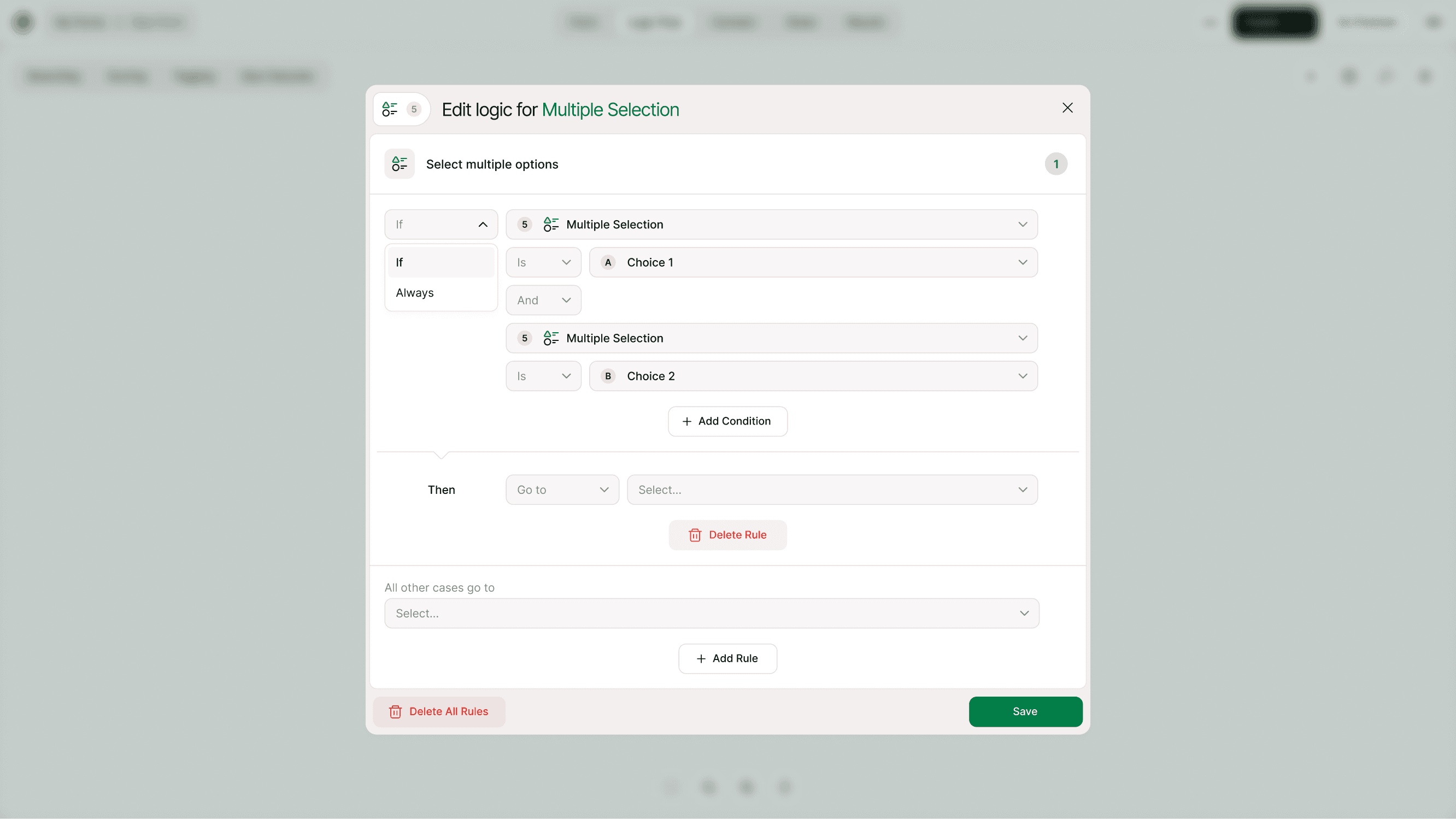
Add a condition that determines visibility
You can configure show/hide rules directly inside the Logic Flow interface.
How Show/Hide works
Show/Hide logic follows this pattern:
If condition is met → Show field
If condition is not met → Keep field hidden
Example rules:
If “Company size” is “Enterprise” → Show “Enterprise requirements”
If rating ≤ 5 → Show “What went wrong?”
If user selects “Other” → Show text input field
This ensures only relevant questions appear.
Step-by-step: How to show a field
Go to Logic Flow
Select the field you want to display conditionally
Add a rule
Set condition (example: If Answer equals “Yes”)
Save
Now the field will only appear when the condition is satisfied.
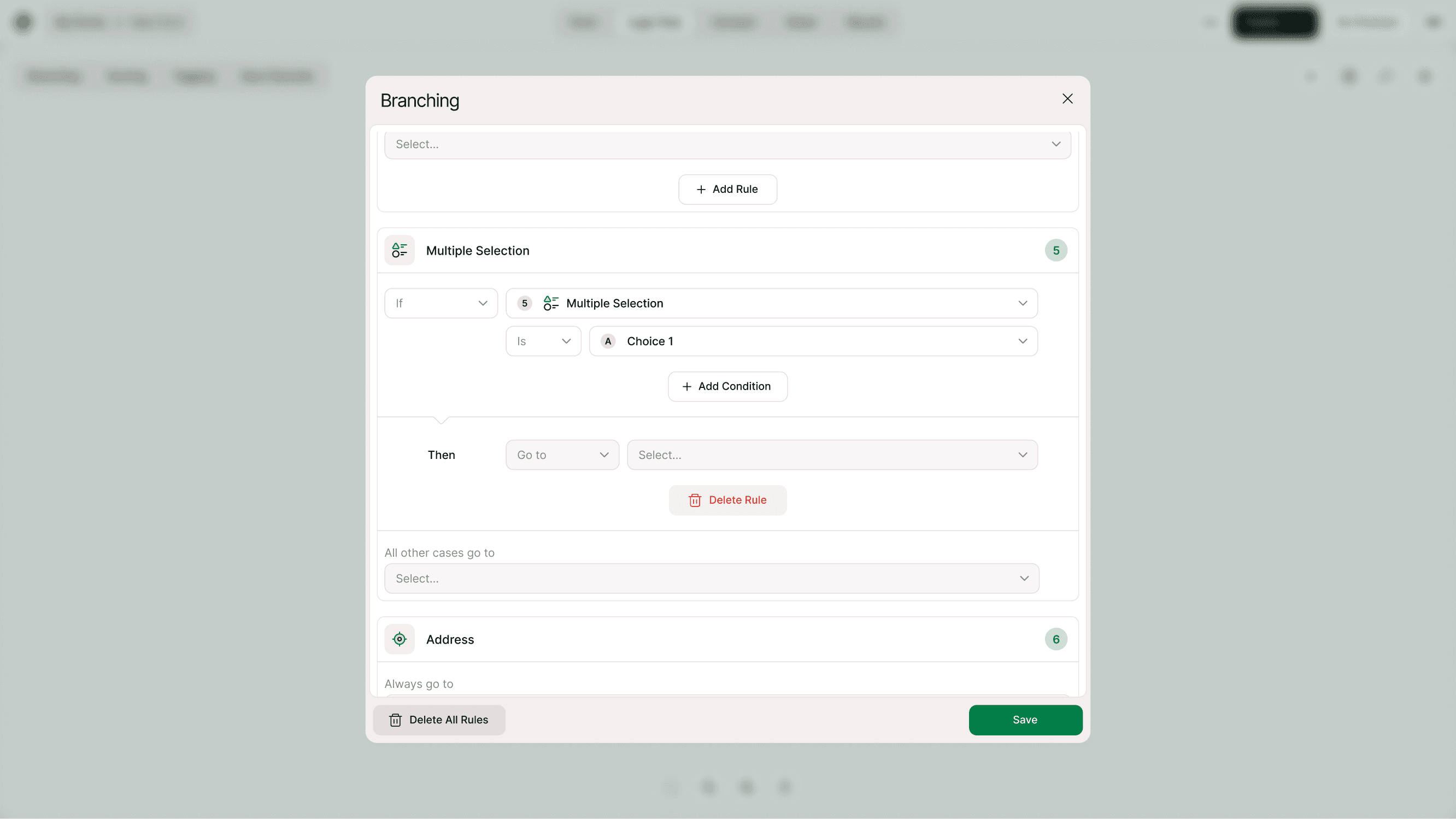
Using multiple conditions
You can combine multiple conditions to control visibility.
Example:
If “Role” = Manager AND “Team size” > 5 → Show leadership questions
If “Plan” = Pro OR Enterprise → Show advanced features section
Keep combined logic simple to maintain clarity.
Common use cases
Follow-up questions
Only show additional details if the respondent expresses interest.
Feedback forms
Show explanation field for low ratings only.
E-commerce forms
Reveal shipping address only if delivery option is selected.
Application forms
Show portfolio upload only for creative roles.
Surveys
Display additional questions based on selected topics.
Why Show/Hide improves completion rates
Long forms can overwhelm respondents.
Show/Hide logic helps by:
Reducing visible fields
Minimizing cognitive load
Keeping forms focused
Improving user experience
Respondents only see what’s relevant to them.
Best practices
To use Show/Hide effectively:
Use clear question labels
Keep logic rules simple
Avoid stacking too many hidden dependencies
Always test different answer combinations
Place dependent fields directly after trigger questions
Good structure makes your logic easier to manage.
Testing Show/Hide logic
After adding visibility rules:
Click Preview
Test each possible answer
Confirm fields appear correctly
Ensure no important field stays hidden accidentally
Testing prevents missing required inputs.
Troubleshooting
If a field doesn’t appear:
Check condition accuracy
Confirm correct answer option is selected
Verify field order
Ensure no conflicting logic exists
Visibility issues usually come from incorrect rule setup.
Show/Hide and required fields
If a field is conditionally shown and marked as required:
It will only be required when visible
Hidden fields are automatically ignored
This prevents form submission errors.
Keep your forms smart and clean
Show/Hide fields help you create modern, responsive forms without unnecessary complexity.
Used correctly, they:
Make your form conversational
Keep users engaged
Improve data quality
Reduce drop-offs
Smart visibility logic is a key part of building better forms in Kiwiform.
Summary
Learn how to show or hide specific fields based on respondent answers. Display only the questions that matter in each scenario to keep your forms clean, conversational, and focused on relevant inputs.