Available Sign-in Options
Kiwiform supports two primary sign-in methods:
Continue with Google
You can sign in using your Google account. This method allows you to:Create an account instantly
Skip manual password setup
Log in securely using Google authentication
If you previously signed up using Google, you must continue using Google to access that account.
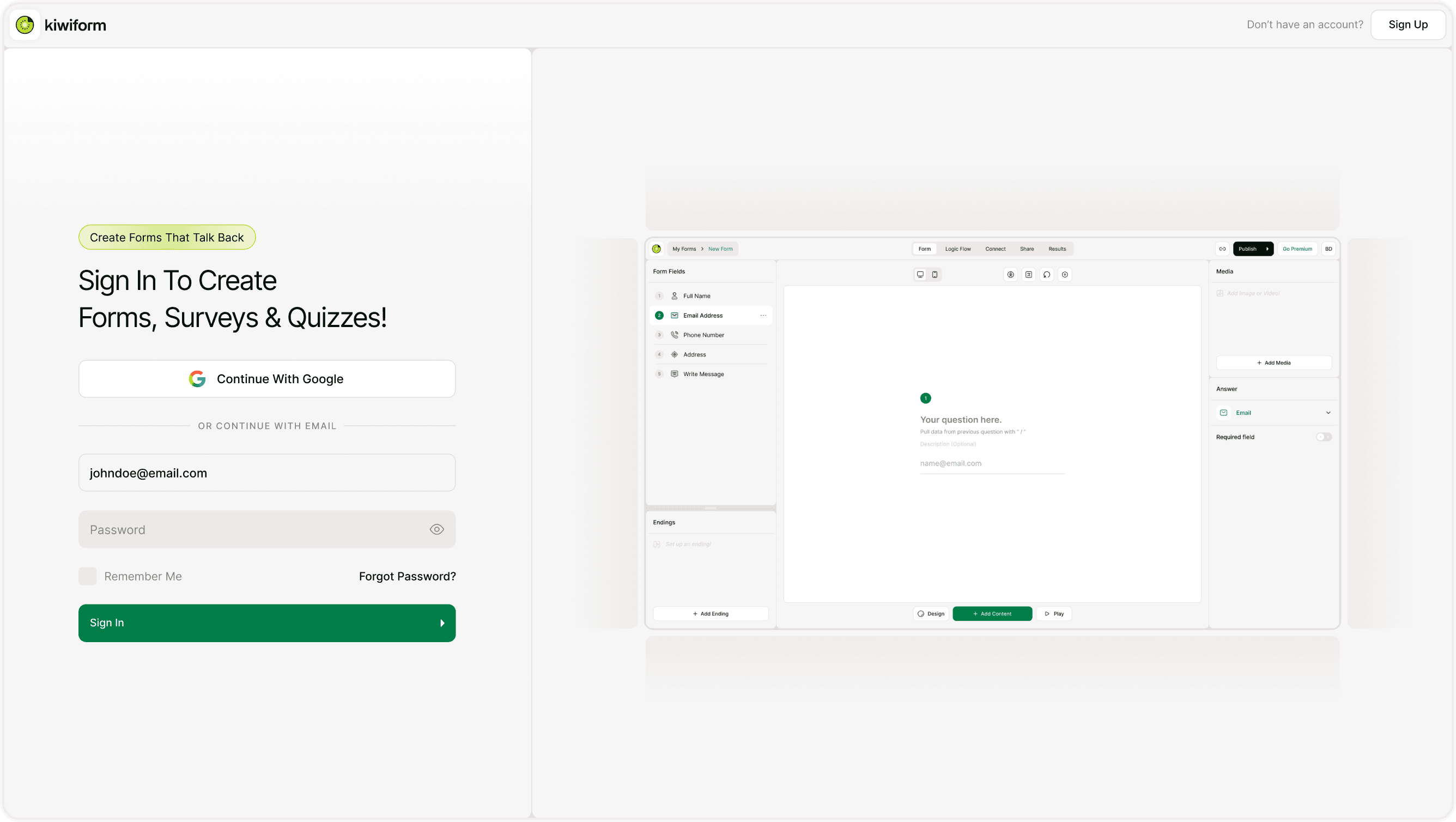
Email and Password
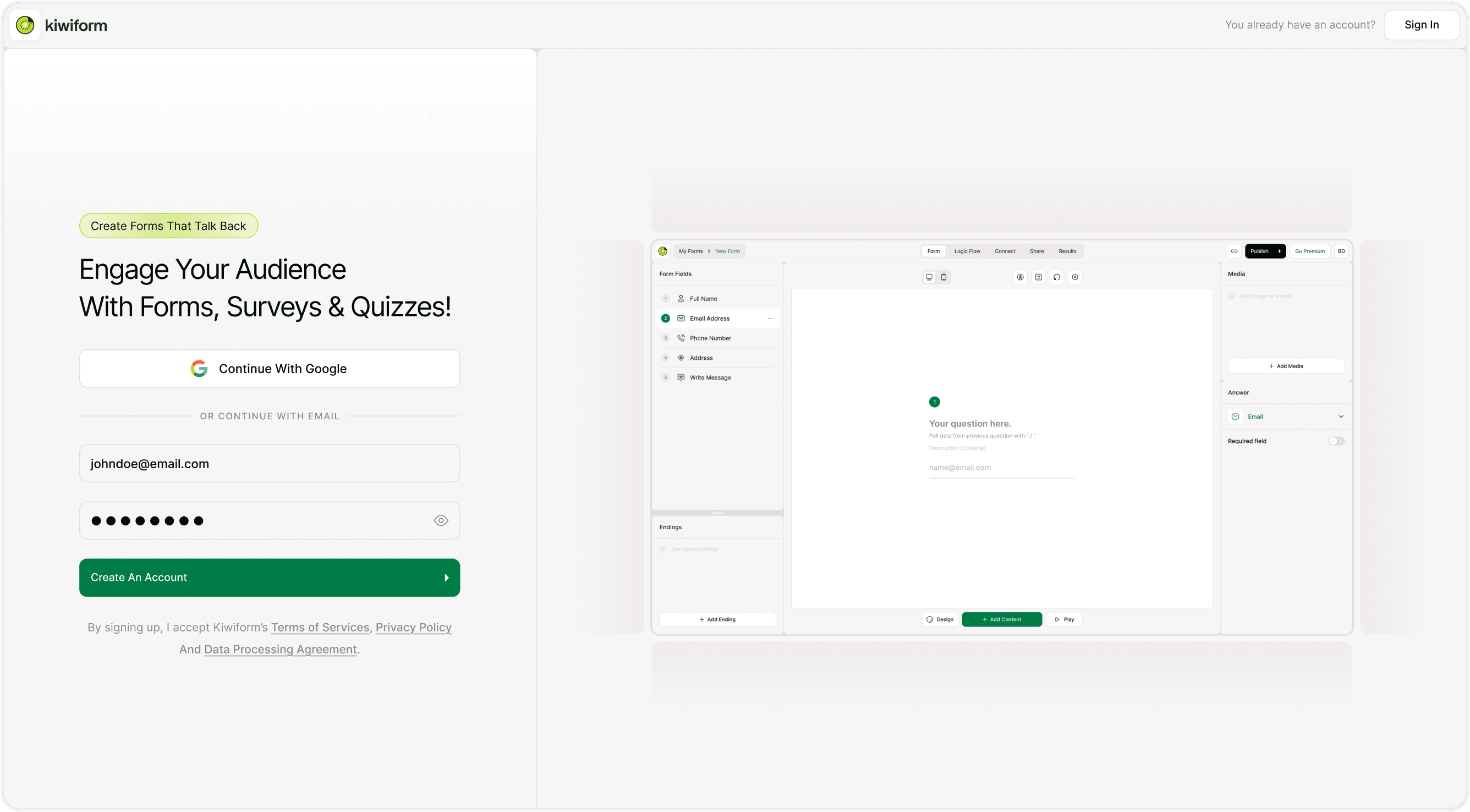
You can create and access your account using your email address and a password.
To sign up:
Enter your email address.
Create a secure password.
Click Create An Account.
Verify your email address.
To sign in:
Enter your registered email.
Enter your password.
Click Sign In.
Email Verification Process
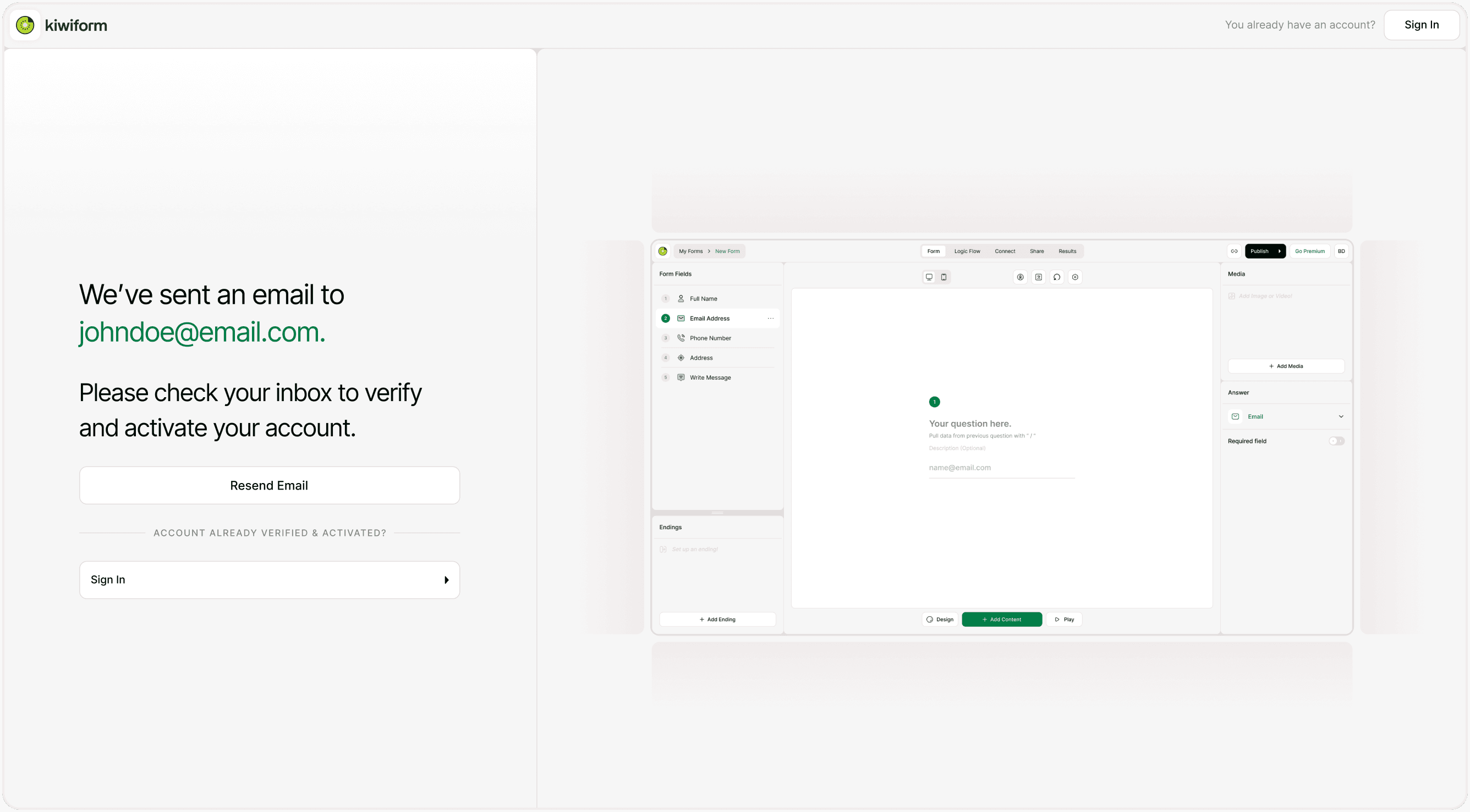
After creating an account with email and password, you must verify your email address.
You will see a confirmation screen that says an email has been sent to your address.
Steps to verify:
Open your email inbox.
Click the verification link.
Return to Kiwiform and sign in.
If you do not see the email:
Check your spam or junk folder.
Click Resend Email on the verification screen.
Resending Verification Email
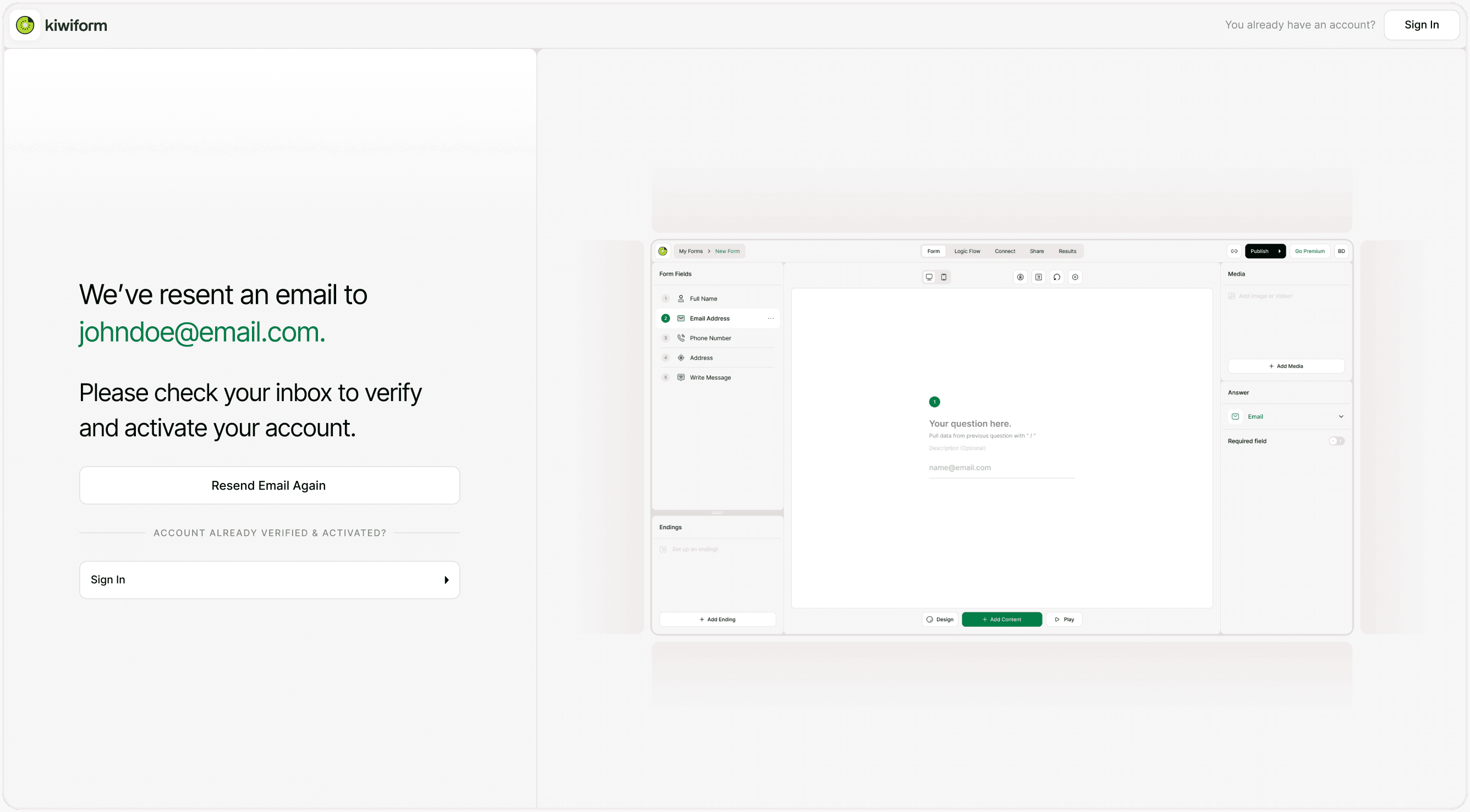
If you did not receive the verification email:
Click Resend Email.
Wait a few minutes.
Check your inbox again.
If the email still does not appear:
Confirm the email address was entered correctly.
Check spam folders.
Ensure your mailbox is not full.
Password Requirements
When creating an account, your password must meet minimum security standards.
A strong password typically includes:
At least 8 characters
A mix of uppercase and lowercase letters
Numbers
Special characters
If your password does not meet requirements, you will see a validation message.
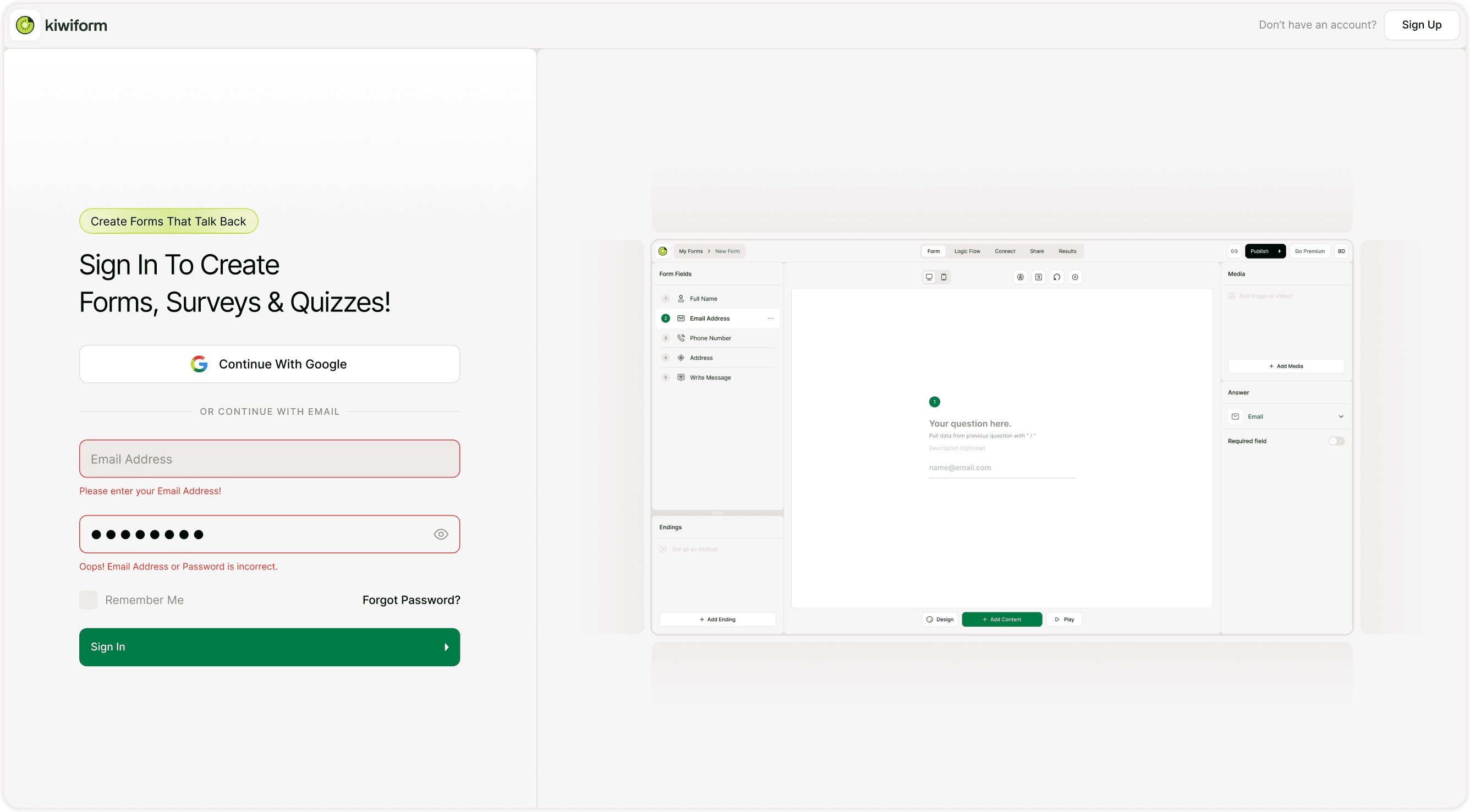
Incorrect Email or Password
If your credentials do not match:
Double-check spelling.
Make sure Caps Lock is off.
Confirm you are using the correct login method (Google vs Email).
If needed, use the Forgot Password? option to reset your password.
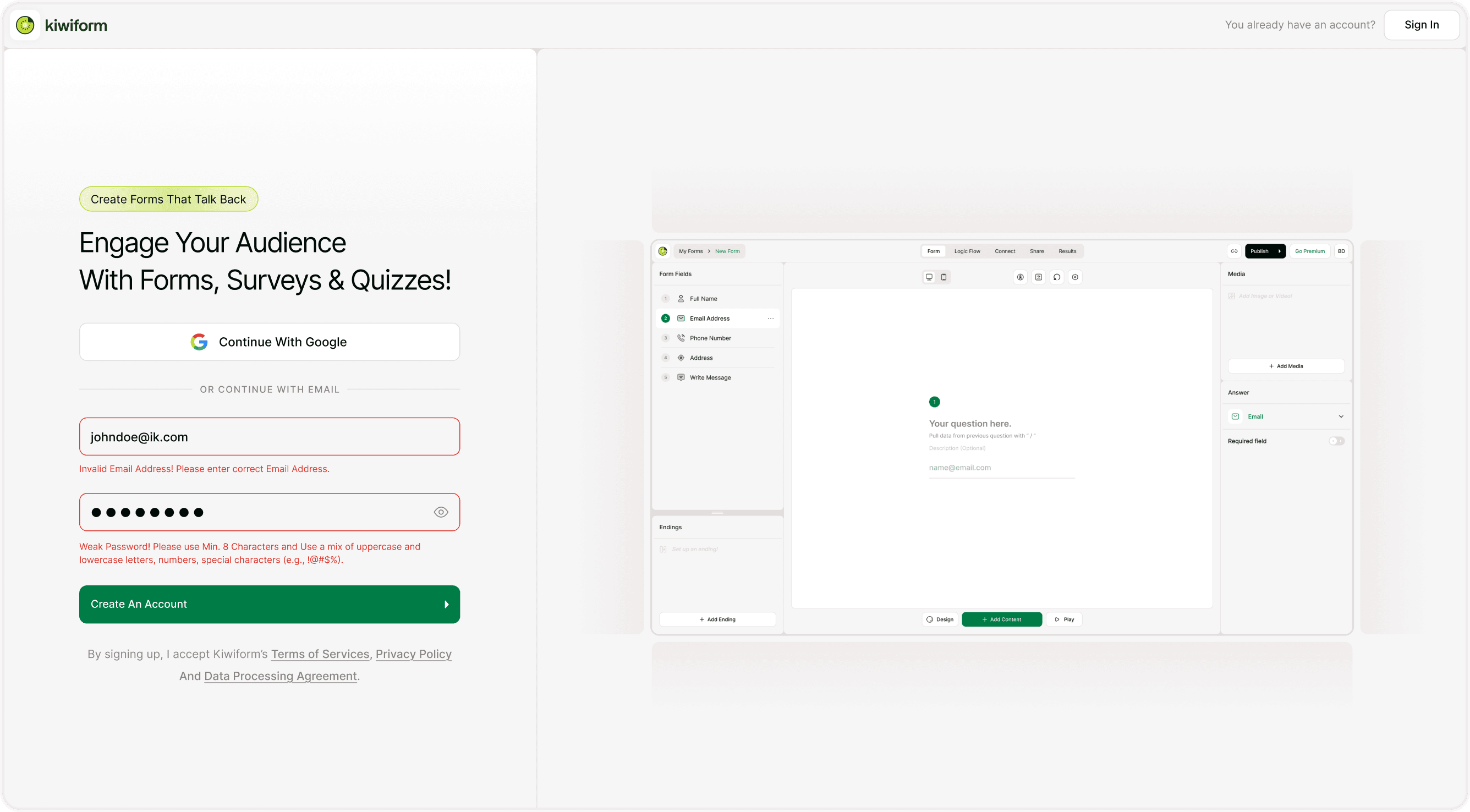
Weak Password During Sign-Up
If your password does not meet security rules:
Add uppercase and lowercase letters.
Include numbers and special characters.
Ensure it meets the minimum character length.
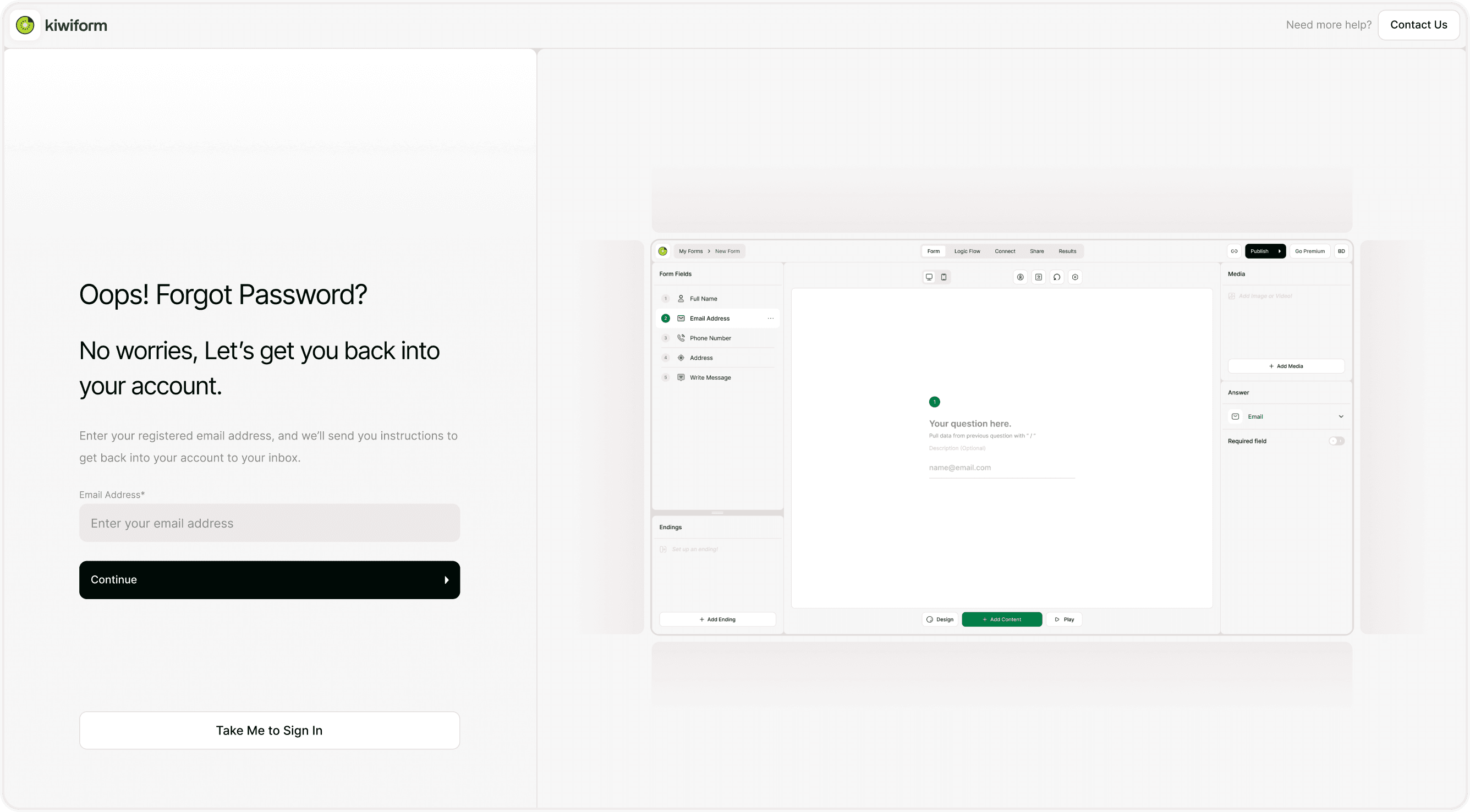
Forgot Password
If you cannot remember your password:
Click Forgot Password?
Enter your registered email.
Follow the reset link sent to your inbox.
This allows you to securely regain access to your account.
Choosing the Right Sign-in Method
You may prefer:
Google Sign-in for faster access and simplified authentication.
Email and Password if you prefer independent login credentials.
Both methods provide secure access to your forms and workspace.
Security Best Practices
To protect your account:
Use a strong, unique password.
Avoid sharing login credentials.
Verify your email promptly.
Log out on shared devices.
These practices help maintain account security and data protection.
When to Contact Support
If you experience ongoing login issues:
Ensure your account is verified.
Confirm the correct sign-in method.
Check for email delivery issues..
If problems continue, contact Kiwiform support with:
The email address used for registration.
A description of the issue.
Any error messages displayed.
Summary
This guide explains the available sign-in methods in Kiwiform, including Google and email login, along with account verification, password requirements, and solutions for common login errors so you can securely access your forms and workspace.