What the Slack integration does
The Slack integration sends instant notifications to your chosen Slack channel whenever someone submits a Kiwiform form. This allows your team to:
See new responses in real time
Act quickly on leads, requests, or feedback
Reduce the need to constantly check dashboards or inboxes
Slack notifications are ideal for visibility, speed, and team collaboration.
When to use Slack Notifications
Slack integration works best when you want instant awareness, not data storage or complex automation.
Use Slack when you want to:
Notify sales teams about new leads
Alert support teams about incoming requests
Inform internal teams about submissions or approvals
Share feedback or survey responses with stakeholders
If you need advanced workflows or multi-step logic, Zapier may be a better option. For simple, fast alerts Slack is perfect.
How to connect Slack to Kiwiform
Open your form in Kiwiform.
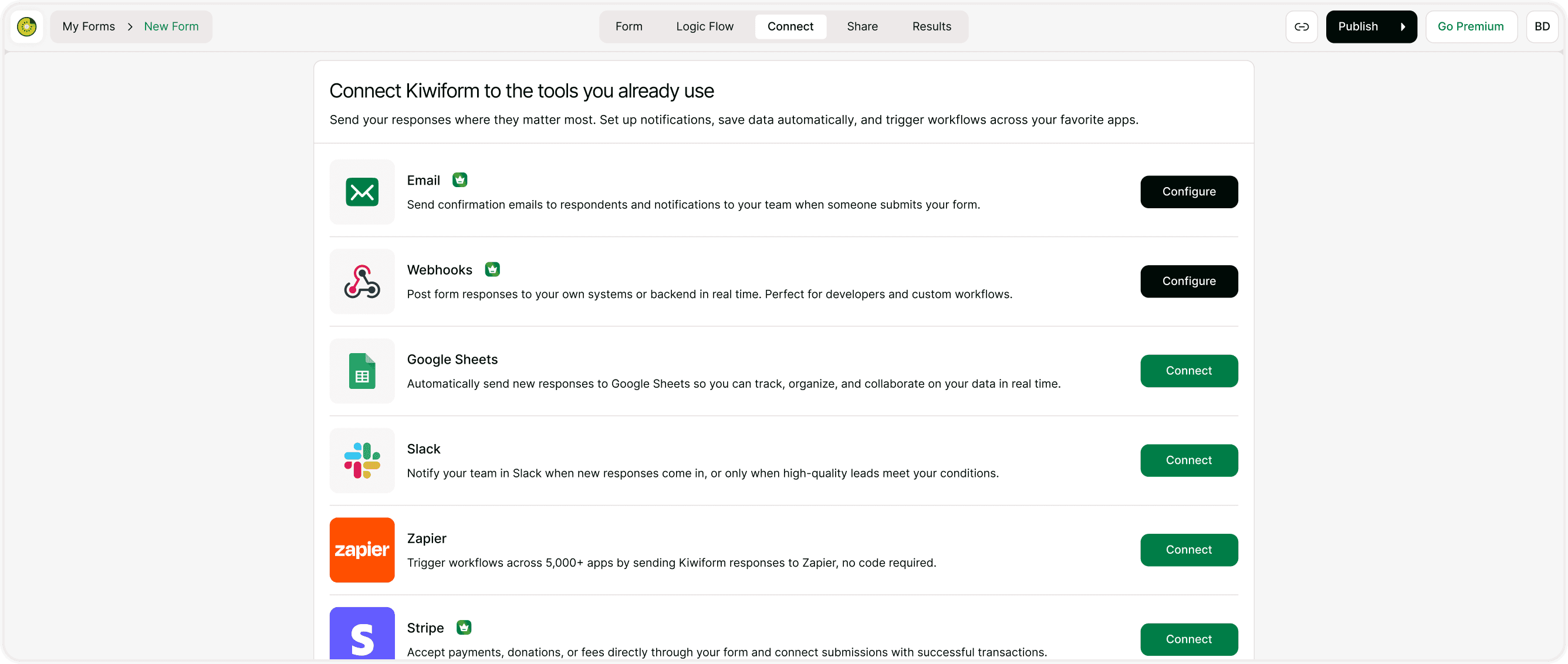
Click Connect in the top navigation.
Select Slack from the integration list.
Authorize Slack
You’ll be redirected to Slack to approve access. Choose the workspace you want Kiwiform to connect with and allow the required permissions.

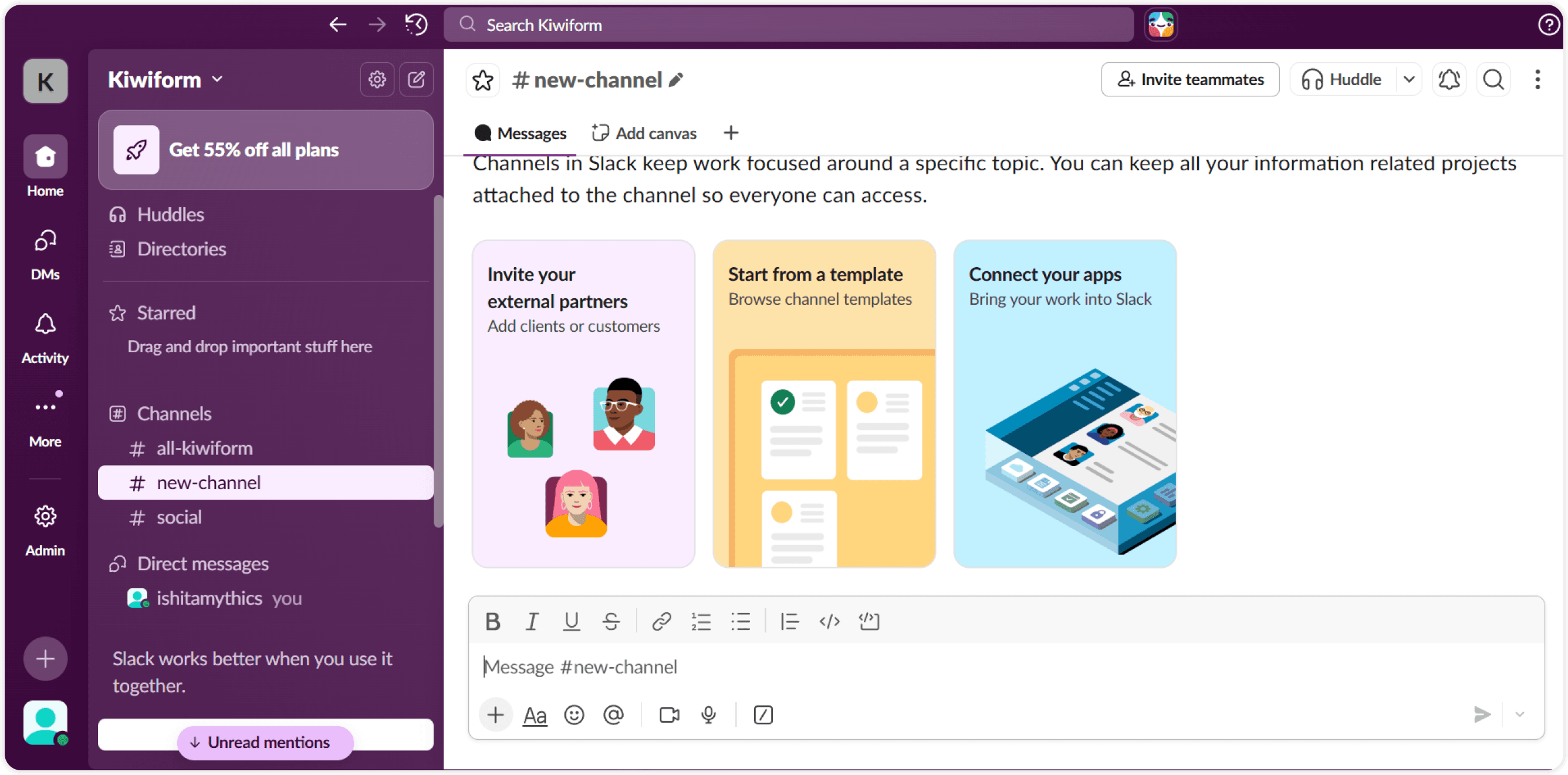
Choose a Slack channel
Select the channel where notifications should be sent. This can be:
A public team channel
A private channel (with permission)
A dedicated alerts channel
Common Slack use cases with Kiwiform
Common setups:
Sales and lead alerts: Notify your sales channel instantly when a new lead submits a form so your team can follow up while interest is high.
Customer support requests: Send support form submissions directly to your support Slack channel to reduce response time.
Feedback and surveys: Share feedback responses with product or marketing teams to keep everyone aligned with user insights.
Internal workflows: Trigger Slack alerts for internal forms like approvals, requests, or incident reports.
Managing and updating Slack connections
You can manage Slack settings anytime:
Change the destination channel
Disconnect Slack from a form
Reconnect with a different workspace
All settings are available under Connect → Slack for each form.
Best Practices
Use a dedicated channel for form alerts
Keep forms concise for readable messages
Combine Slack alerts with dashboards or exports for tracking
Review notifications regularly to avoid noise
Summary
This page explains how to connect Slack with Kiwiform, configure notifications, and use Slack alerts effectively for different teams and use cases. You’ll learn how to choose channels, customize messages, and decide when Slack notifications are the right solution versus other integrations.