What is Spam Protection in Kiwiform?
Spam protection helps prevent bots, automated scripts, and suspicious users from sending fake or low-quality responses to your form. This is especially important for public forms shared on websites, social media, or landing pages.
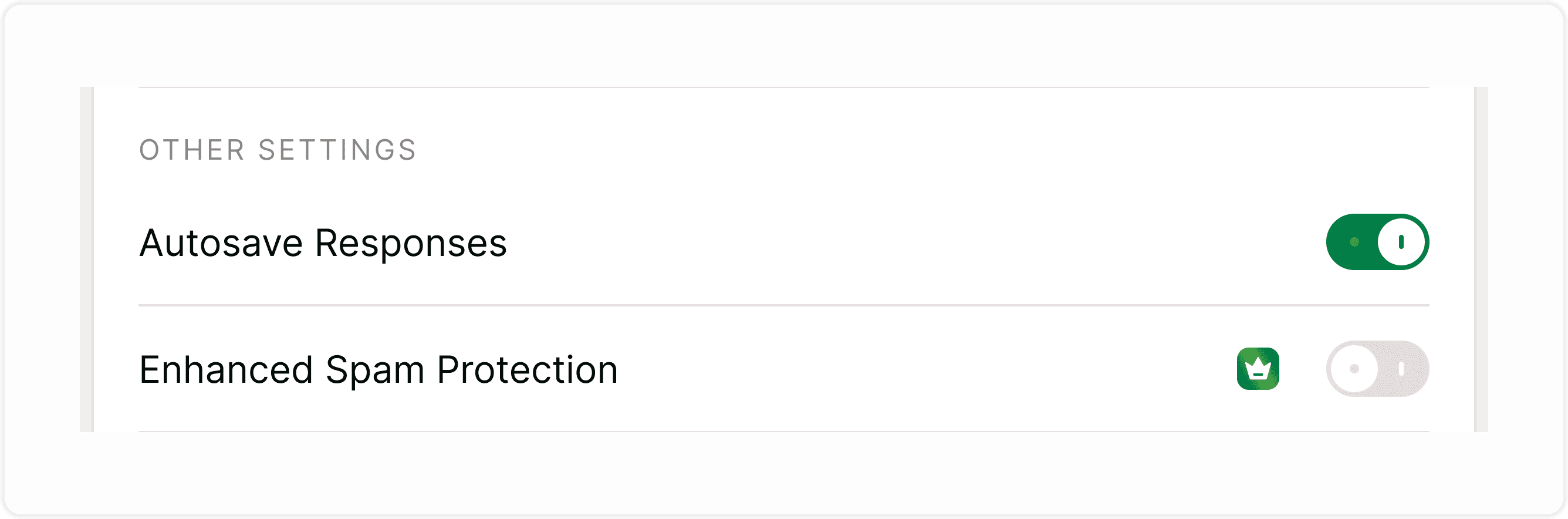
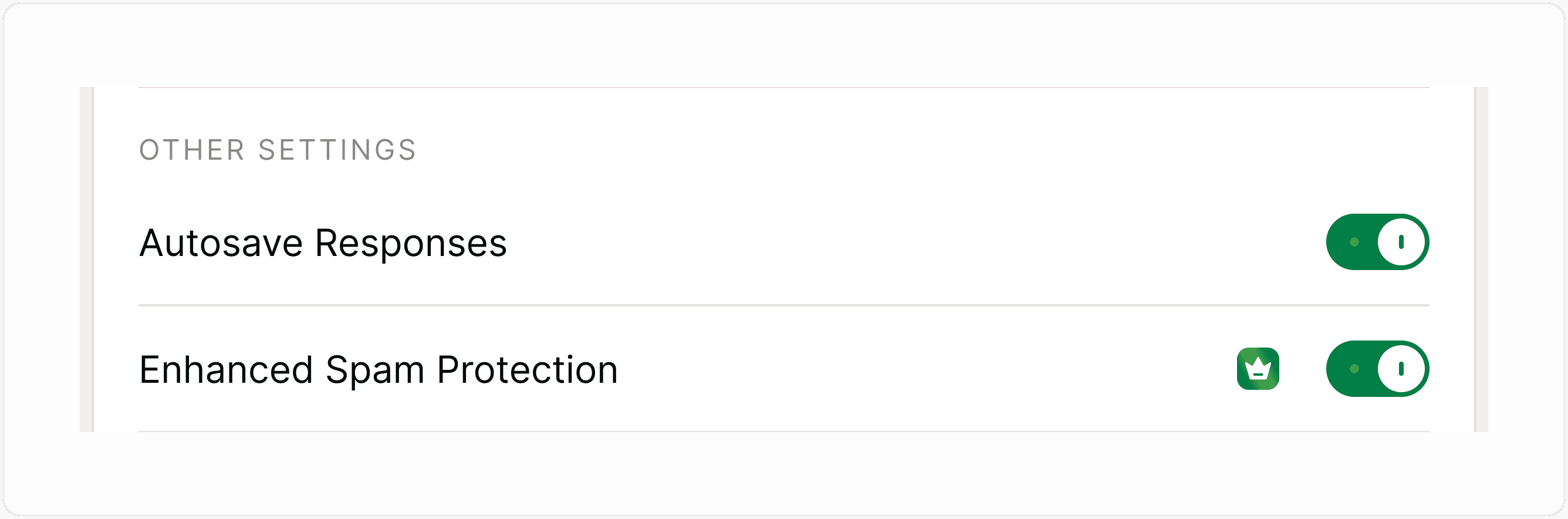
Kiwiform includes Enhanced Spam Protection, which quietly detects suspicious activity and blocks automated submissions without interrupting genuine respondents. You can enable or disable this setting anytime from your form’s General Settings.
Unlike some tools, Kiwiform keeps the process simple—there’s no separate spam folder to manage. Suspicious activity is filtered automatically so you receive cleaner, more reliable responses.
How to Enable Spam Protection
You can enable spam protection directly from your form builder.
Steps:
Open your form in the builder.
Click the Settings icon in the top bar.
Go to the General tab.
Toggle Enhanced Spam Protection ON.
Click Save.
Once enabled, Kiwiform automatically monitors submissions and blocks suspicious activity in the background.
How It Works
Kiwiform’s spam protection uses invisible detection techniques to identify automated or suspicious behavior without showing captchas or extra steps to real users.
This means:
Bots and scripts are blocked automatically.
Real respondents can submit without friction.
No additional setup is required after enabling the toggle.
Responses remain clean and trustworthy.
Because spam detection runs silently, your respondents won’t see interruptions, which helps maintain high completion rates.
When Should You Use Spam Protection?
Spam protection is recommended for most forms, especially if they are publicly accessible.
Use it when:
Your form is embedded on a public website
You share forms on social media
You collect sign-ups or leads
You run surveys or feedback forms
You notice unusual or repeated submissions
If your form is internal or restricted to a small audience, you can leave it off—but keeping it enabled is generally a good practice.
Combine With Other Controls
For stronger protection and better response quality, use spam protection alongside:
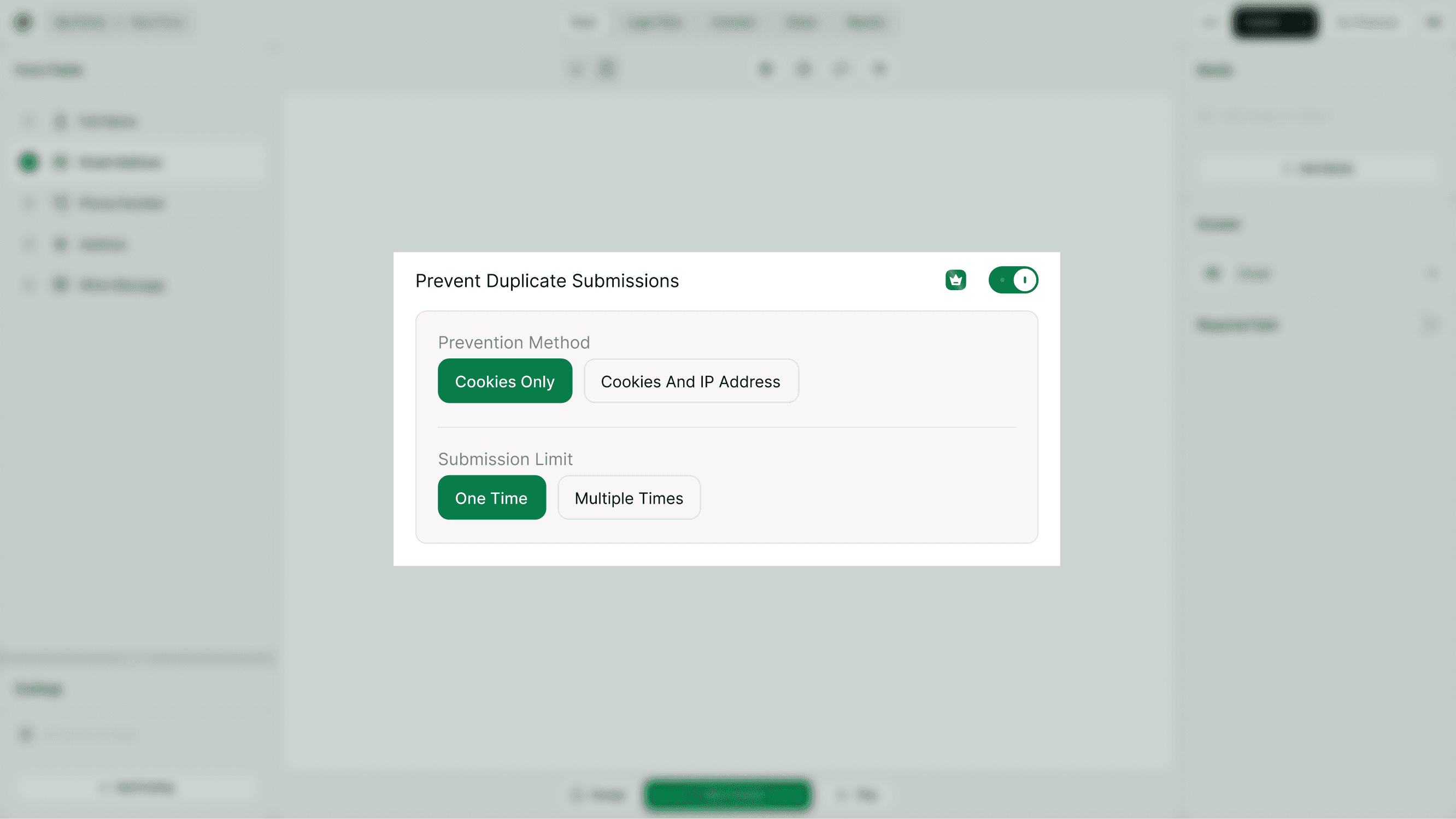
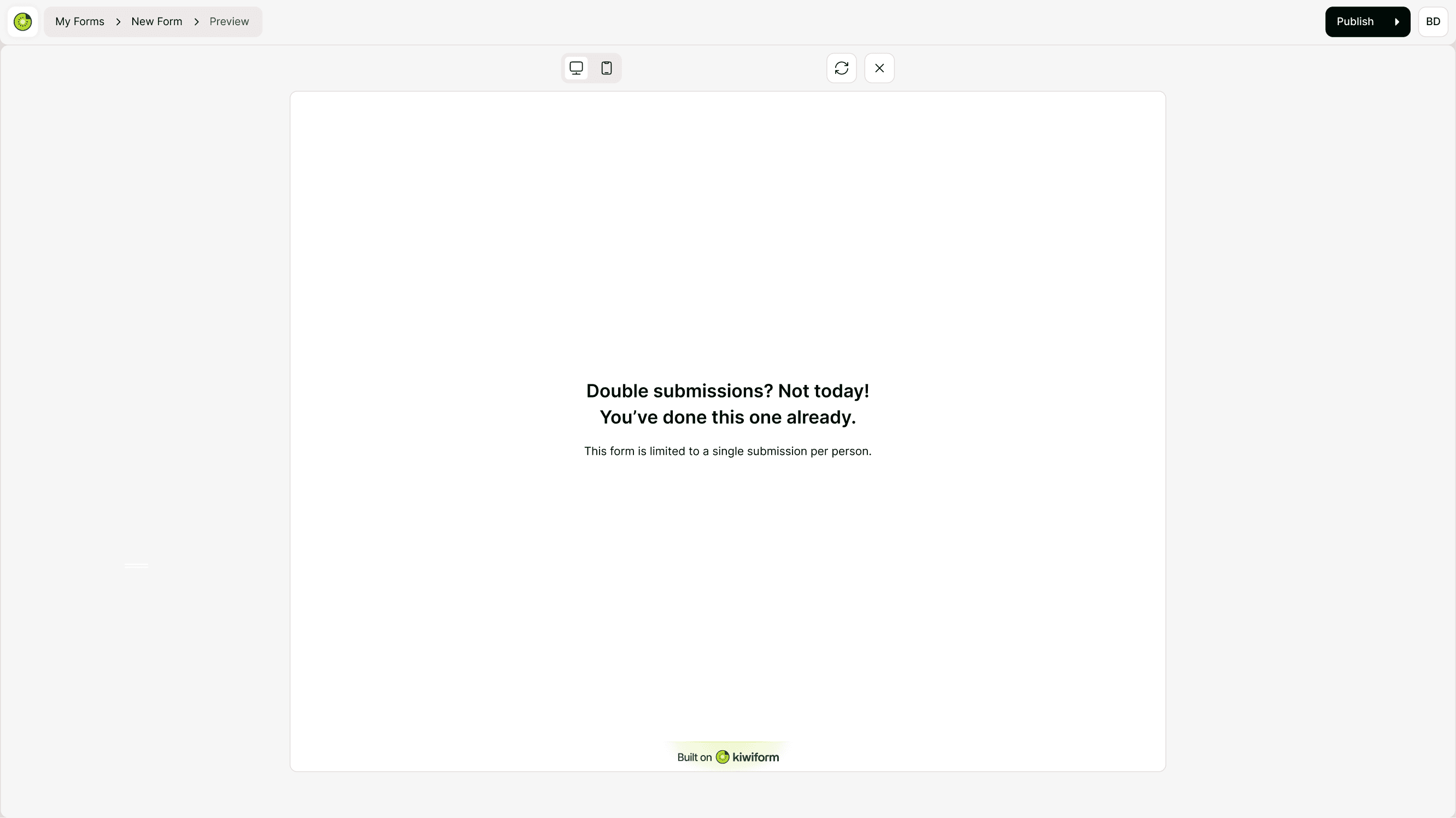
Duplicate prevention
Submission limits
Access & availability scheduling
Required fields and validation
Together, these settings help ensure every response is genuine and useful.
Troubleshooting
Receiving suspicious responses?
Make sure Enhanced Spam Protection is enabled and saved.
Not seeing spam responses in results?
Kiwiform filters suspicious activity automatically, so you won’t see a separate spam folder.
Concerned about blocking real users?
The detection system is designed to avoid interrupting genuine respondents and works silently in the background.
Best Practices
Keep spam protection ON for public forms.
Combine with duplicate prevention for maximum control.
Test your form after enabling to confirm everything works as expected.
Review responses regularly to ensure quality.
Summary
Spam protection in Kiwiform helps keep your form results clean by blocking bots and suspicious submissions automatically. With a simple toggle in General Settings, you can protect your forms without adding friction for real respondents.