What are System Default Messages?
System Default Messages are the built-in prompts and feedback text that appear throughout your form experience. These include submit button labels, keyboard hints, validation errors, upload messages, and completion confirmations.
Instead of leaving these messages generic, Kiwiform lets you tailor them to match your brand voice, tone, and use case. This is especially useful when you want your form to feel polished, friendly, and aligned with your product or organization.
Customizing system messages ensures respondents always understand what to do next, what went wrong, and what happens after submission.
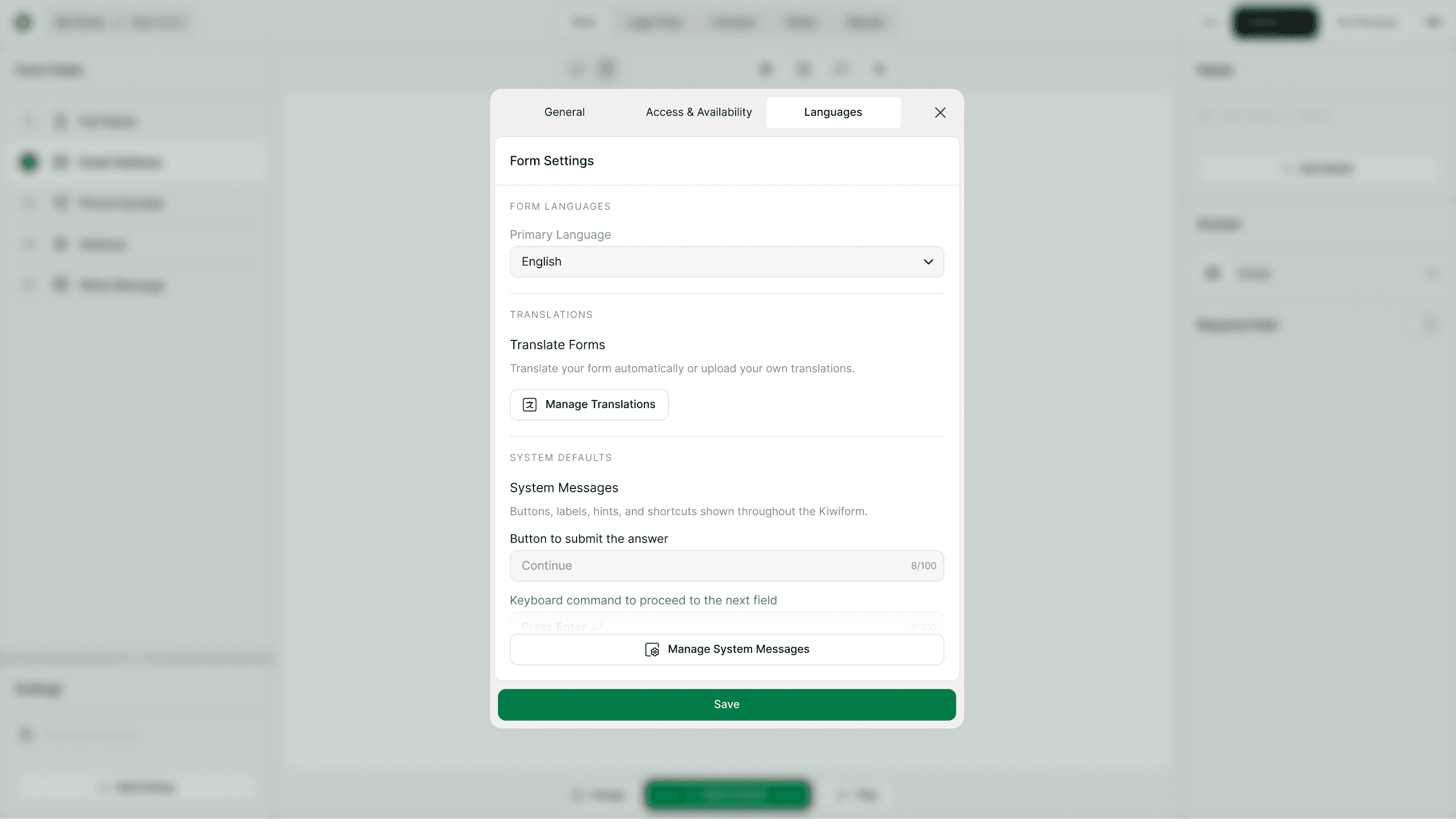
Where to find System Default Messages
You can manage system messages from the form builder settings.
Open your form in the builder
Click Settings in the top toolbar
Go to the Languages tab
Under System Defaults, click Manage System Messages
A dedicated settings panel will open where you can edit and save messages
Changes apply instantly across the entire form once saved.
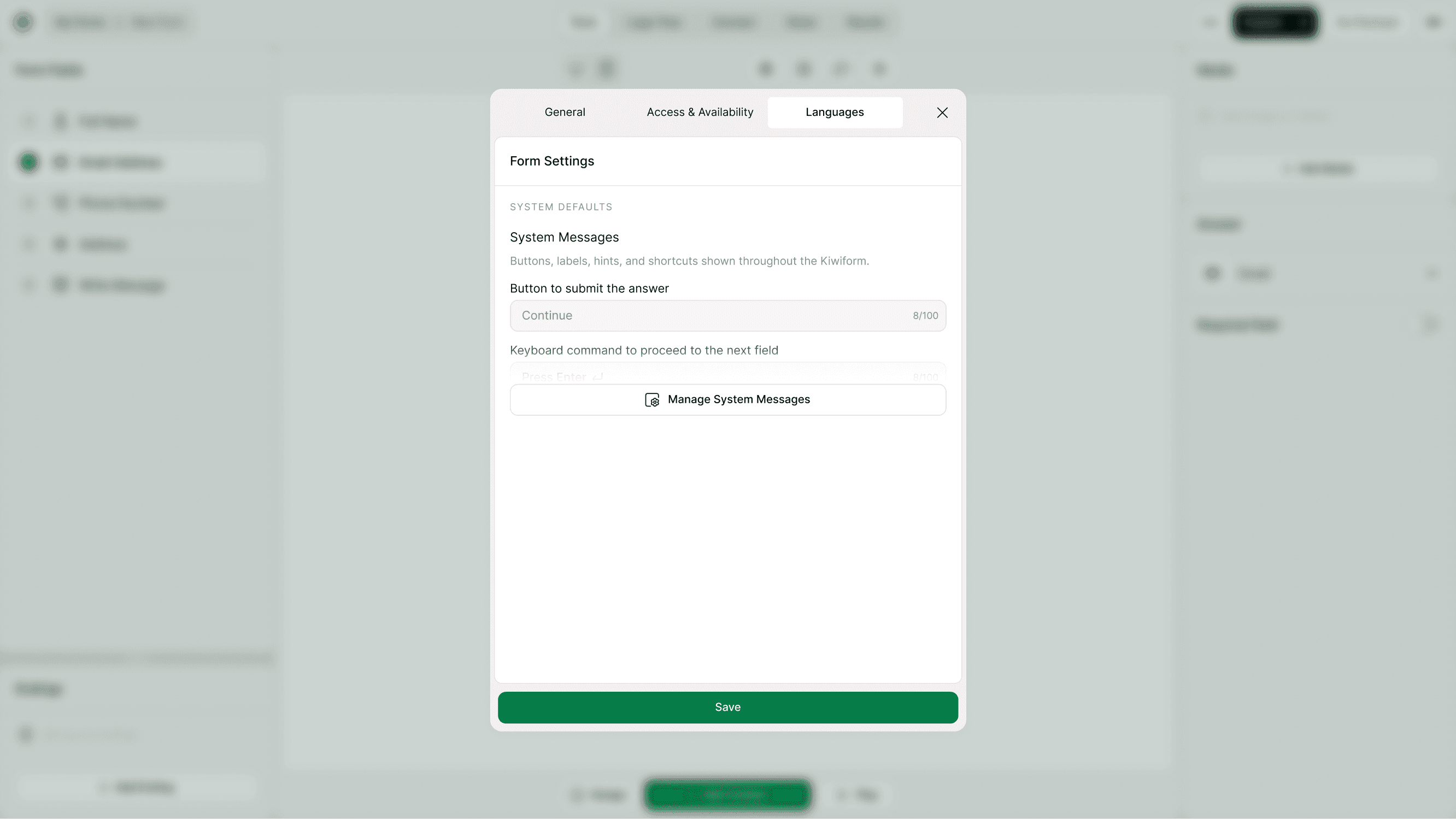
Why customize system messages
Custom system messages improve clarity, accessibility, and brand consistency. They help you:
Match the tone of your brand or product
Provide clearer instructions for respondents
Reduce confusion and drop-offs
Localize or simplify wording
Improve accessibility and usability
Create a more human, conversational form experience
For example, instead of a generic “Submit,” you might use “Send feedback,” “Join waitlist,” or “Book my slot.”
Categories of system messages you can edit
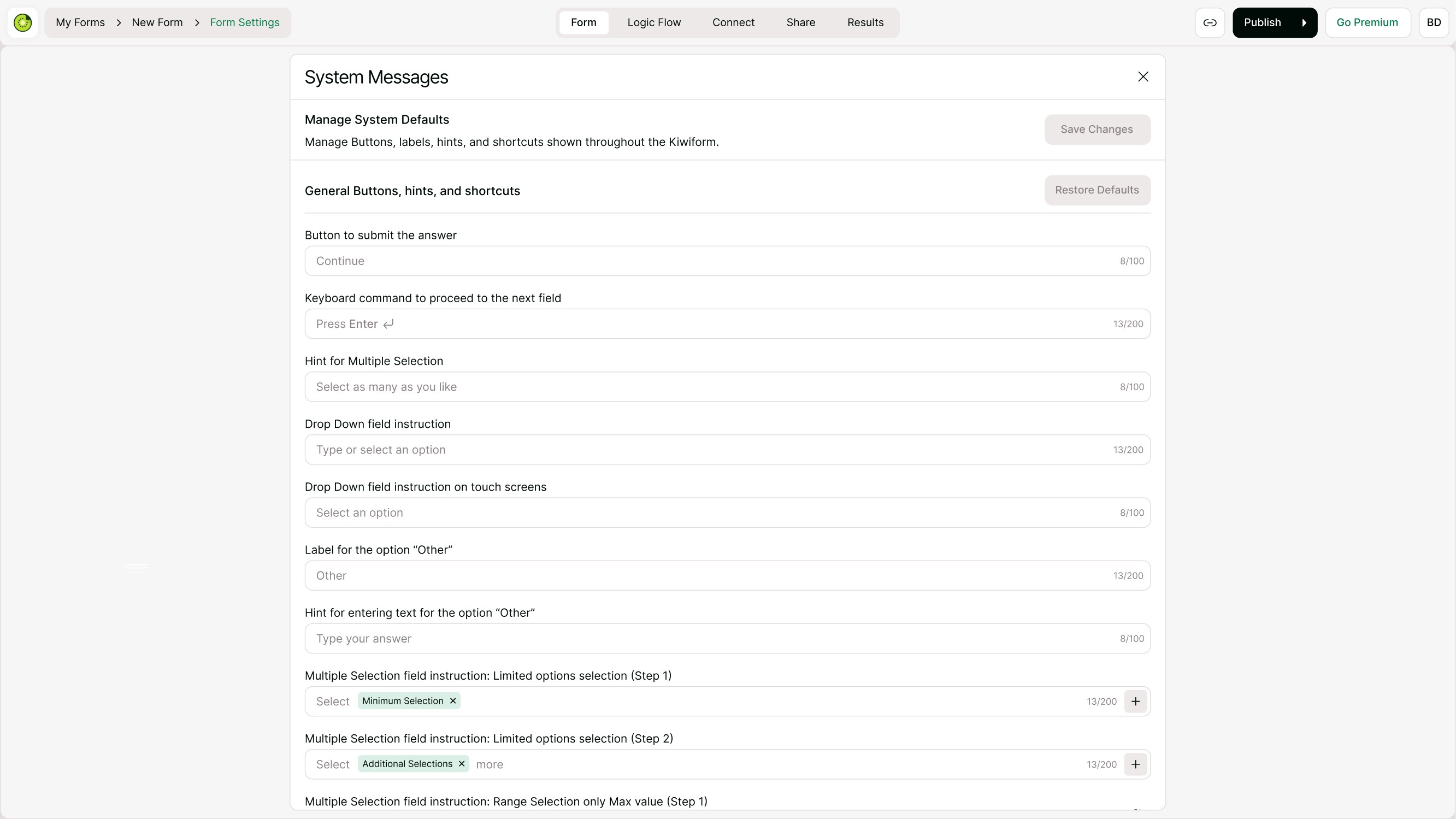
General buttons, hints, and shortcuts
These are the most commonly seen messages during form completion. You can customize:
Submit button label
Keyboard shortcuts
Field hints
Dropdown instructions
Multiple-choice hints
Navigation prompts
Use this section to make your form feel conversational and intuitive.
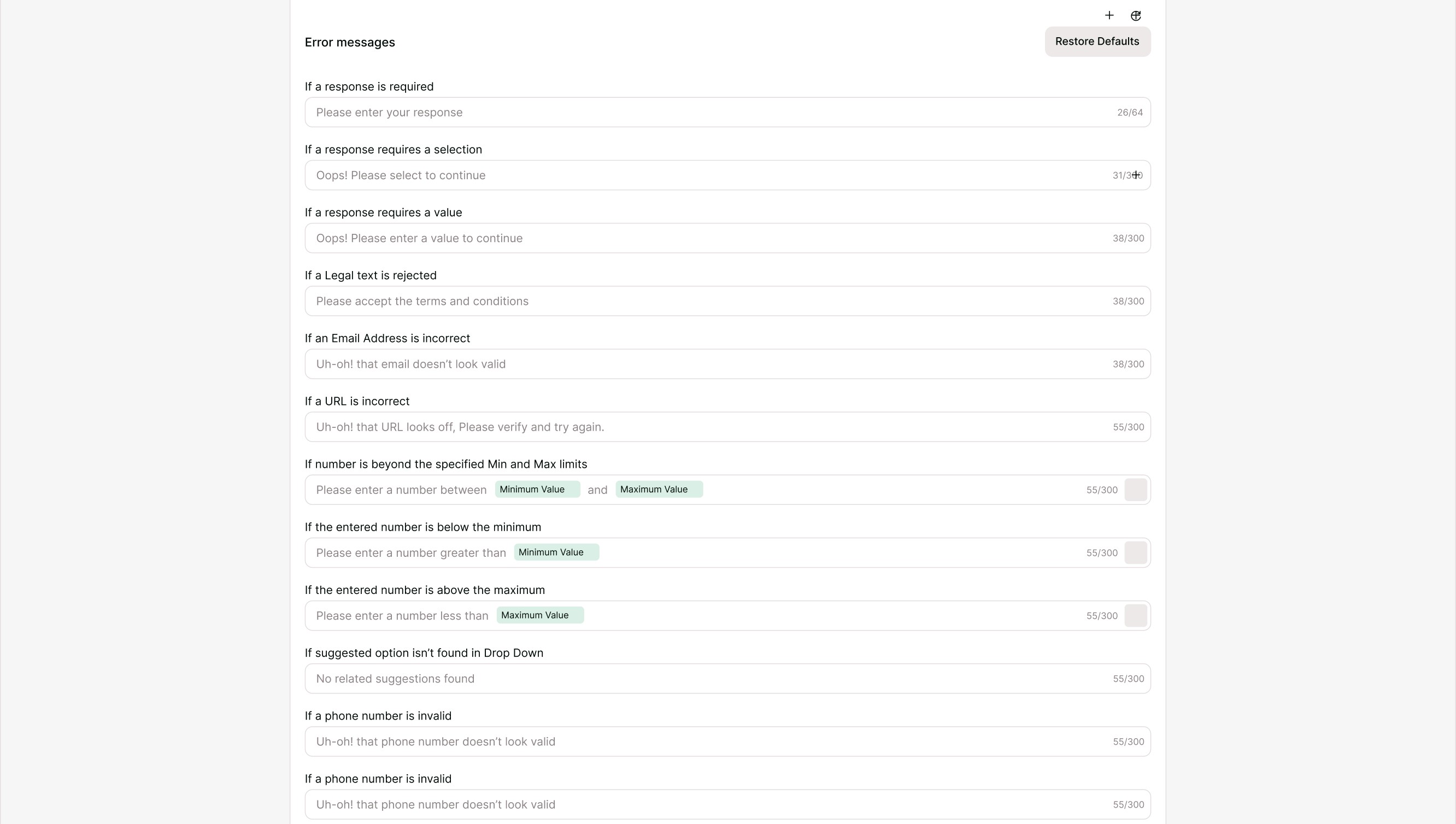
Error messages
Error messages appear when respondents miss required inputs or enter invalid information. You can edit:
Required field messages
Invalid email or URL alerts
Selection errors
Number validation errors
Phone number validation
File upload limits
Clear, friendly error messages reduce friction and help respondents complete the form faster.
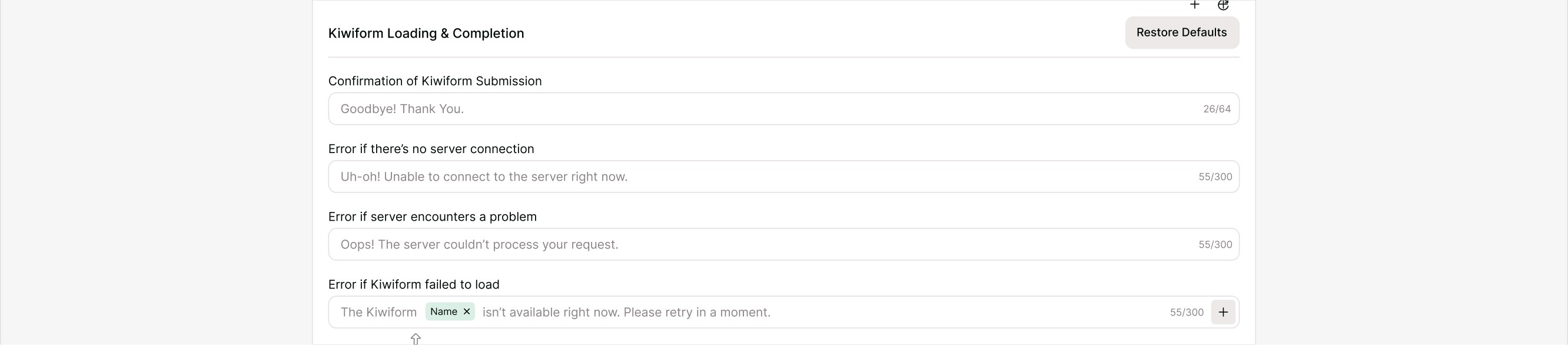
Loading and completion messages
These messages appear during submission and after completion. You can customize:
Submission confirmation message
Loading messages
Server error fallback text
Retry prompts
Use this to reassure respondents that their submission was successful or guide them if something goes wrong.
Miscellaneous messages
This section includes additional prompts that appear in specific situations, such as:
Browser compatibility alerts
Special interaction hints
Miscellaneous guidance text
These messages help maintain clarity in edge cases.
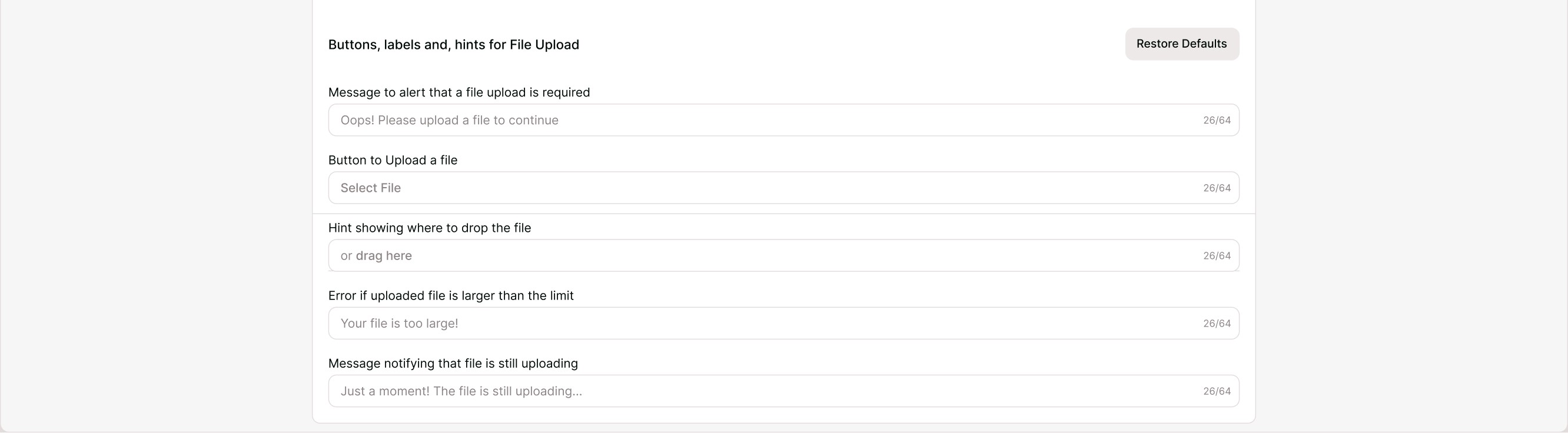
File upload messages
If your form includes file uploads, you can customize:
Upload button text
Drag-and-drop instructions
File size error messages
Upload progress text
This ensures respondents understand exactly how to upload files and what to expect.
Best practices for writing system messages
Keep it simple
Use clear, direct language that’s easy to understand.
Match your brand voice
Whether formal or friendly, keep tone consistent.
Be helpful, not technical
Replace technical errors with human-readable guidance.
Use action-oriented wording
Example: “Select an option to continue” instead of “Invalid input.”
Test your form after changes
Preview the form to confirm everything reads naturally.
When to customize system messages
You should consider editing system messages when:
Building branded forms for clients
Creating public-facing forms
Running surveys or feedback forms
Collecting leads or applications
Translating forms into different languages
Improving accessibility and clarity
Even small wording tweaks can significantly improve completion rates.
How changes affect live forms
Once you save updates:
Changes apply across the entire form
All respondents see the updated messages
Existing responses remain unchanged
You can edit messages anytime
Always preview your form after editing to ensure the experience feels smooth.
Troubleshooting
Changes not appearing?
Make sure you clicked Save Changes before closing.
Message too long?
Keep text concise so it fits comfortably in UI elements.
Different languages?
If using translations, review messages in each language version.
Summary
System Default Messages give you full control over how your form communicates with respondents. By customizing labels, hints, and feedback text, you create a clearer, friendlier, and more professional experience from start to finish.
This small but powerful setting helps your forms feel intentional, branded, and easy to complete.