What is the Text Area [Long] field
The Text Area [Long] field is designed for collecting longer, open-ended responses. It works best when you want respondents to explain, describe, or share detailed input in their own words, such as feedback, testimonials, support requests, or survey answers.
Unlike short text inputs, this field gives respondents more space and encourages thoughtful responses. It’s commonly used in feedback forms, contact forms, applications, and surveys where context and explanation matter.
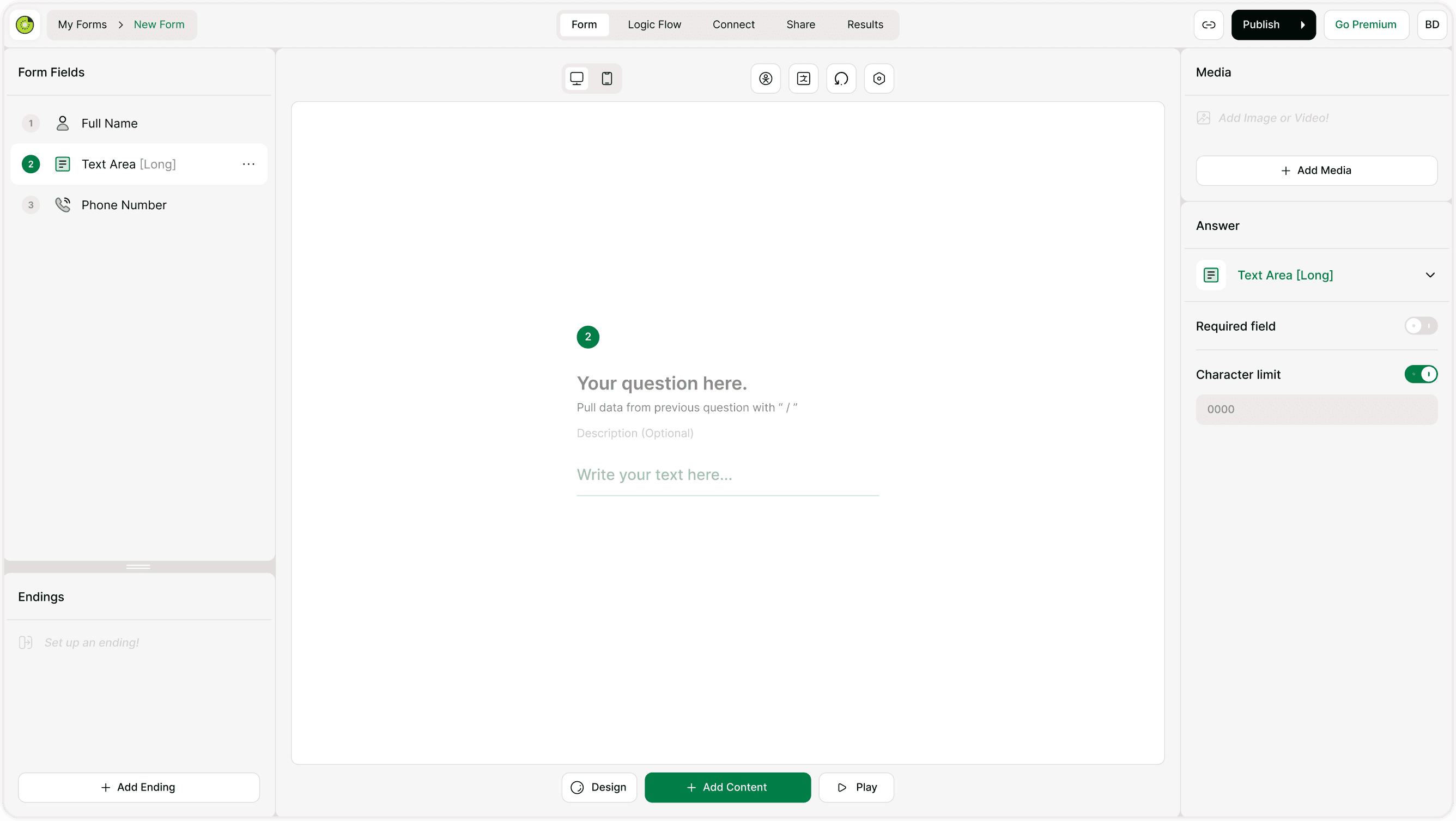
How to add a Text Area [Long] field
To add this field while building your form:
Open the form builder.
Click + Add Content at the bottom of the builder.
Select Text Area [Long] from the list of form fields.
Add your question or prompt.
Configure settings in the Answer panel.
This field will appear as a larger text input area in the respondent view, making it clear that longer responses are expected.
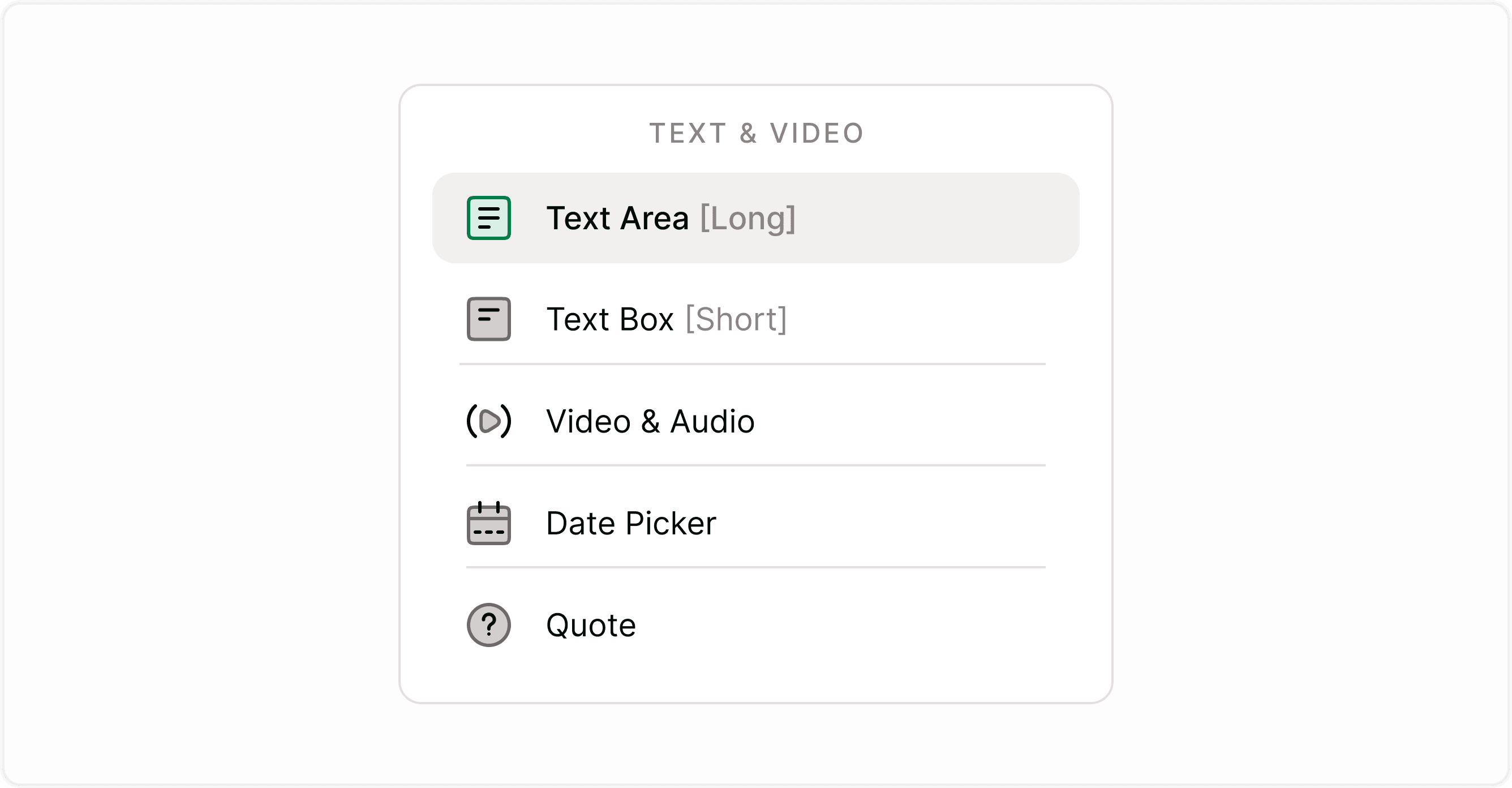
Configure the Text Area [Long] field
When you select the field, the Answer panel on the right lets you control how it behaves.
Required field
Turn on Required field if respondents must provide an answer before continuing. This helps ensure you don’t miss important information, especially in feedback or support forms.
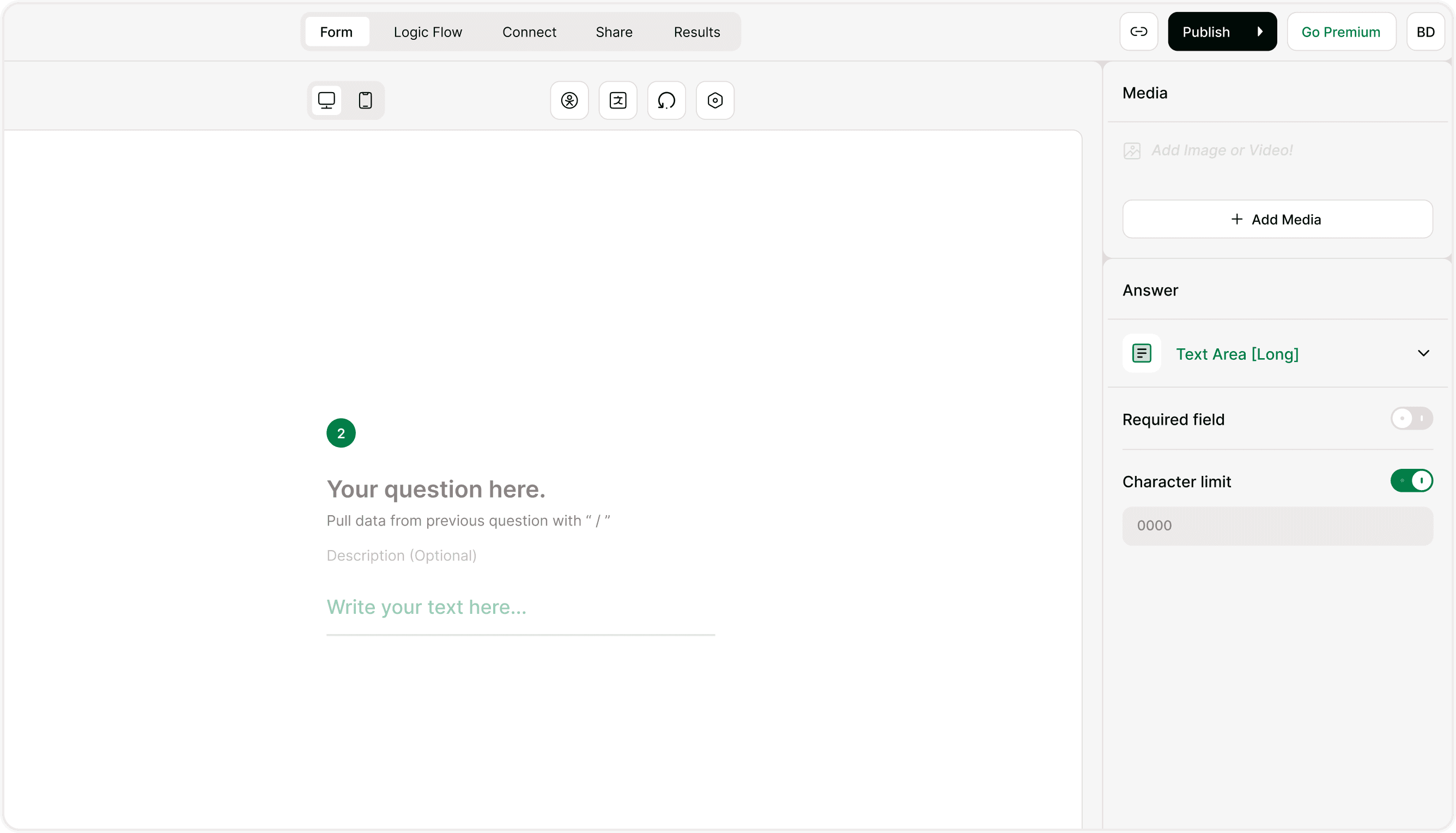
Character limit
You can enable a Character limit to control how long responses can be.
Turn on the Character limit toggle.
Enter the maximum number of characters allowed.
Respondents will not be able to exceed this limit.
This is useful when you want concise answers or need responses to fit within a certain length (for example: 500-character feedback or 1000-character descriptions).
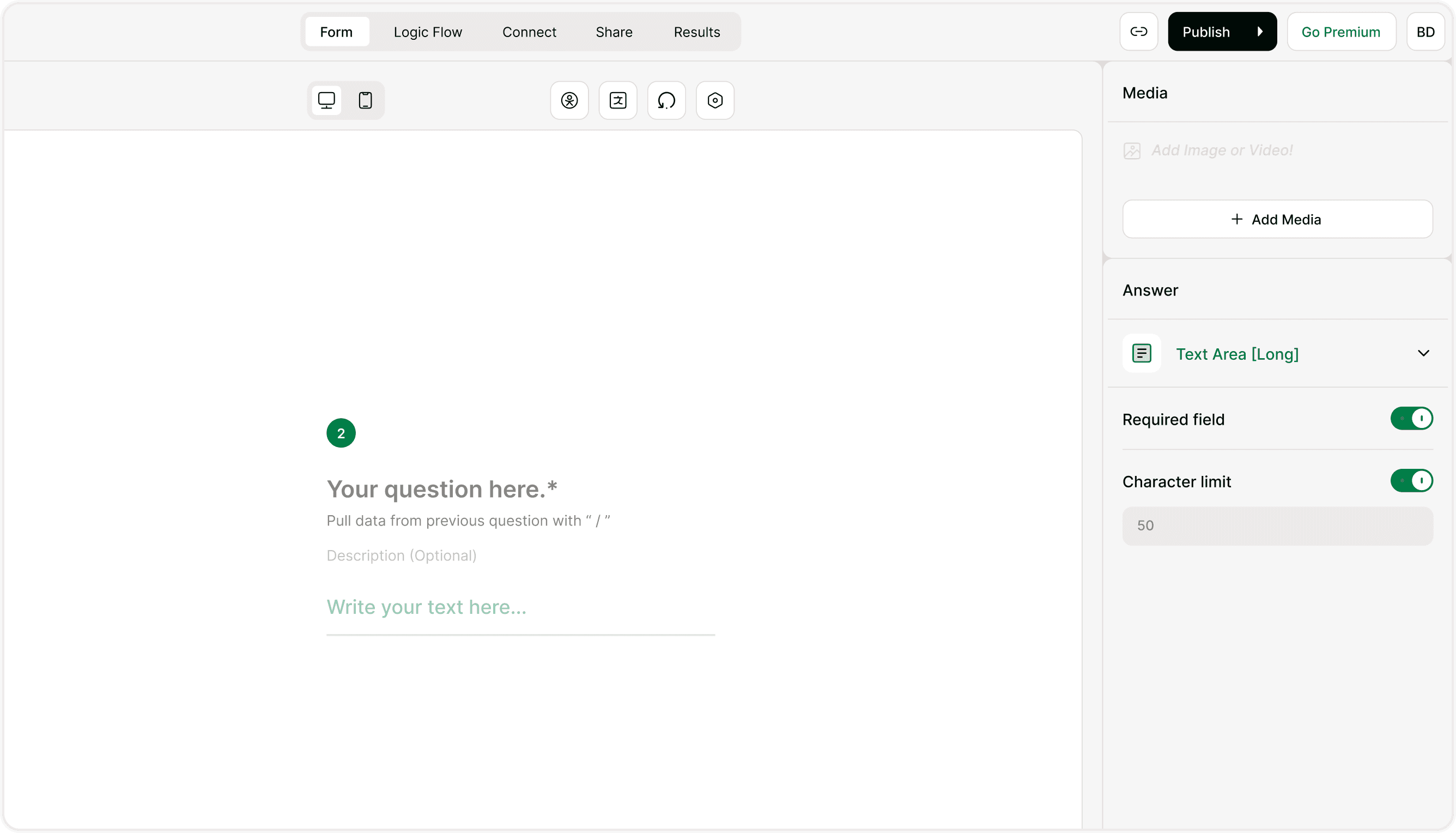
How it appears to respondents
In the live form, respondents see a larger text box with a clear placeholder like “Write your text here…”. If a character limit is set, they’ll be guided to stay within that limit while typing.
This layout makes it easy for users to share detailed responses without feeling constrained.
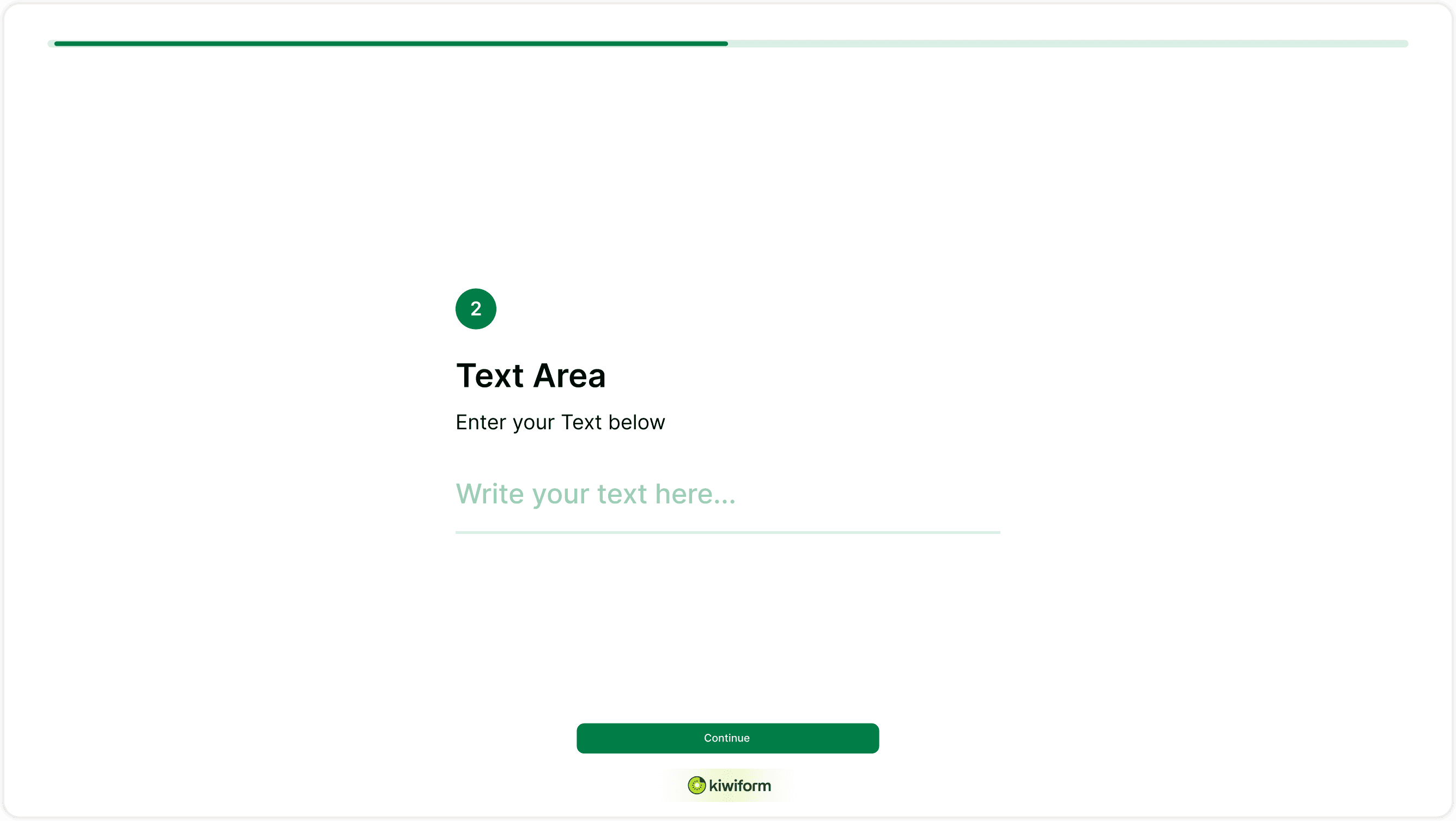
Preview of Text Area field in form view.
Use the Text Area [Long] field when you want detailed input such as:
Feedback and suggestions
Support or inquiry messages
Application answers
Testimonials
Survey responses
Descriptions or explanations
If you only need short answers (like a name or short note), use the Text Box [Short] field instead.
Tips for better responses
Ask clear, specific questions.
Add helpful descriptions or examples.
Use character limits when needed.
Avoid making long responses required unless necessary.
This helps improve response quality and completion rates.
Summary
The Text Area [Long] field helps you collect thoughtful, detailed responses in your forms. You can make it required, set character limits, and guide respondents to share meaningful input. Use it whenever you need more than a simple one-line answer.