Text Box [Short] field in Kiwiform
The Text Box [Short] field is designed for quick, concise inputs. It keeps forms fast and easy to complete by limiting responses to a single line.
Use it when you expect short answers like:
First or last names
Job titles
City names
Reference numbers
Short open-ended responses
Because it’s lightweight and simple, this field helps reduce friction and improves completion rates in conversational forms.
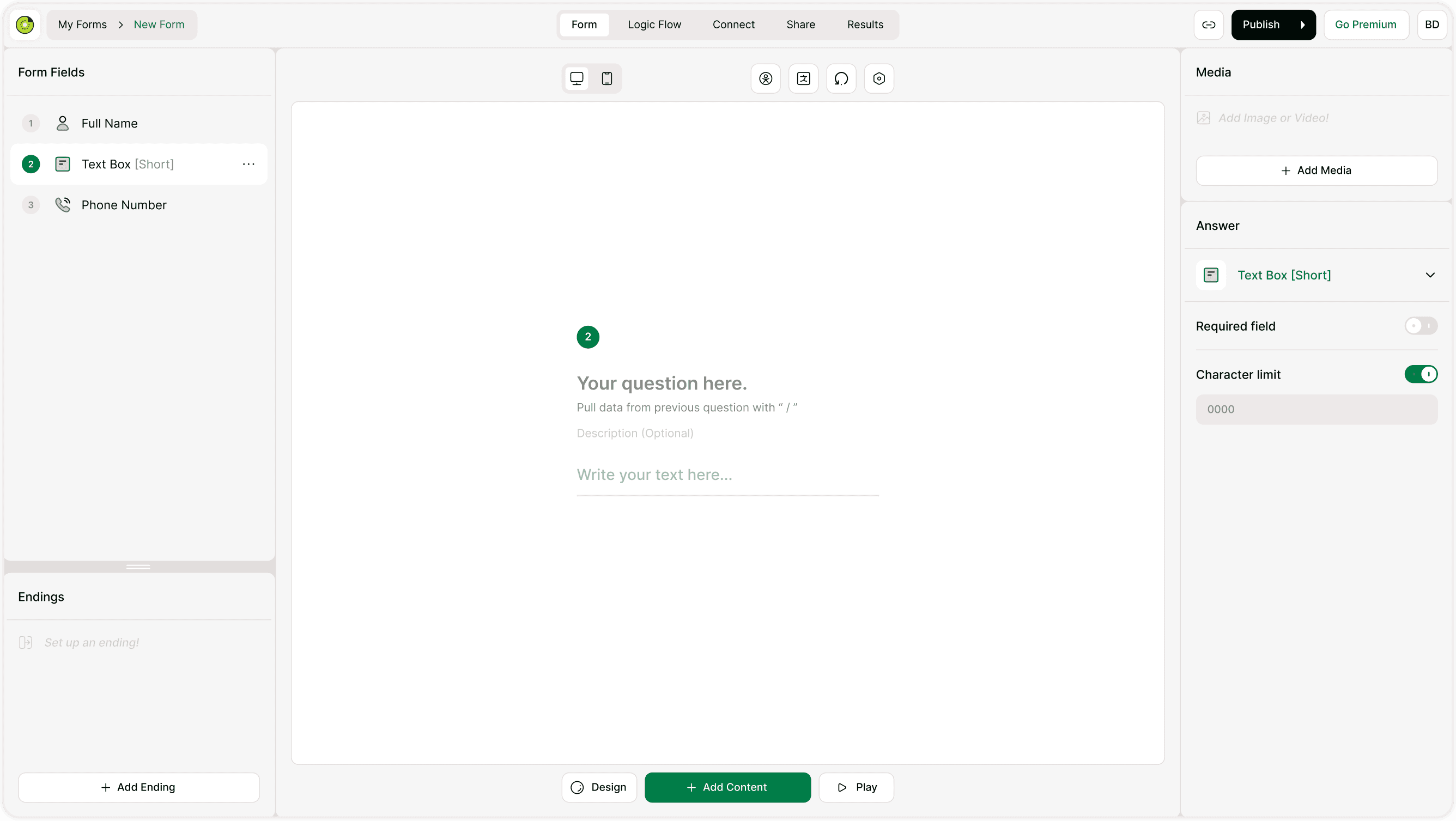
Add a Text Box [Short] field
Click + Add Content in the form builder.
Choose Text Box [Short] from Text & Video fields.
Enter your question or prompt.
Configure settings in the Answer panel on the right.
You can reorder the field anytime by dragging it within the Form Fields list.
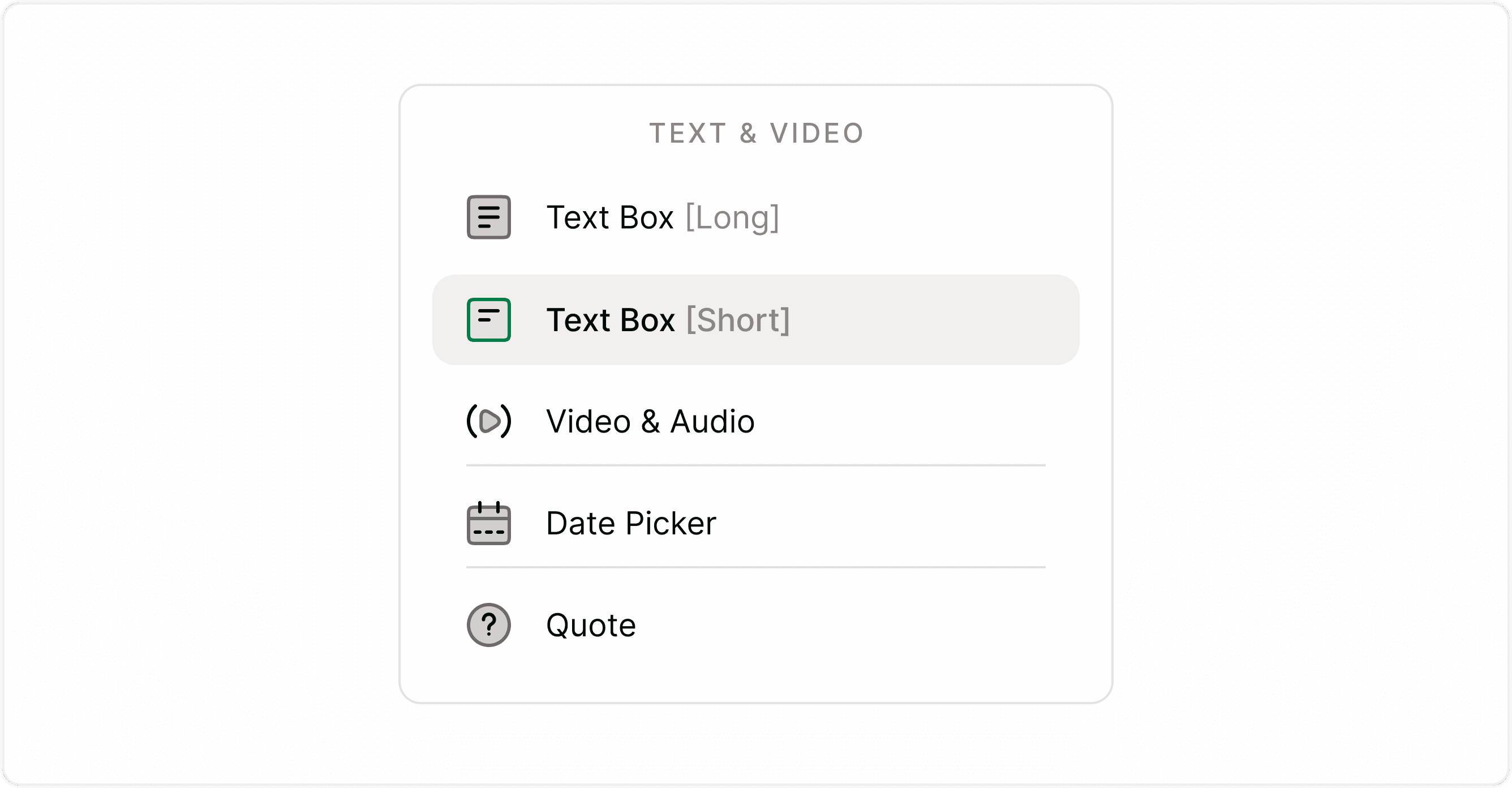
Add Content modal with Text Box [Short] highlighted.
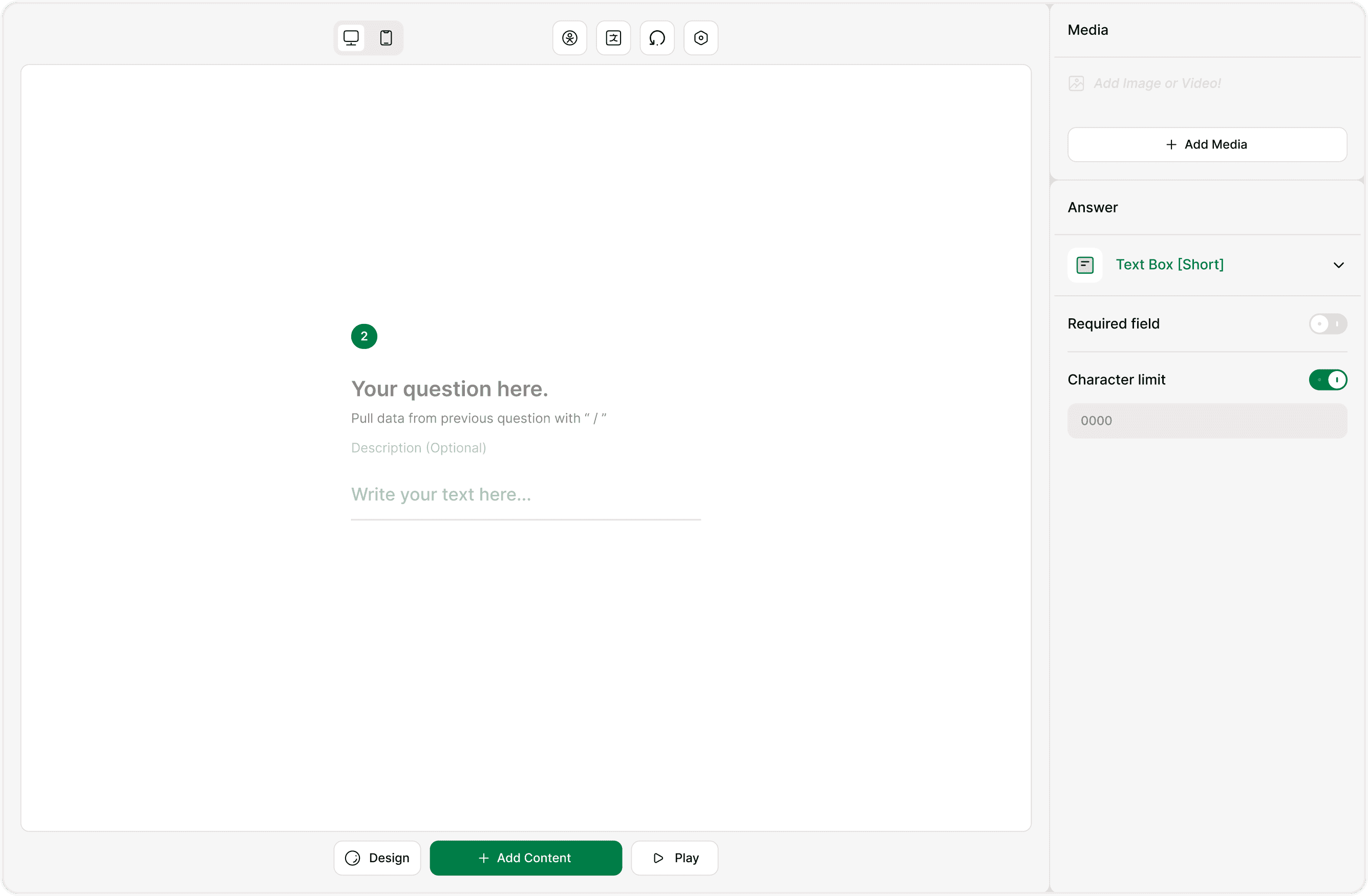
Required field
Turn on Required field to make the question mandatory. If enabled, respondents must enter a value before moving forward. Use this when the answer is essential (e.g., name or ID).
Character limit
You can enable a character limit to control response length. Once turned on, enter the maximum number of characters allowed.
Use cases:
Limit short descriptions
Restrict usernames or IDs
Keep answers consistent for analysis
If no limit is set, respondents can enter any short text.
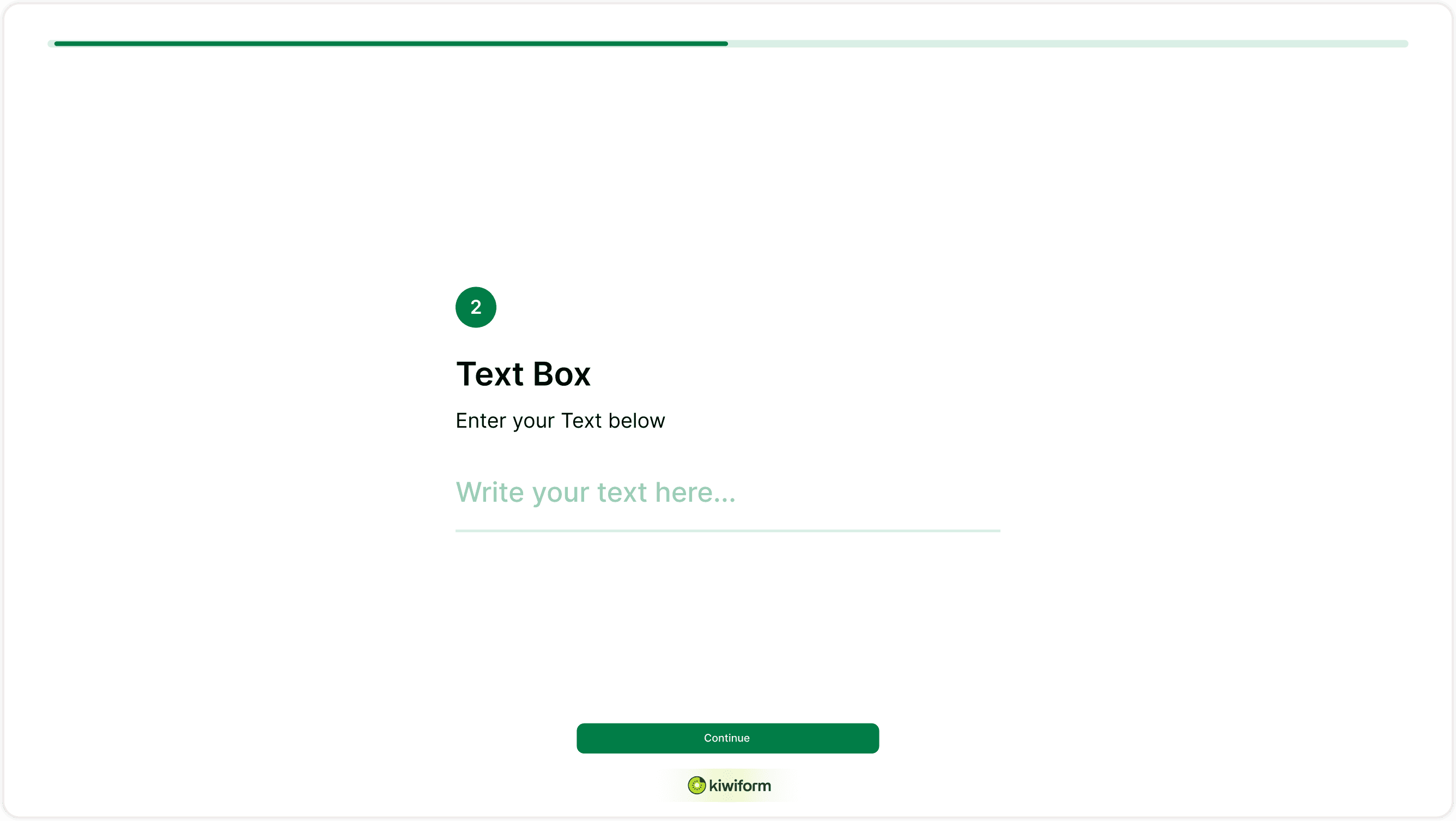
How it appears to respondents
Respondents will see a single-line input field with your question and optional description.
If required, they must enter text before continuing.
If a character limit is set, they’ll be restricted to the defined length.
This keeps the experience quick, clear, and distraction-free.
When to use Text Box vs Text Area
Use Text Box [Short] when responses should be brief.
Use Text Area [Long] when you expect detailed answers or feedback.
Best practices
Use clear prompts: “Your job title” works better than “Tell us more.”
Keep it short and focused.
Use character limits when consistency matters.
Avoid using this field for long feedback, use Text Area instead.
Summary
The Text Box [Short] field helps you collect quick, structured responses without slowing down your form. With required validation and character limits, it ensures consistent and reliable short inputs while keeping the experience simple for respondents.