What Is the Theme Library?
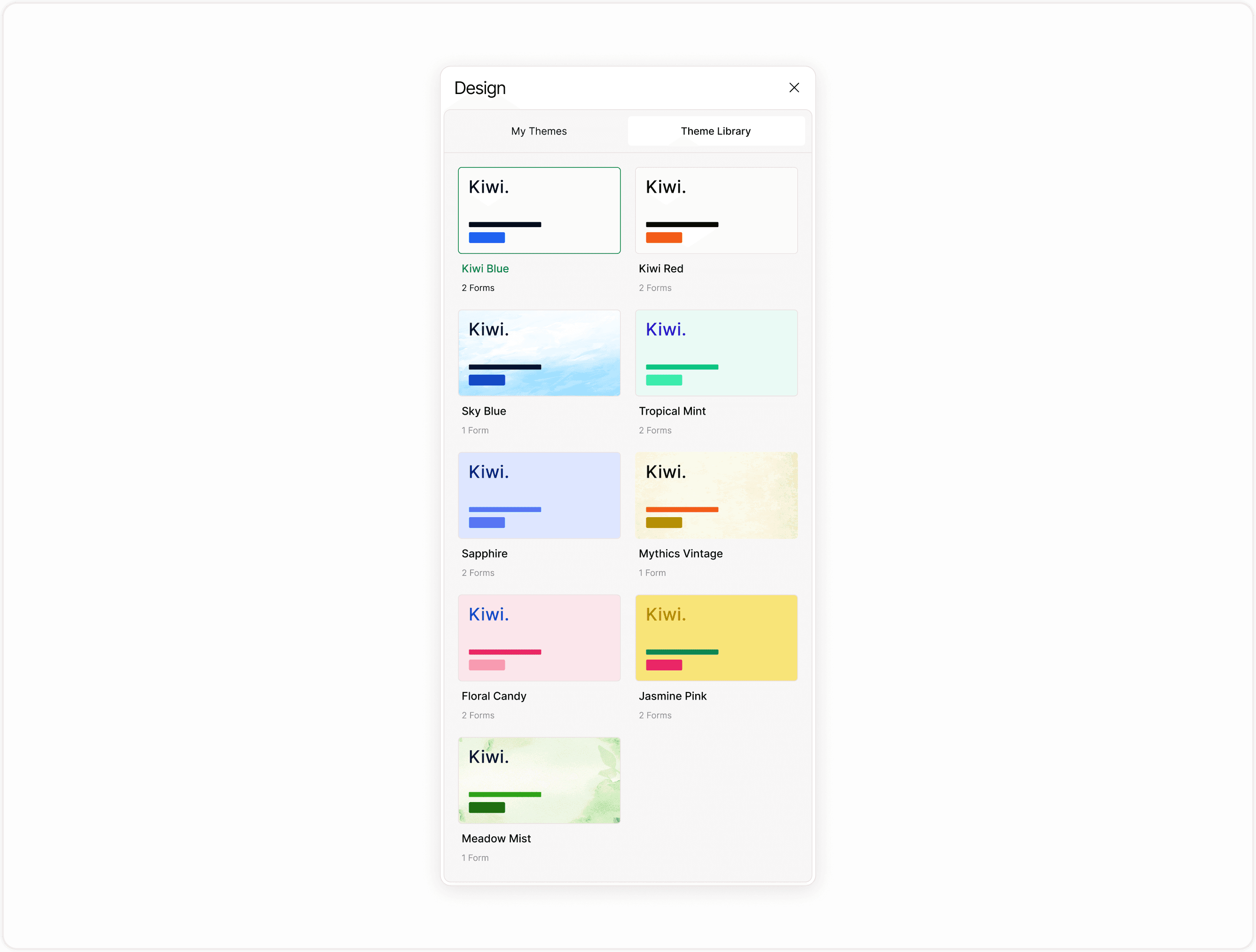
The Theme Library is a centralized collection of themes that have been made publicly available within your workspace
It helps you:
Reuse approved design styles
Maintain consistent branding
Reduce repetitive styling work
Allow teams to apply standardized themes
Quickly apply pre-designed visual styles
Unlike My Themes, which contains your private or draft themes, the Theme Library displays themes that are publicly accessible for reuse.
How to Publish a Theme to the Theme Library
To add a theme to the Theme Library, follow these steps:
Create or Select a Theme
Open your form.
Open your form.
Go to My Themes.
Select an existing theme or create a new one.
If you have not yet created a theme, refer to the Create Theme guide.
Make the Theme Public
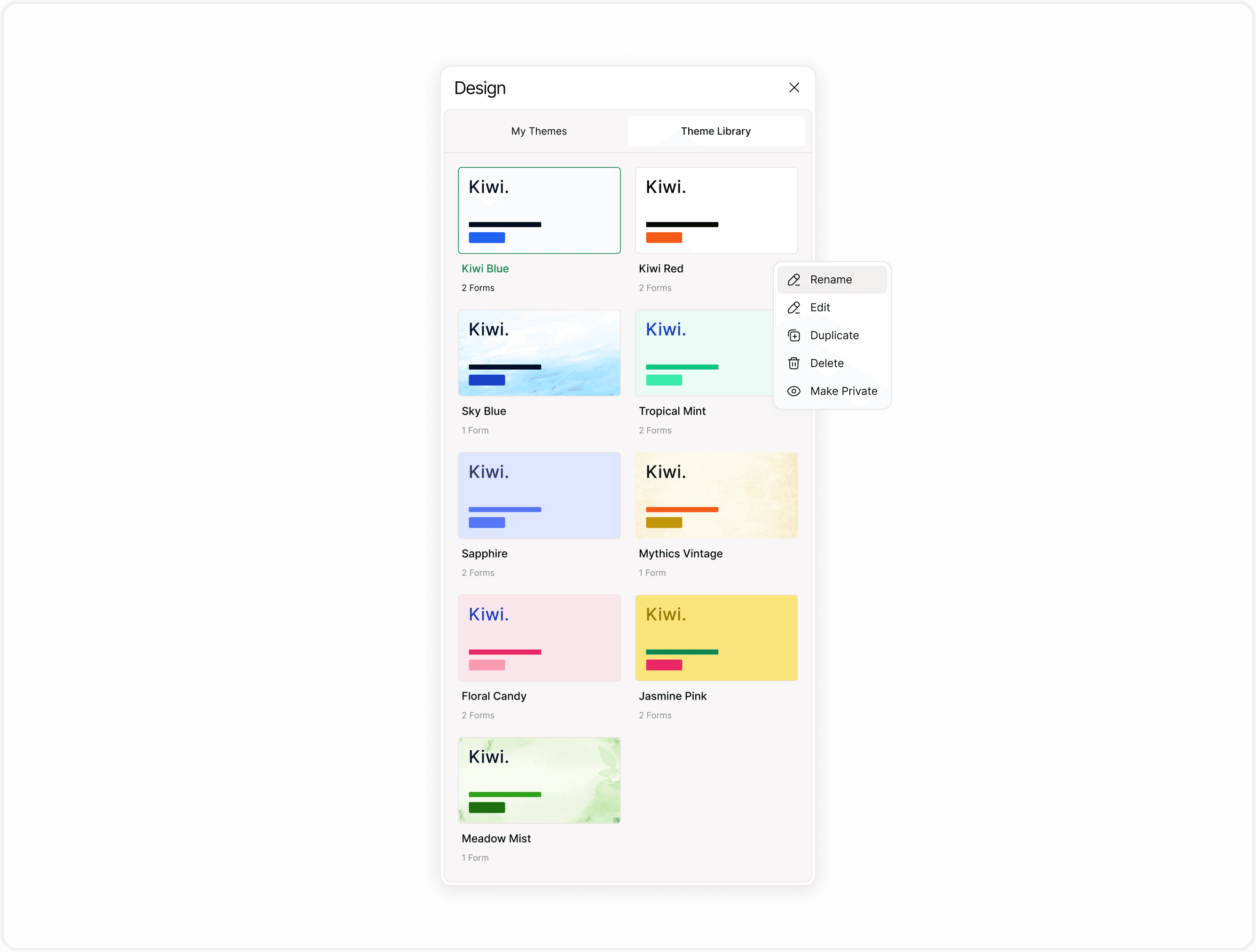
Click the three-dot menu on the theme card.
Select Make Public.
Once marked as public, the theme becomes visible under the Theme Library tab.
How to Use a Theme from the Theme Library
Open the Design panel.
Switch to the Theme Library tab.
Browse available themes.
Click on a theme to apply it to your form.
The selected theme will immediately update your form’s visual styling.
When Should You Use the Theme Library?
The Theme Library is especially useful when:
You manage multiple forms across teams.
You want approved brand styles only.
You need consistent campaign design.
You work in shared workspaces.
You want to reduce manual styling decisions.
It helps enforce visual consistency while allowing creators to focus on form structure and content.
Best Practices for Managing Themes
Use clear and descriptive theme names before publishing.
Review accessibility and contrast before making a theme public.
Keep outdated themes private or delete them.
Duplicate a theme before major changes if it is already widely used.
Regularly review how many forms are using each theme.
Maintaining an organized Theme Library improves efficiency and reduces design inconsistencies.
Important Notes
Editing a public theme may affect all forms using it.
You can duplicate a theme to create variations.
Private themes remain available only in My Themes.
You can rename a theme at any time for clarity.
Summary
This guide explains what the Theme Library is, how it differs from My Themes, and how to publish a theme to the library using the Make Public option. You will also learn how to browse, apply, and manage shared themes for consistent form design across your workspace.