What Is a Theme?
A theme is a reusable design configuration that defines the visual style of your form.
A theme includes:
Fonts
Font size
Colors
Logo
Background image
Button styles
Alignment settings
Instead of styling each form manually, you can apply a theme to maintain visual consistency across forms.
Themes are especially useful for teams managing multiple forms, campaigns, or departments.
Where to Access Themes
To manage themes:
Open your form in the builder.
Click Design.
You will see two tabs:
My Themes
Theme Library
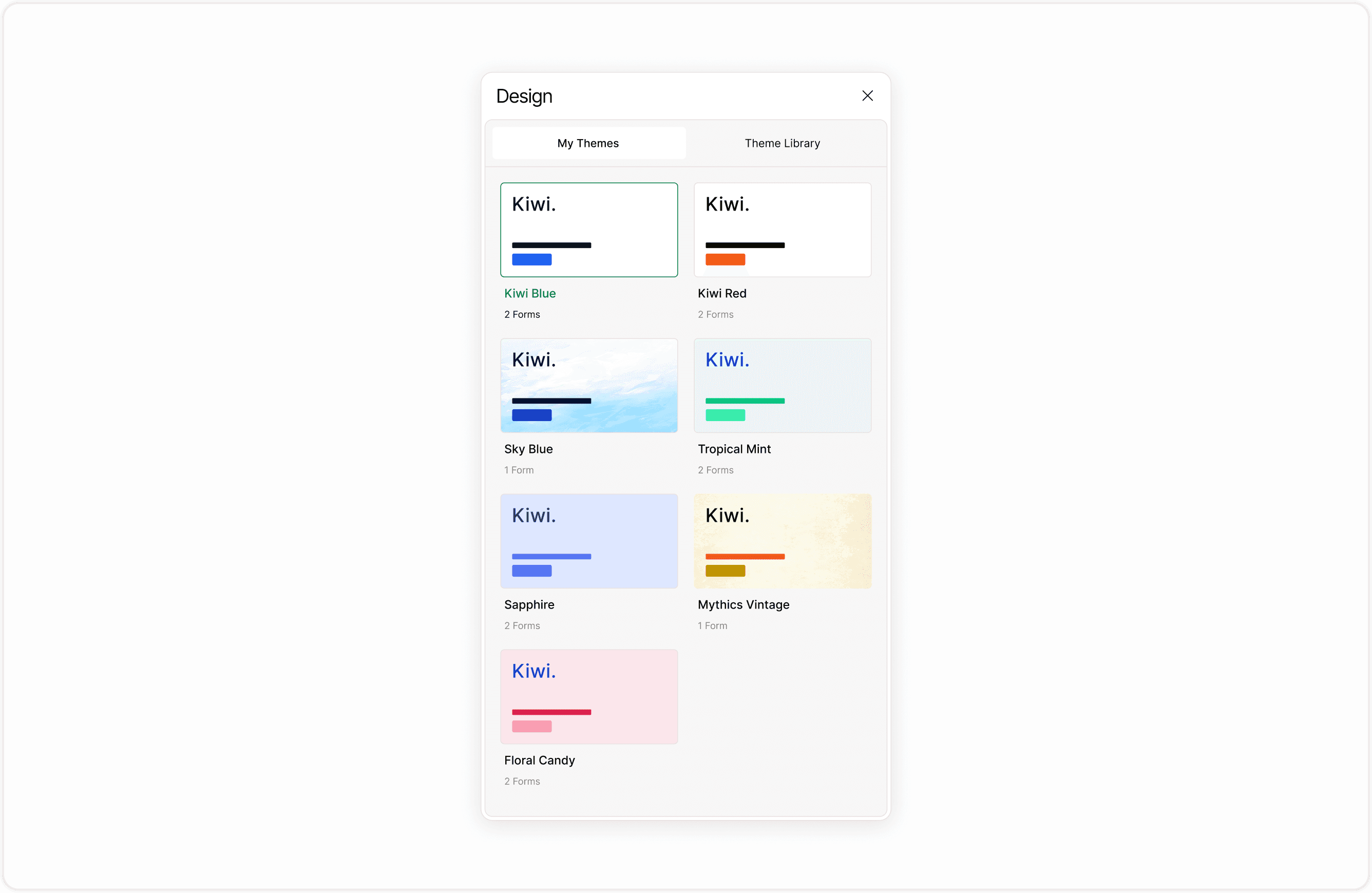
My Themes
My Themes contains themes you have created.
Here, you can:
Create a new theme
Edit an existing theme
Rename a theme
Duplicate a theme
Delete a theme
Make a theme public
Themes in this section may be private or unpublished.
Each theme card also shows how many forms are currently using it. This helps you understand where design changes may apply.
Theme Library
The Theme Library displays themes that have been marked as public.
Public themes are:
Available for reuse across forms
Useful for shared workspaces
Ideal for maintaining brand consistency
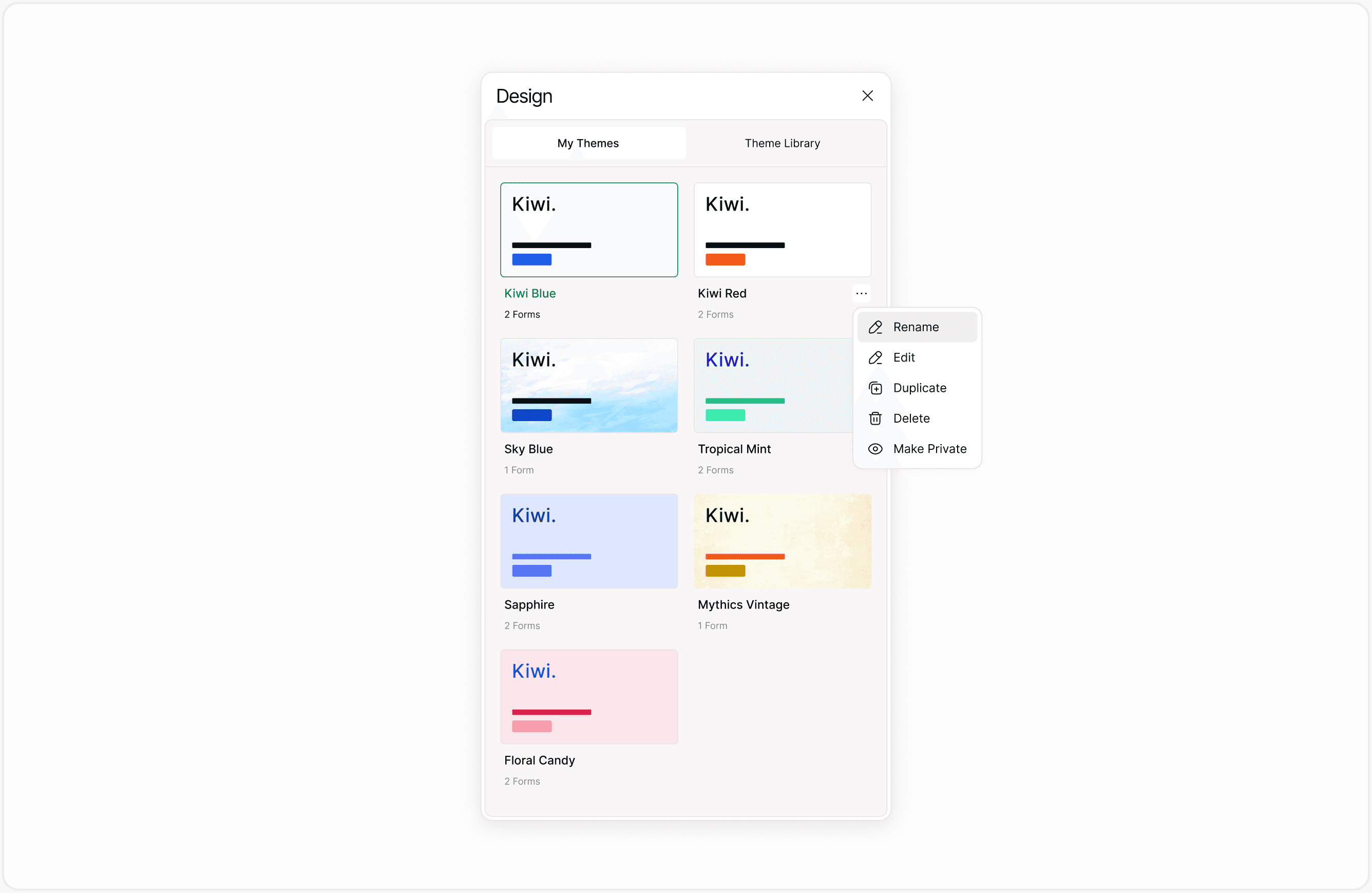
To move a theme to the Theme Library, open the theme menu and select Make Public.
How Themes Work Across Forms
When you apply a theme to a form:
The form adopts all visual settings from that theme.
Any future updates to that theme may affect the form.
Consistency is maintained without manual reconfiguration.
If you need a variation of a theme, it is recommended to duplicate the theme before making major changes.
Common Theme Actions
Create
Start a new visual preset with custom fonts, colors, logo, and layout.
Edit
Update typography, branding, or styling settings.
Duplicate
Create a new theme based on an existing one.
Delete
Remove themes that are no longer needed.
Make Public
Publish a theme to the Theme Library for broader reuse.
When to Use Themes
Themes are useful when:
You manage multiple branded forms.
You work in shared workspaces.
You run recurring campaigns.
You want to standardize visual presentation.
You need consistent accessibility settings.
Using themes improves efficiency and ensures visual consistency across your forms.
Best Practices for Managing Themes
Use clear and descriptive theme names.
Review forms before editing widely used themes.
Duplicate themes before testing new variations.
Keep your Theme Library organized.
Remove outdated or unused themes.
Proper theme management reduces design inconsistency and saves time.
Summary
This guide provides an overview of how themes function, the difference between My Themes and the Theme Library, and how to create, edit, duplicate, delete, and publish themes. By the end of this guide, you will understand how themes help maintain branding, improve usability, and reduce repetitive design work.