What Is Two-Factor Authentication?
Two-Factor Authentication (2FA) adds an extra verification step when you sign in to your Kiwiform account. In addition to your password (or connected login provider), you’ll be required to confirm your identity using a second factor—usually a time-based verification code.
This significantly reduces the risk of unauthorized access, even if someone knows your password.
If you use Kiwiform for collecting form responses, managing submissions, or handling business data, enabling 2FA is strongly recommended.
Why Enable 2FA?
Your Kiwiform account may contain:
Form submissions and response data
Contact details
Business workflows
Integrations and SMTP settings
Team access (if applicable)
Adding 2FA helps protect your account against:
Password leaks
Phishing attacks
Unauthorized login attempts
Credential stuffing attack
For professionals, teams, and businesses, 2FA is a simple but powerful way to strengthen account security.
Where to Find Two-Factor Authentication
To enable 2FA:
Click your profile avatar (top right).
Open Account & Settings.
Go to the My Account tab.
Scroll to the Two-factor Authentication section.
Click Enable 2FA.
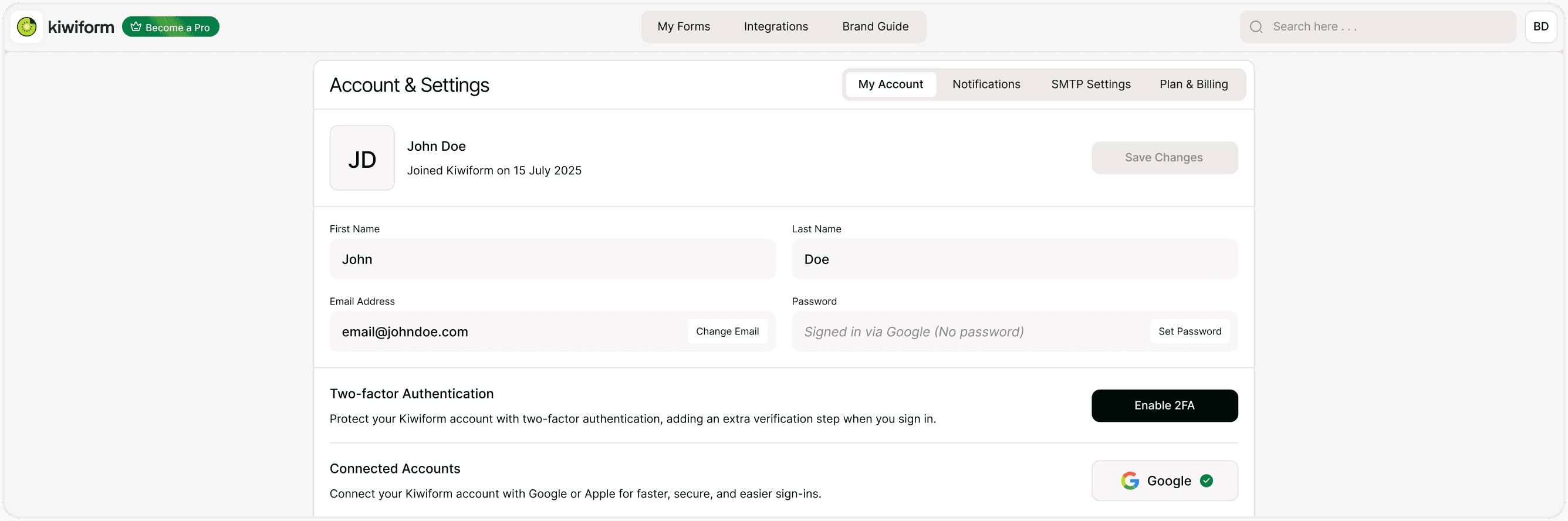
How to Enable Two-Factor Authentication
Once you click Enable 2FA, you’ll be guided through the setup process.
Typical steps include:
Confirm your password (if required).
Scan a QR code using an authenticator app (such as Google Authenticator or similar apps).
Enter the 6-digit verification code generated by the app.
Confirm activation.
After setup is complete, 2FA will be active on your account.
From that point forward, every login will require:
Your password (or Google login)
A verification code from your authenticator app
How Login Works After Enabling 2FA
When signing in:
Enter your email and password (or use Google).
You will be prompted to enter a verification code.
Open your authenticator app.
Enter the current 6-digit code.
Access your account.
The verification code refreshes every 30 seconds for added security.
If You Signed Up with Google
If you log in using Google:
Google authentication still works as your primary login method.
2FA adds an additional layer within Kiwiform.
You will still be required to complete the second verification step after authentication.
This ensures consistent security regardless of your login method.
How to Disable 2FA
If you need to turn off Two-Factor Authentication:
Go to Account & Settings.
Open My Account.
Scroll to Two-factor Authentication.
Select the option to disable.
Confirm your decision.
Important: Disabling 2FA reduces account security. Only disable it if absolutely necessary.
Best Practices for 2FA
Store backup recovery codes securely (if provided).
Use a trusted authenticator app.
Avoid sharing verification codes with anyone.
Keep your device secure and updated.
Enable 2FA especially if managing sensitive form data
For teams and business users, enabling 2FA across all accounts is strongly recommended.
Summary
This guide explains how to enable and manage Two-Factor Authentication (2FA) in Kiwiform to add an extra security layer to your account.