What Are Variables?
Variables are dynamic values that store data inside your form. They update automatically as respondents interact with questions and logic.
Instead of just collecting answers, variables let you:
Store numbers or text
Track scores
Count correct answers
Calculate totals
Personalize messages
Control conditional logic
Variables work behind the scenes and update in real time based on responses.
Think of variables as smart containers that hold data while the form is being completed.
Where to Find Variables
You can configure Variables from the Logic Flow section.
Open your form
Click Logic Flow from the center header navigation
Click the Variables icon from the top-right logic tools
This opens the Variables panel, where you can manage:
Custom Variables
Default Variables
Quiz Variables

Types of Variables in Kiwiform
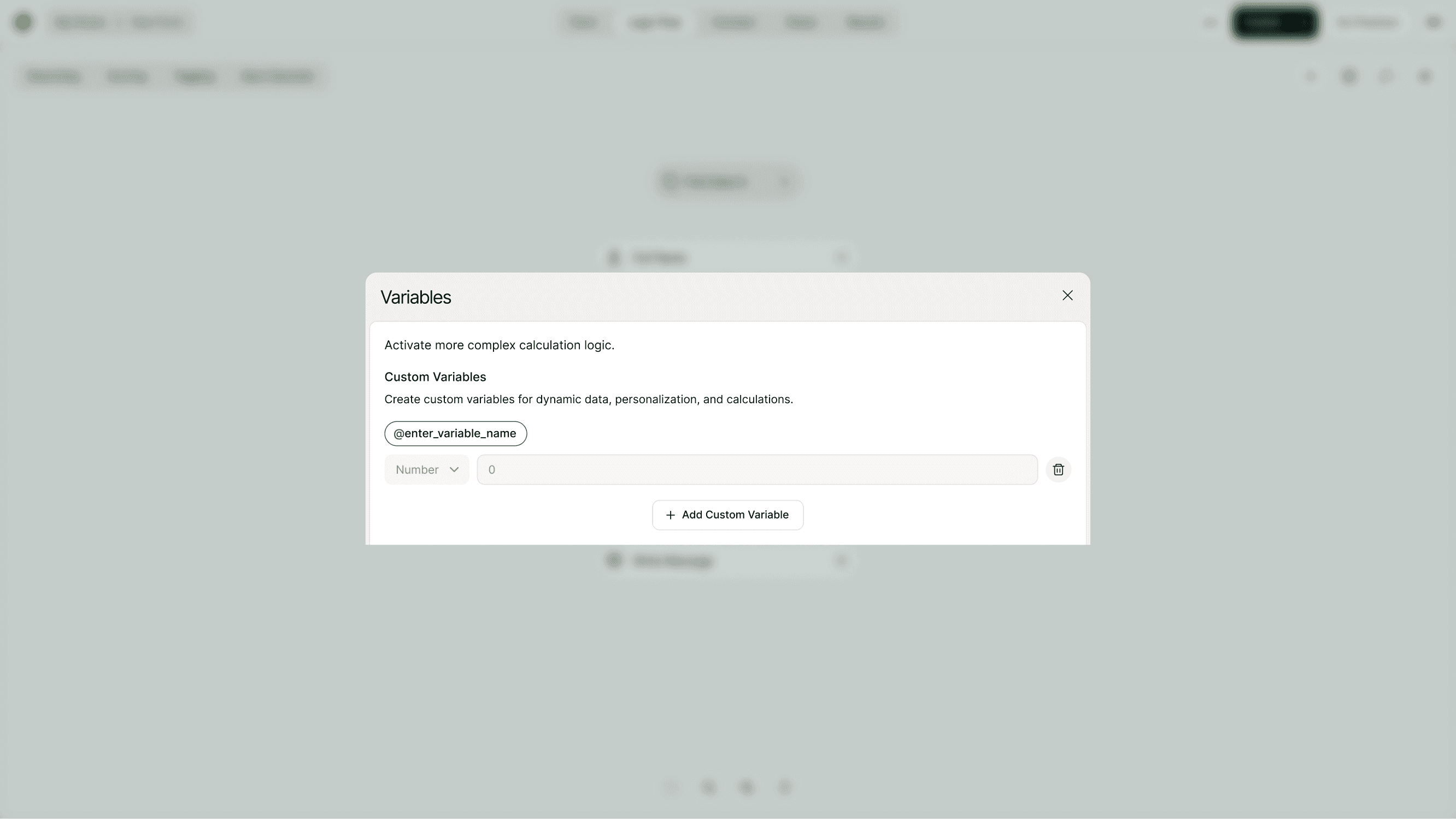
1. Custom Variables
Custom variables allow you to create your own dynamic values.
You can define:
Variable name (for example: @discount, @points, @segment)
Type (Number or Text)
Starting value
Custom variables are useful for calculations, personalization, and advanced logic.
2. Default Variables
These are automatically available in your form.
Examples include:
@score – Used for scoring and total score tracking
@price – Used when payment fields are present
@segment – Useful for grouping respondents
Default variables are built-in and support common use cases like scoring, payments, and segmentation.

3. Quiz Variables
When using quizzes or scoring logic, additional variables become available.
Examples include:
@correct_answers – Counts correct responses
@max_score – Maximum possible score
@quiz_score – Final calculated score
@total_scorable_questions – Number of scorable questions
These variables help you calculate results and trigger outcomes automatically.

How Variables Work
Variables update automatically as the form progresses.
For example:
If a user selects a correct answer, @correct_answers increases
If scoring is enabled, @score updates automatically
If using payments, @price reflects the total
Variables can then be used in:
Conditional logic
Branching rules
Quiz outcomes
Redirect URLs
Ending screens
They allow you to build advanced logic without making the form complex for users.
How to Create a Custom Variable
Open Logic Flow
Click Variables
Click Add Custom Variable
Enter a variable name (use clear naming)
Choose type (Number or Text)
Set a starting value
Click Save
Your custom variable is now ready to use inside your logic.
Using Variables in Logic
Variables can be used to:
Trigger conditional logic
Show specific endings
Redirect users based on calculated values
Group respondents into segments
Personalize results
For example:
If @score is greater than 80 → Show “Advanced Result” ending
If @segment equals “Premium” → Redirect to premium offer
Variables make your logic flexible and scalable.
When Should You Use Variables?
Use variables when you need:
Advanced calculations
Score tracking
Personalized content
Dynamic payment totals
Segmentation
Quiz performance tracking
If you're building intelligent forms inside a free Typeform alternative, variables unlock the full power of your logic system.
Common Use Cases
Variables are commonly used for:
Tracking total quiz scores
Counting correct answers
Calculating dynamic pricing
Creating respondent segments
Personalizing thank-you messages
Redirecting based on score
Running advanced calculations
They help you move from static forms to intelligent form flows.
Best Practices
To use variables effectively:
Use clear and consistent naming
Keep logic simple and intentional
Test calculations before publishing
Avoid creating unnecessary variables
Preview your form to confirm variable updates
Clean structure leads to predictable logic behavior.
Summary
Variables in Kiwiform allow you to store and calculate dynamic values while a form is being completed. From score tracking and quiz calculations to segmentation and personalization, variables give you full control over advanced logic.
Combined with Branching, Scoring, and Conditional Logic, variables help you create powerful, intelligent forms that adapt in real time.