What the video and audio response fields does
The Video & Audio field lets respondents reply using recorded video, recorded audio, or written text. This is useful when you want more expressive responses, feedback in a respondent’s own voice, or quick recorded submissions instead of long written answers.
You can enable one or more response types depending on what you want to collect. For example, you can allow only video responses, only audio responses, or give respondents the option to choose between video, audio, and text.
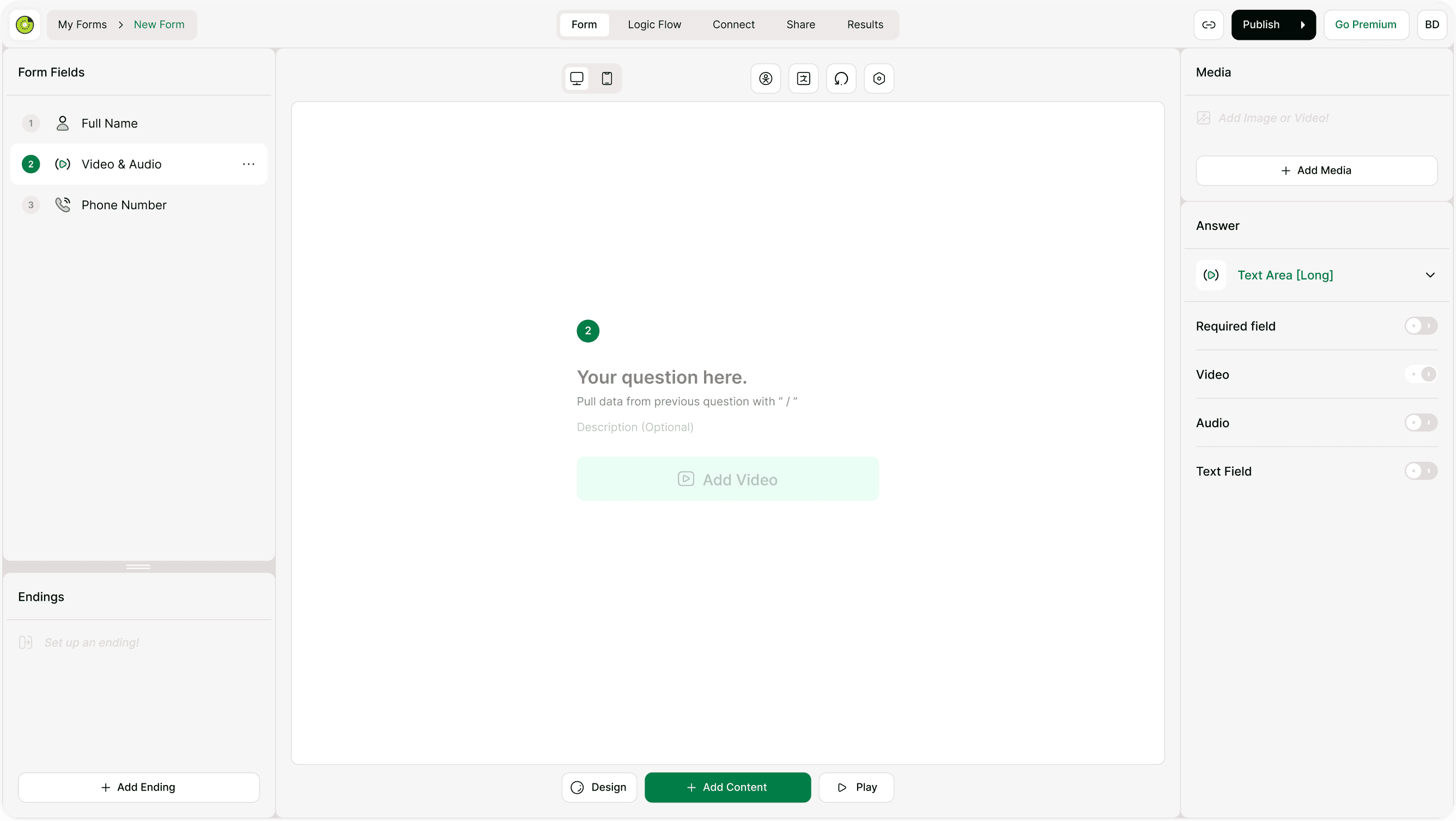
How to add a Video & Audio field
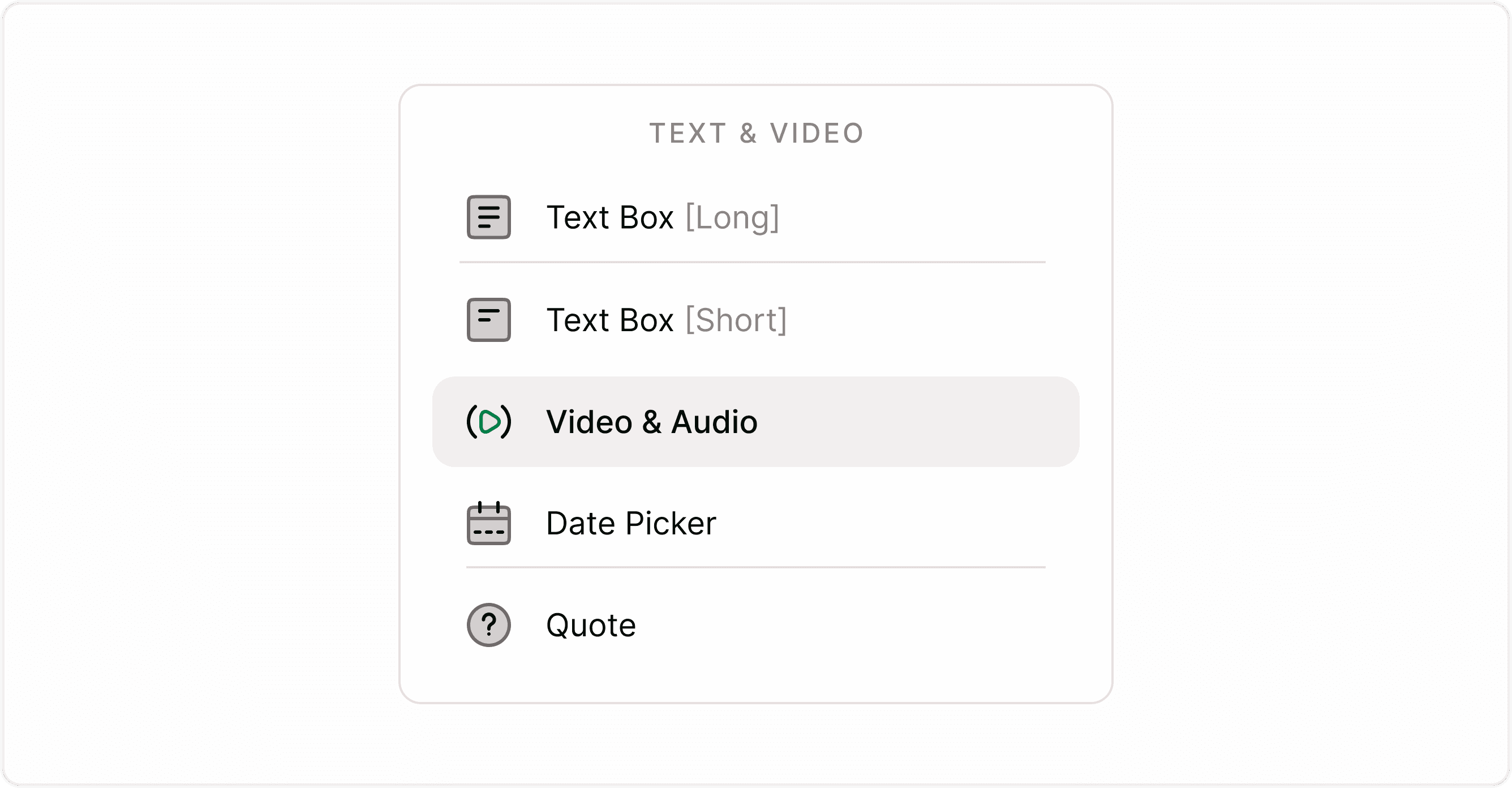
Click Add Content
Select Video & Audio
Add your prompt or question
Configure response types in the Answer panel
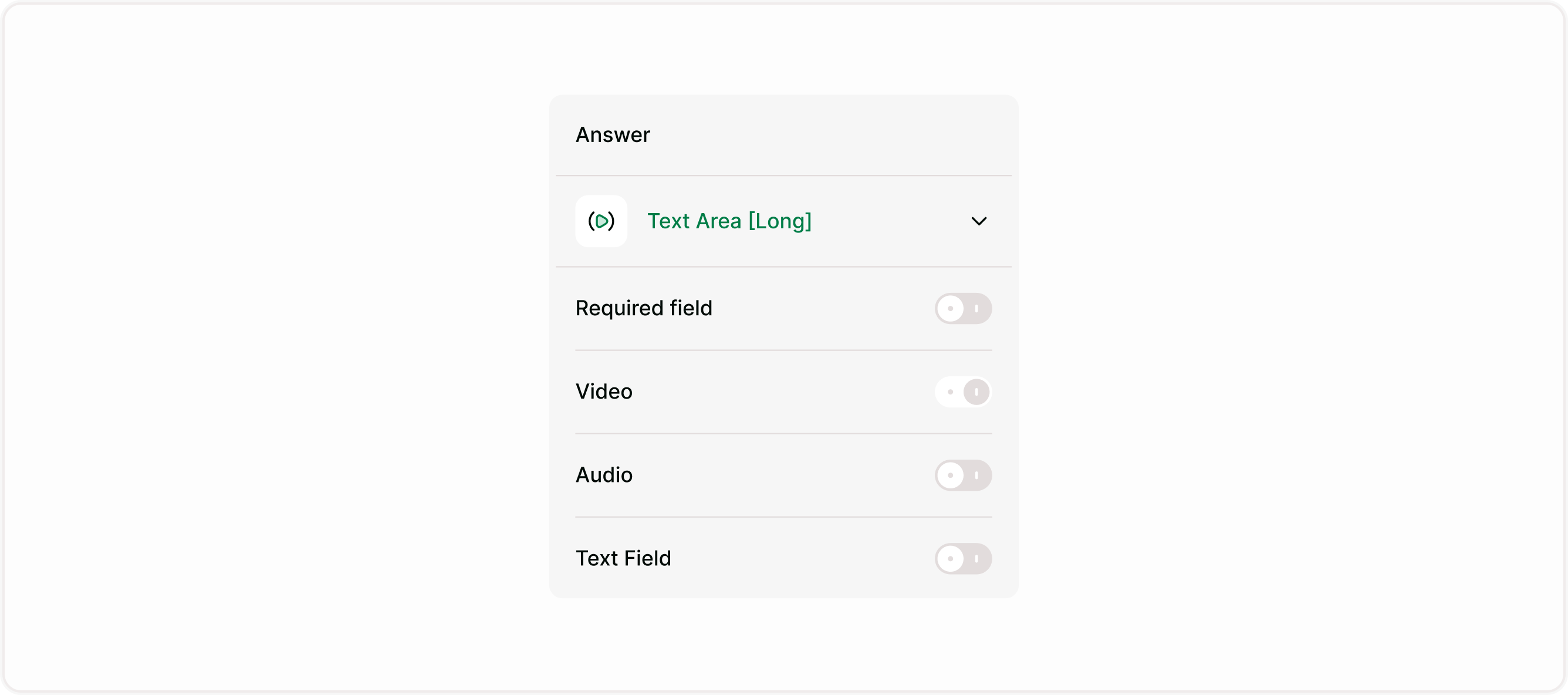
Configuring response options
Required field
Enable this if respondents must submit a response before continuing.Video responses
Allow respondents to record video answers directly in the form.Audio responses
Allow microphone recording for spoken answers.Text field
Enable this if you also want written responses as an option.
You can enable:
Video only
Audio only
Text only
Any combination
When to use the Video & Audio field
Use this field when written answers are not enough and you want more context, emotion, or clarity. It’s especially useful for feedback, hiring, research, and customer stories.
You can also combine it with logic, endings, or integrations to route responses or trigger follow-up actions based on submissions.
Common Use Cases
Video testimonials
Voice feedback
Application submissions
Interviews and screening
Creative or open-ended responses
Best practices
Clearly explain what respondents should record
Set expectations about length
Use Video & Audio only when necessary
Place it strategically in the form
Be transparent about privacy
When configured correctly, the Video & Audio field helps you collect richer, more human responses while maintaining a smooth and professional respondent experience.
Summary
The Video & Audio field helps you collect expressive responses through video, voice, or text. It’s perfect for feedback, applications, and storytelling. With flexible input options and simple configuration, it lets you capture richer insights inside your Kiwiform forms.