Add a video to your form
Videos can be used to introduce a section, explain a question, or create a more engaging form experience. You can add a video to any screen where media is supported.
To add a video:
Open your form in the builder.
Select the question or screen where you want to add a video.
Use the Media panel on the right to upload a video or choose one from the Media Library.
The video will appear alongside your form content in the preview.
Videos play directly inside the form, helping respondents understand context without leaving the page.
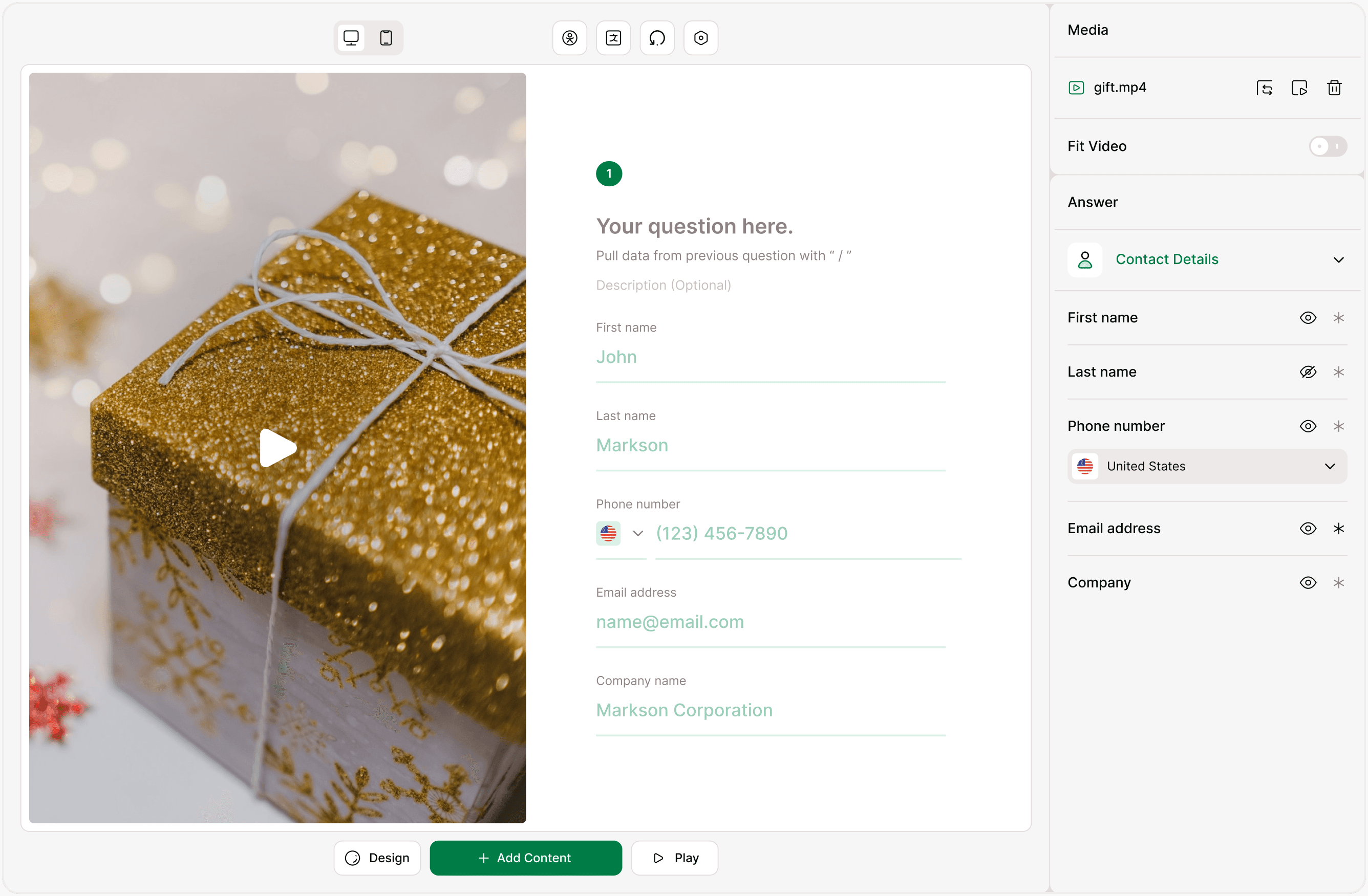
Upload, replace, or remove a video
In the Media panel, you’ll see the video file name with three icons next to it:
Replace from Media Library (left icon): Opens the Media Library so you can switch to a previously uploaded video.
Video Settings (center icon): Opens the video settings popup for thumbnail, trimming, and captions.
Delete (right icon): Removes the video from the form.
When you upload a new video, the Video Settings popup opens automatically so you can adjust it before saving.
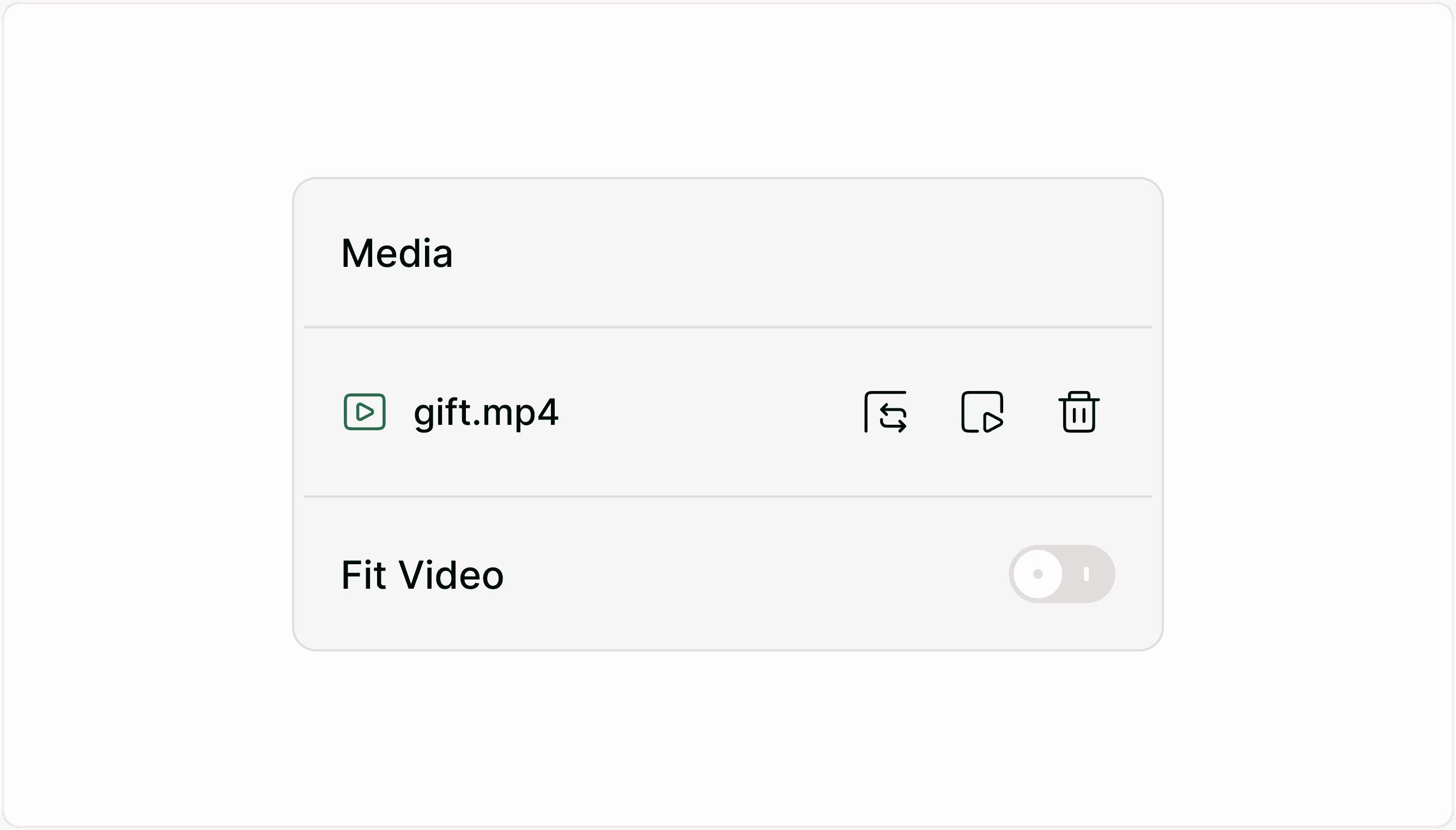
Fit Video: what it does
The Fit Video toggle controls how the video fits inside the form layout.
When Fit Video is ON: The full video frame is visible within the available space. No cropping occurs. This works best when the entire frame must stay visible (e.g., demos, walkthroughs, screen recordings).
When Fit Video is OFF: The video fills the layout area more tightly. Depending on layout and screen size, some edges may be cropped to maintain visual balance.
Use Fit Video when clarity of the full frame matters more than edge-to-edge layout.
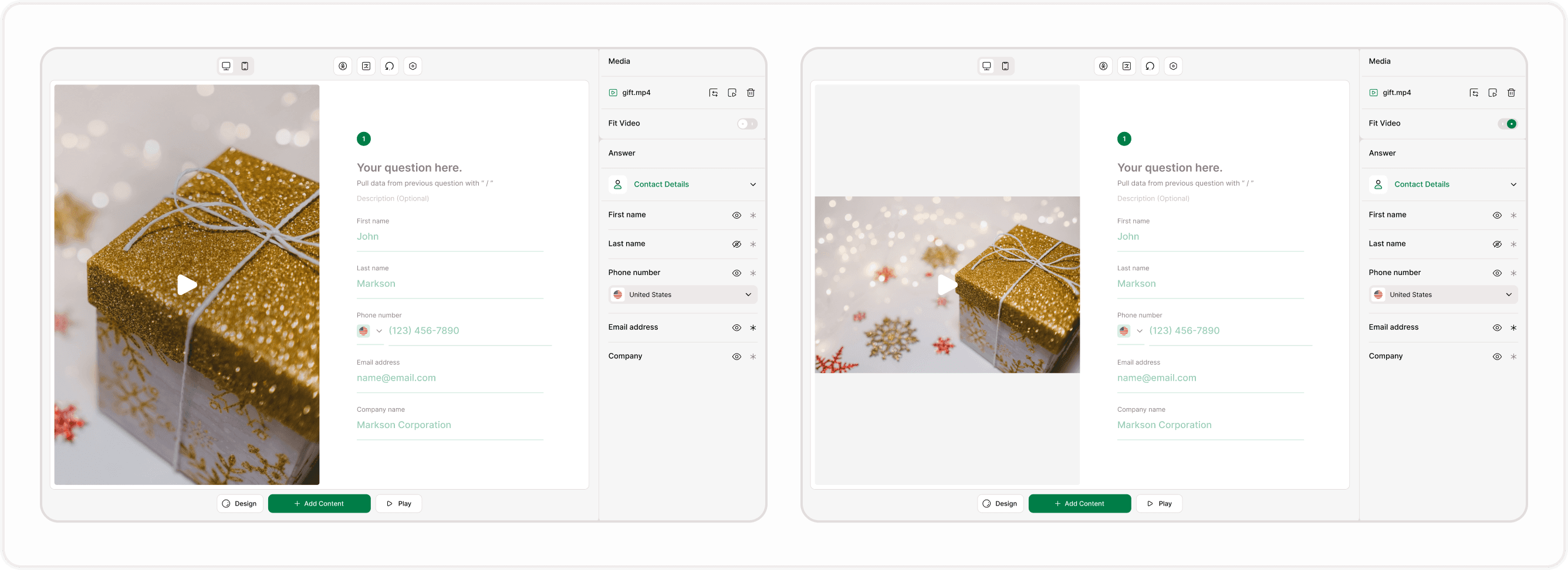
Open Video Settings
Click the center settings icon in the Media panel to open the Video Settings popup.
This is where you control how the video appears and plays inside your form.
The popup includes three tabs:
Thumbnail
Trim Video
Captions
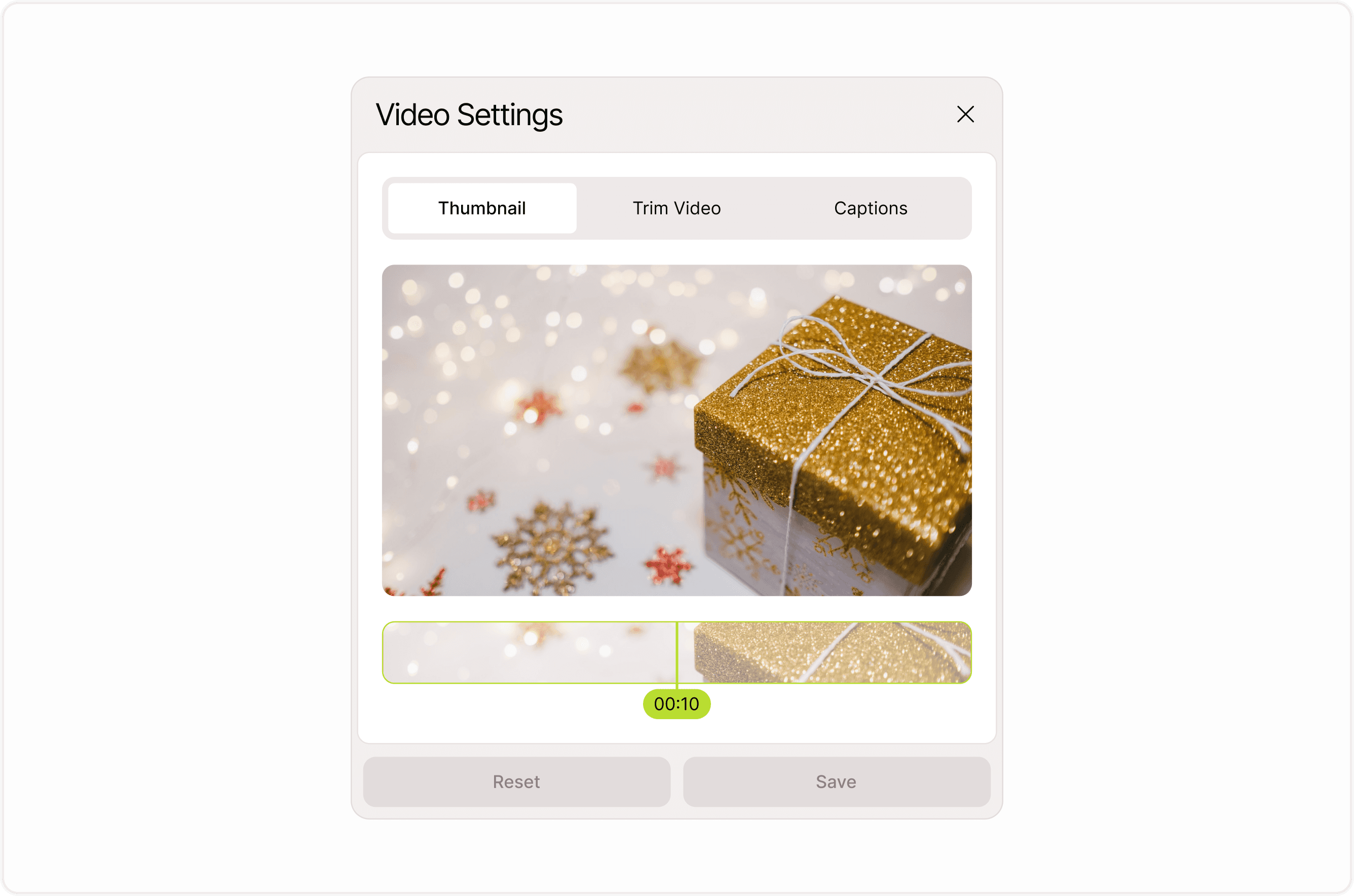
Thumbnail: choose what respondents see first
The thumbnail is the preview frame shown before the video starts playing. You can select a frame from the video timeline to use as the thumbnail.
This helps you:
Highlight an important moment
Show a clean opening frame
Match the visual style of your form
A clear thumbnail improves clarity and encourages respondents to press play.
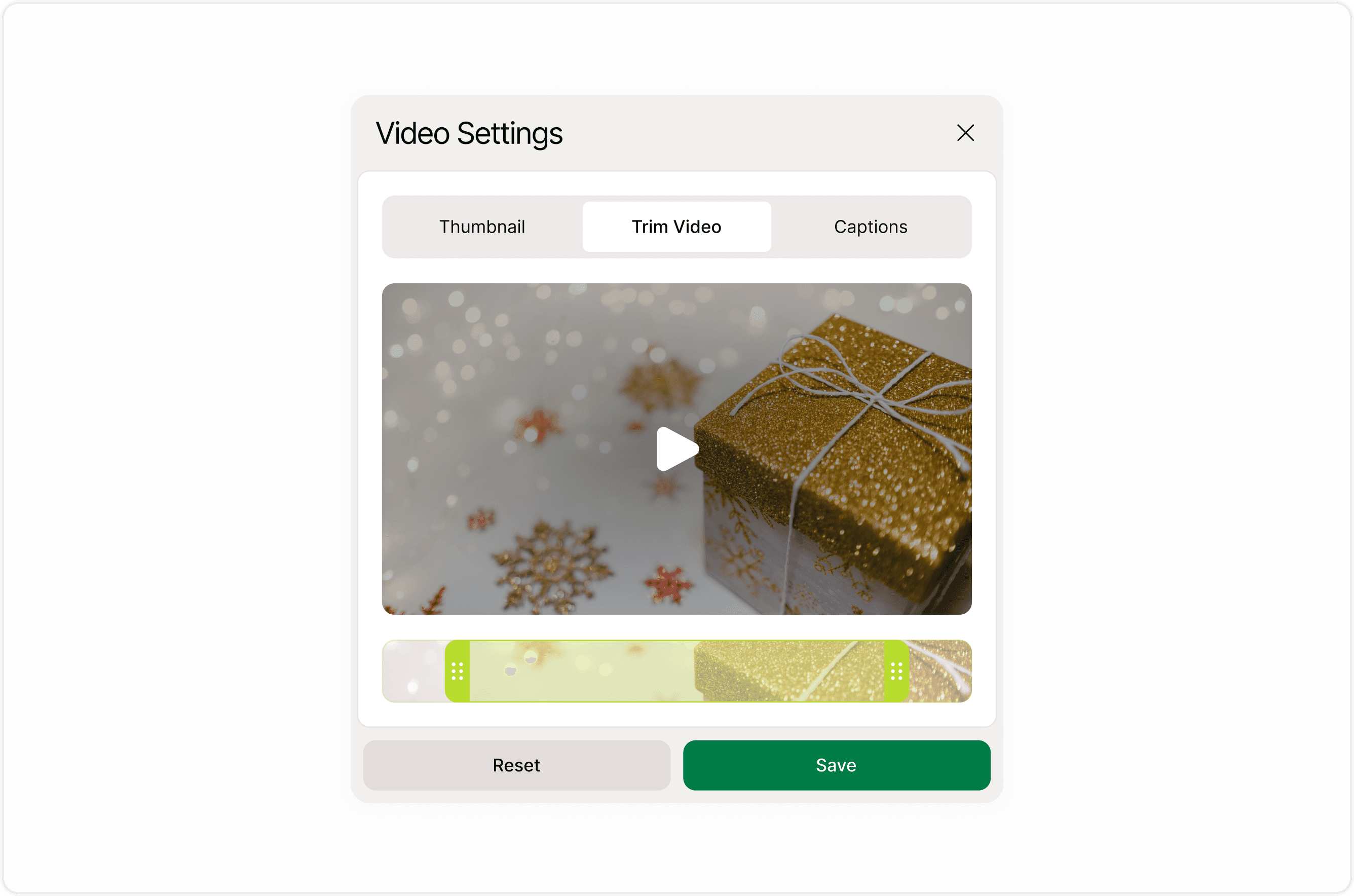
Trim Video: control start and end points
If your video contains extra content at the beginning or end, you can trim it directly inside Kiwiform.
Use the trim handles to:
Set where the video starts
Set where the video ends
Only the selected portion will play inside the form. The original video file remains unchanged.
Trimming helps keep forms concise and focused.
Captions: improve clarity and accessibility
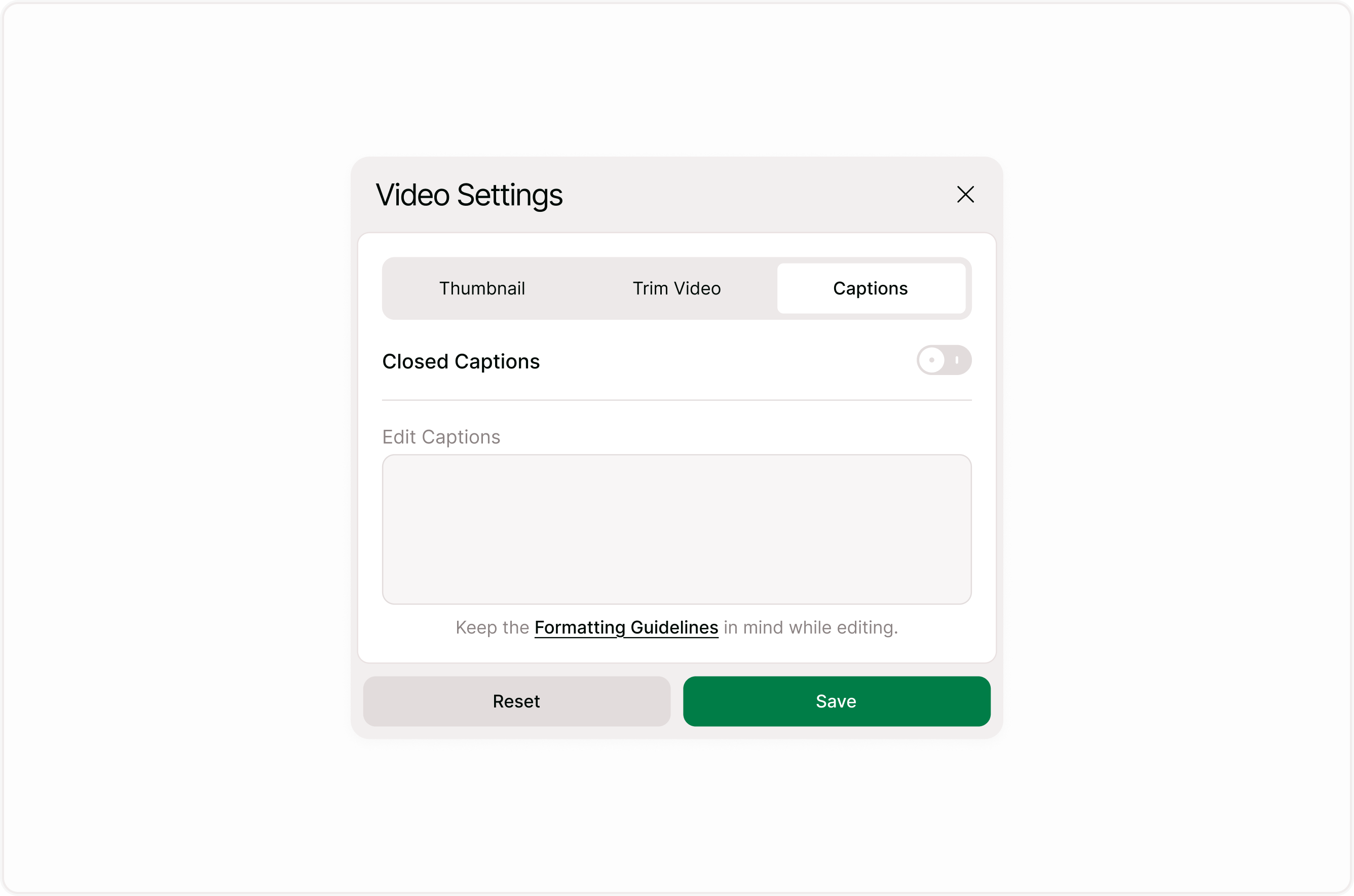
Captions help respondents understand your video even when sound is off.
In the Captions tab, you can:
Enable or disable closed captions
Add or edit caption text
Captions are especially useful for:
Mobile users
No-sound environments
Accessibility support
Keep captions clear and readable to improve comprehension.
When to use video in forms
Video works best when it adds clarity or context. Common use cases include:
Welcome or introduction screens
Product demos
Tutorials or instructions
Event explanations
Feedback context
Onboarding forms
Avoid adding long videos unless they are essential. Short, focused clips usually perform better.
Best practices
Keep videos short and relevant
Use clear thumbnails
Add captions when possible
Test on desktop and mobile
Trim unnecessary sections
Use Fit Video when the full frame matters
These steps help maintain a smooth and distraction-free experience.
Summary
Add video to your form to explain questions, guide respondents, or create a more engaging experience. Use the Media panel to upload, replace, trim, and set thumbnails or captions so your video looks clear and relevant inside the form. Keep videos short, focused, and preview your form before publishing to ensure playback and layout work well across devices.