Open Share → Embed Form in Web Page
Open your form in Kiwiform
Click Share
Select Embed Form in Web page
Choose Webflow from the dropdow
Kiwiform automatically prepares the correct embed code for Webflow.
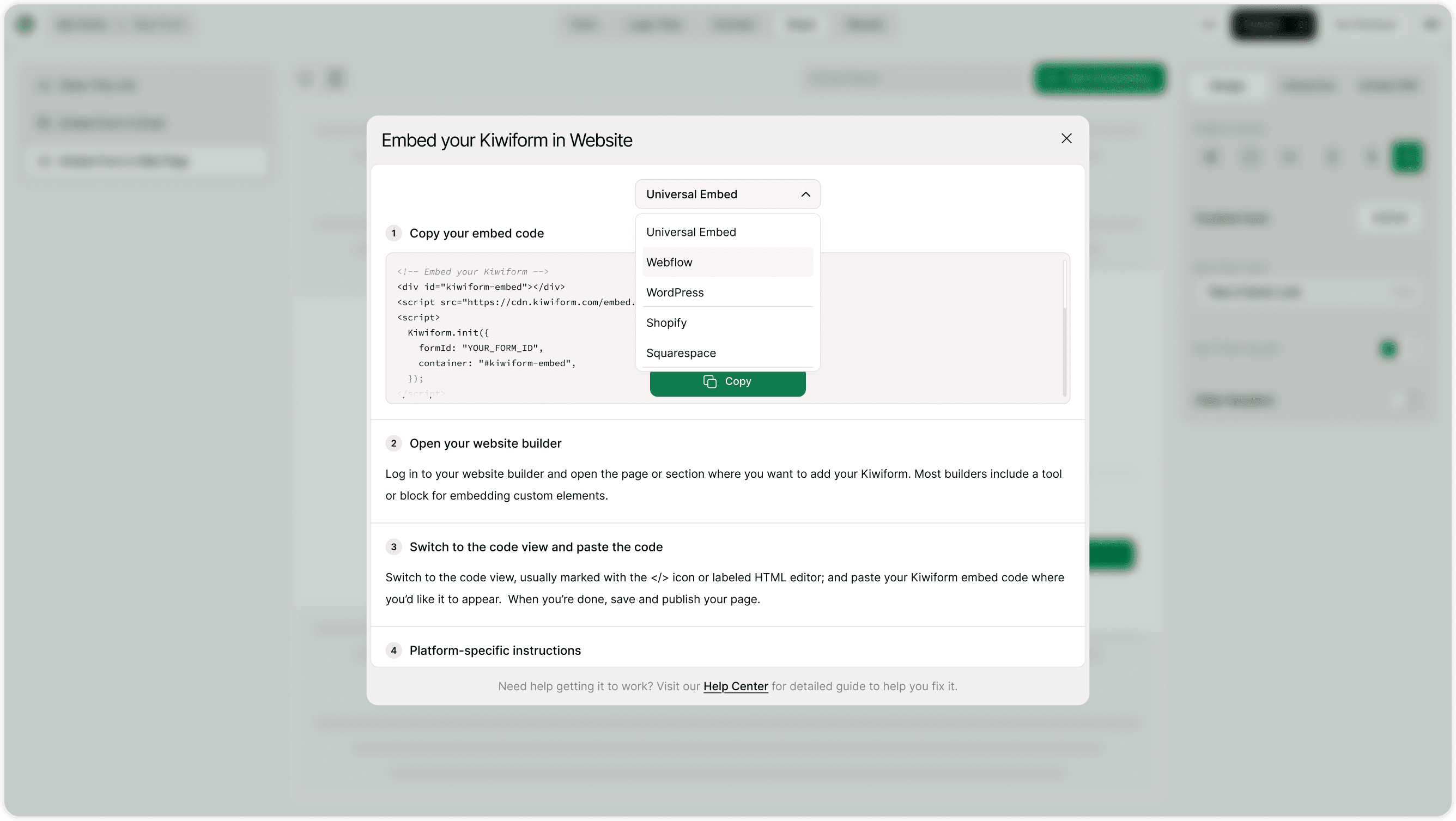
Copy Your Embed Code
Click Copy Code.
This is the Universal Embed script.
Open Webflow Designer
Log in to your Webflow Dashboard
Open your project
Click Designer
Navigate to the page where you want to add the form
Add an Embed Element
Inside Webflow Designer:
Click Add Elements (+)
Drag an Embed element into your layout
Place it in the section where your form should appear
Paste the Code and Save
When the Embed code dialog opens:
Paste your Kiwiform embed code
Click Save & Close
Then:
Publish your site
Your form will now appear inside your Webflow page.
Your Form Updates Automatically
Once embedded:
Any changes you make in Kiwiform
Design edits
Question updates
Logic flow changes
Will automatically update on your Webflow site.
You do not need to replace the embed code again.
Why Use Kiwiform with Webflow?
Webflow gives you full design control. Kiwiform complements that with powerful form functionality.
As a free Typeform alternative, Kiwiform provides:
Unlimited forms
Modern design
Flexible embed options
Automatic updates
Mobile optimization
Perfect for creators, startups, and agencies using Webflow.
Best Placement Practices in Webflow
For higher conversions:
Place the form above the fold for lead pages
Use clear headlines above the embed
Avoid placing inside hidden elements
Ensure the container width is 100%
Test responsiveness on mobile
Webflow’s responsive grid works well with Kiwiform’s dynamic embed
Summary
To embed Kiwiform in Webflow, select Webflow under Universal Embed, copy the script code, add an Embed element in Webflow Designer, paste the code, and publish. Your form will load dynamically and update automatically.