What the Website field does
The Website field allows you to collect a respondent’s website or URL in a structured and validated format. Whether it’s a company website, portfolio, social profile, landing page, or store link, this field ensures that the entered value is formatted correctly as a web address.
Instead of using a generic text input, the Website field automatically expects a valid URL format (such as https://example.com). This helps prevent incorrect or incomplete links and keeps your response data clean and usable.
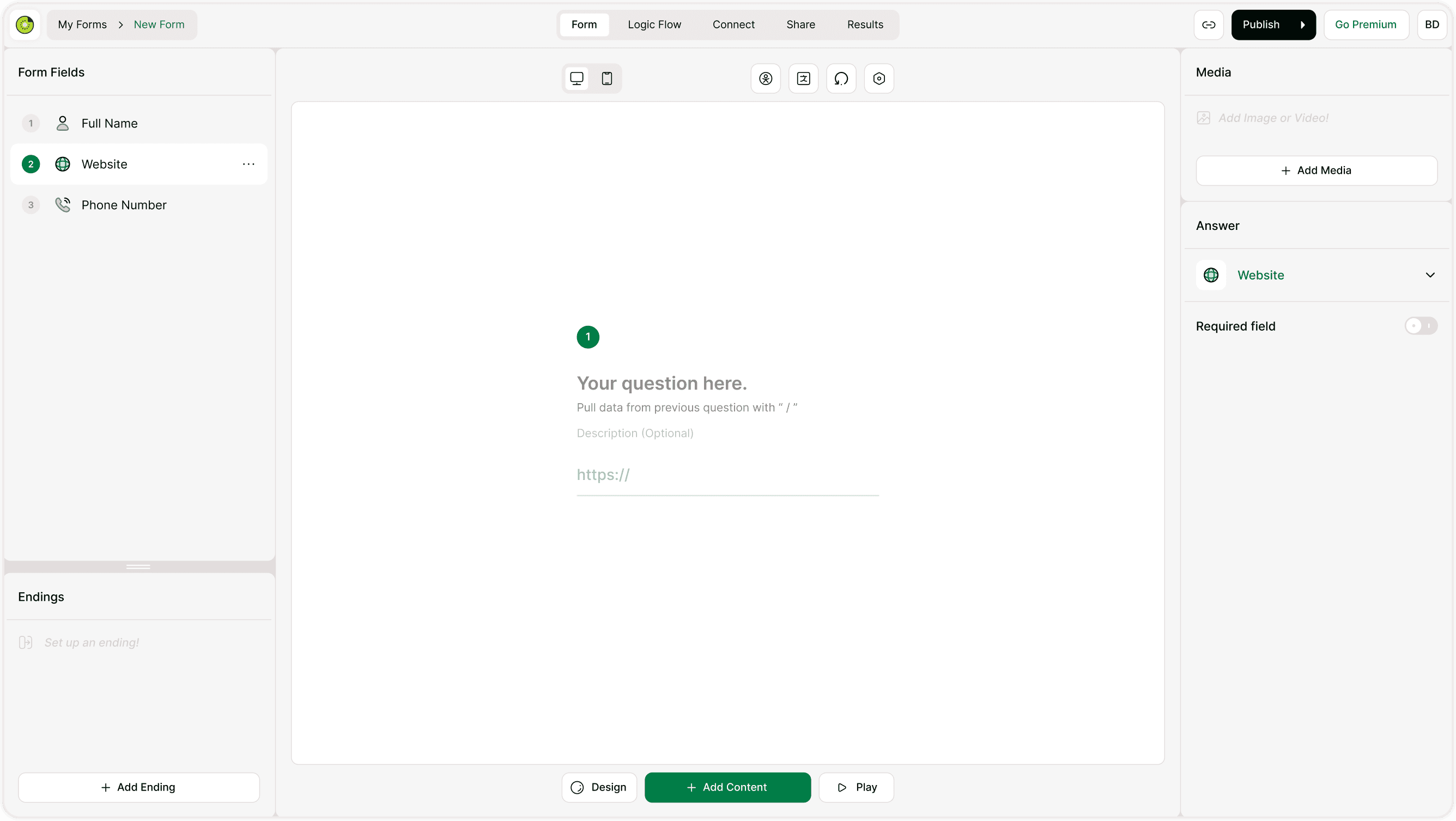
Where to find the Website field
Open your form in the builder.
Click + Add Content.
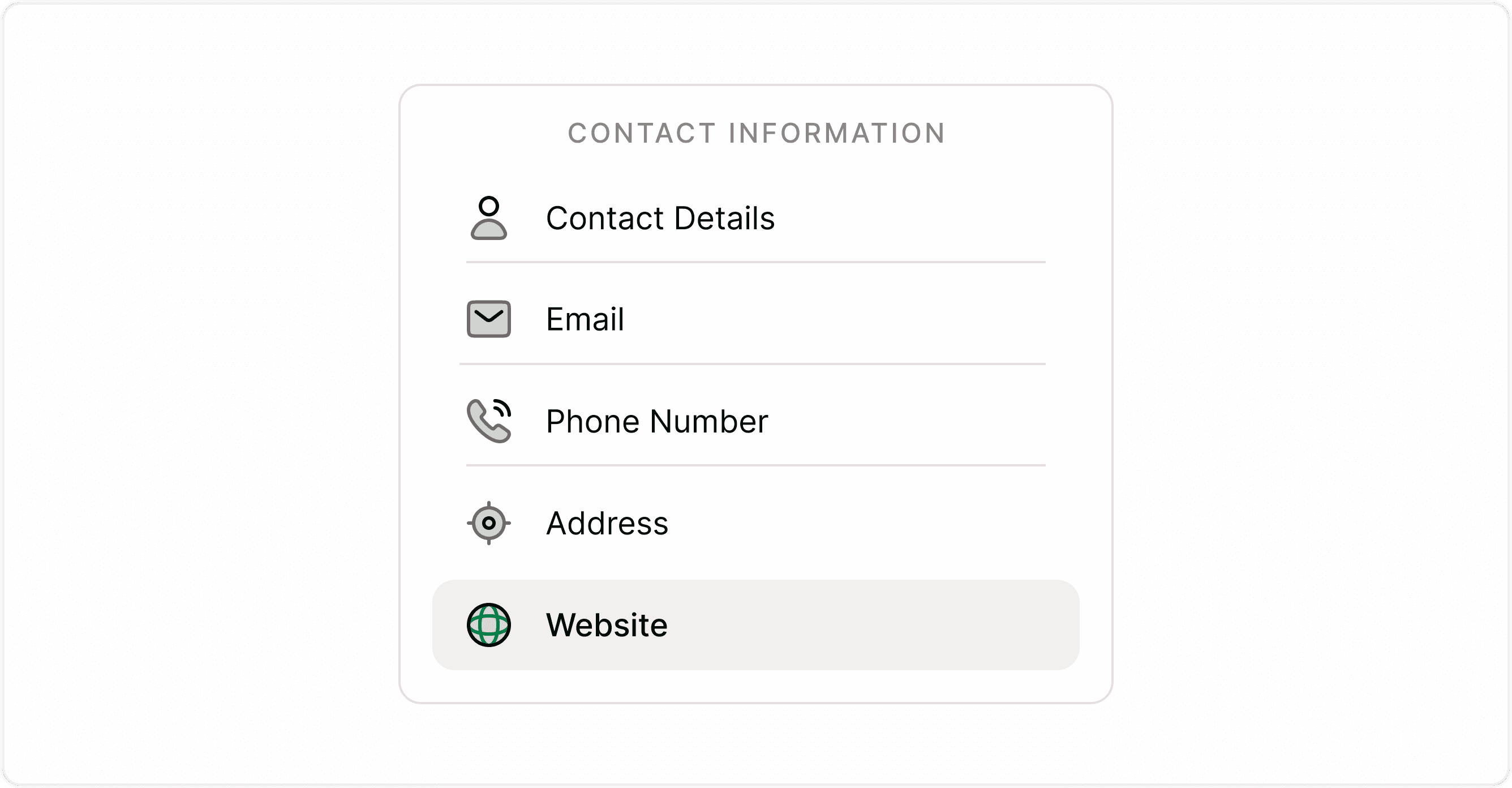
Select Website under Contact Information fields.
The field will be added to your form.\
Configure it using the Answer panel on the right.
How the Website field works
When added to your form, the Website field displays a URL input with a placeholder (for example, https://). This guides respondents to enter a properly formatted web address.
Kiwiform automatically validates the input to ensure:
The format resembles a valid URL
The link structure is correct
Incomplete or incorrect entries are flagged
This reduces follow-up errors and ensures you collect usable website data.
Configuring the Website field in the Answer panel
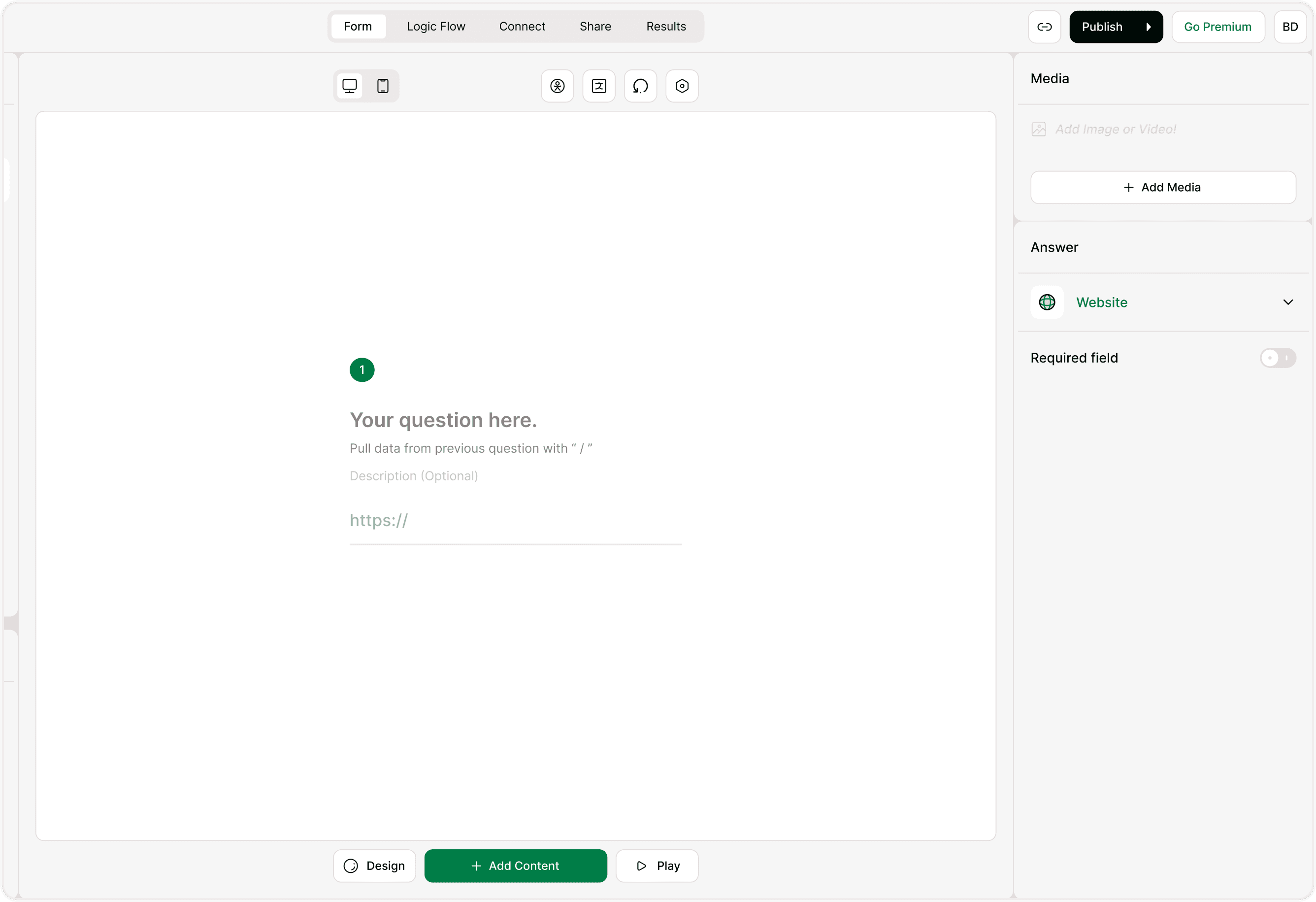
When you select the Website field, the Answer panel displays available settings.
Required field toggle
You can turn on the Required field option to make sure respondents cannot submit the form without providing a website.
This is useful when:
Website submission is mandatory (vendor forms, startup directories, partnerships)
You are qualifying leads
You need official business URLs for verification
If the website is optional, simply keep the toggle off.
Respondent experience
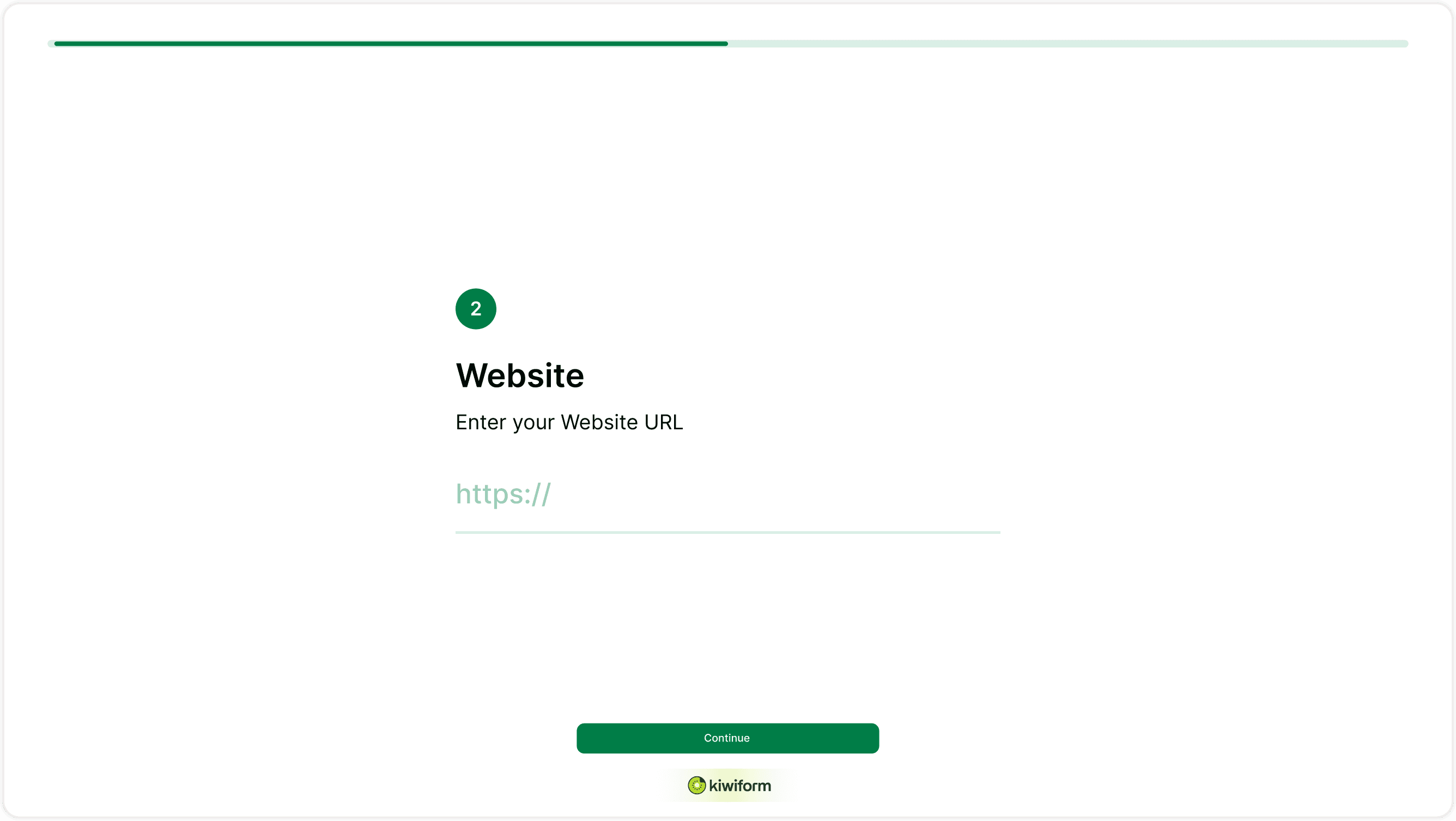
For respondents, the Website field feels simple and familiar. They see a clear URL input and are guided by the placeholder format. If the format is incorrect, they are prompted to correct it before submission.
This improves usability while ensuring you receive structured, high-quality responses.
Common use cases
Business or vendor registration forms
Startup application forms
Partnership inquiries
Portfolio submissions
Freelancer onboarding
Affiliate signups
Best practices for using the Website field
Make it required only when necessary to reduce drop-offs
Add a clear question label like “Enter your company website”
Use description text to clarify if specific types of links are allowed (e.g., portfolio, LinkedIn, product page)
Avoid using a generic text field for URLs — use Website for built-in validation
A properly configured Website field improves data accuracy and saves time later.
Summary
The Website field in Kiwiform helps you collect clean, validated website URLs without manual checks. With automatic format validation and a simple required toggle in the Answer panel, you can confidently gather accurate web links for businesses, portfolios, and registrations.