Customize Your Form Link in Kiwiform
Every form you create in Kiwiform comes with a default shareable link that works instantly. While this link is reliable and ready to use, customizing it allows you to make it more meaningful, easier to understand, and better suited for your audience.
Whether you're sharing a feedback form, registration form, lead capture form, or internal survey, a clear and well-structured link improves how your form is perceived and increases the chances of engagement. This is especially important when your link is the first thing users see before opening your form.
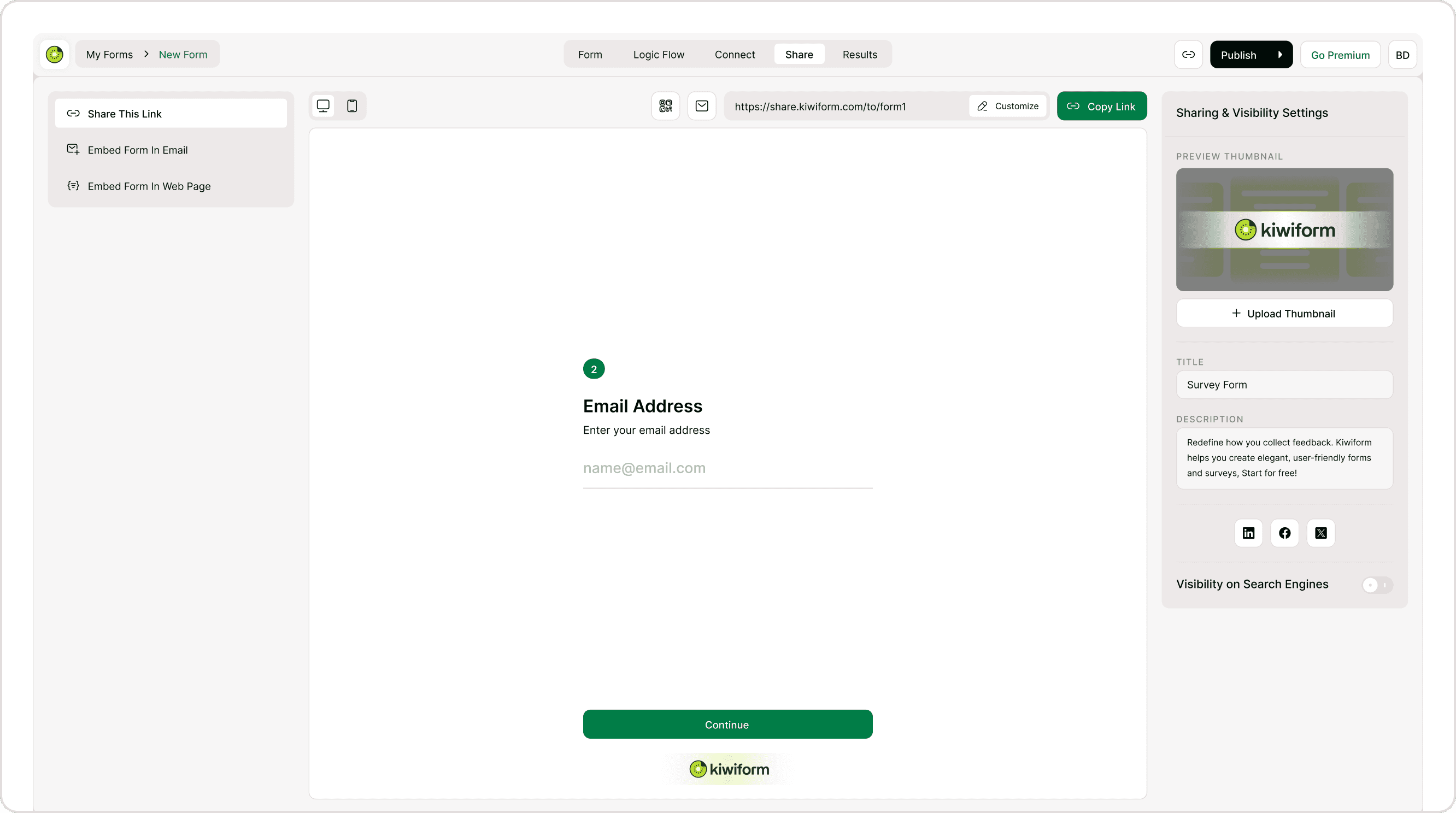
Where to Find the Customize Option
To customize your form link, open your form and go to the Share tab. Click on the Customize button to open the Customize This Link modal.
Inside this modal, you can:
Edit the link slug (the last part of the URL)
Select and apply a custom domain
View and copy the default Kiwiform link
Save or reset your changes
This is the central place where all link customization happens.
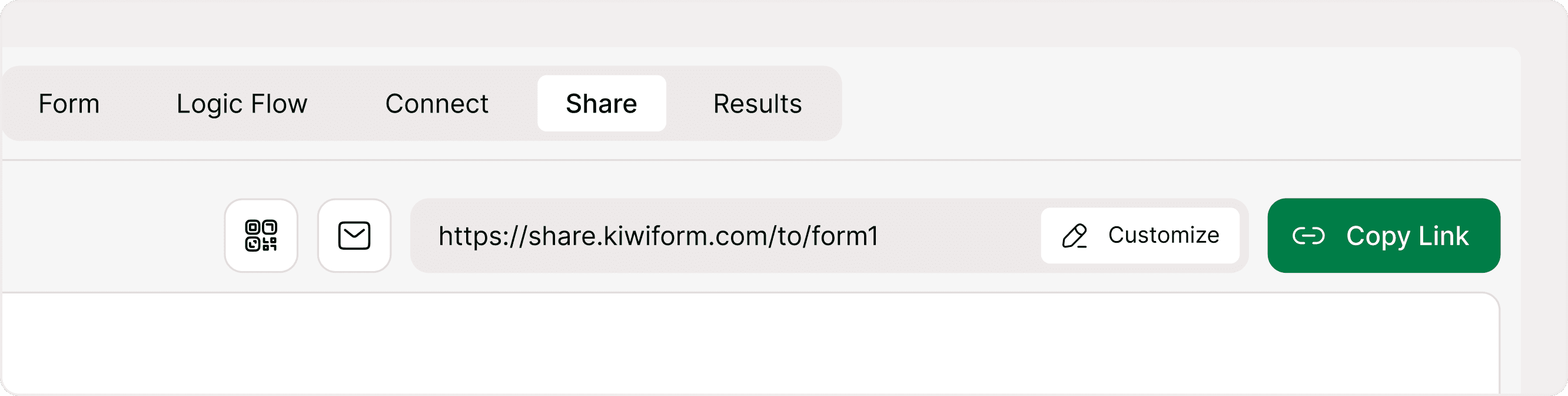
Editing Your Form Link (Make It Clear and Relevant)
The simplest way to customize your link is by editing the slug, which is the part that comes after the main domain.
For example:
Default link → /form1
Customized link → /product-feedback
This small change can make a big difference. A clear link helps users instantly understand what the form is about, even before opening it. This improves trust and increases click-through rates, especially in emails, messages, and public sharing.
When editing your link:
Keep it short and descriptive
Avoid unnecessary words or random characters
Use simple language that matches your form’s purpose
If you change the slug after sharing the link, the previous version will no longer work. Always update links wherever they have been used.
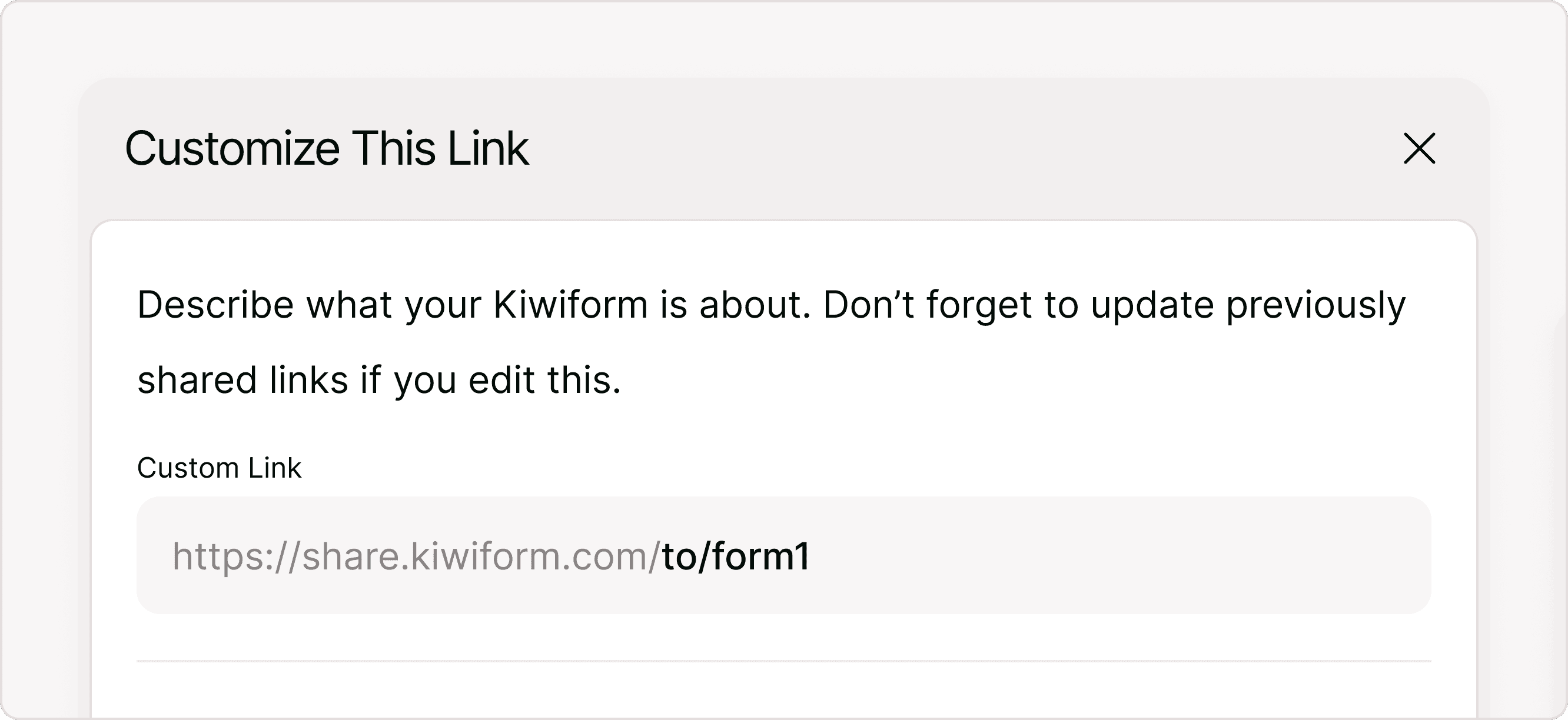
Link Availability and Validation
When you edit your form link, Kiwiform automatically checks whether the slug you entered is available and valid. This ensures that every form link remains unique and accessible.
If the link is not available
If the slug is already in use or cannot be assigned, you will see an error message:
“This link isn’t available”
This means the link is taken or restricted. You will need to modify the slug and try again until an available version is found.
If the link is valid
When the slug is available and correctly formatted, Kiwiform confirms it instantly with:
“Nice! Your custom link is all set.”
At this point, your new link is ready to use. You may also see an option to Undo, allowing you to quickly revert to the previous slug if needed.
What this means for your form
These validation checks help prevent broken links and ensure that every shared URL works as expected. It also allows you to confidently customize links without worrying about conflicts or errors after sharing.
Using a Custom Domain (Create Branded Links)
If you want more control over how your link looks, you can use your own domain instead of the default Kiwiform URL. This is useful when you want your form links to match your website or brand.
For example:
Default → share.kiwiform.com/...
Custom → form.yourdomain.com/...
To use a custom domain:
Open the Customize modal
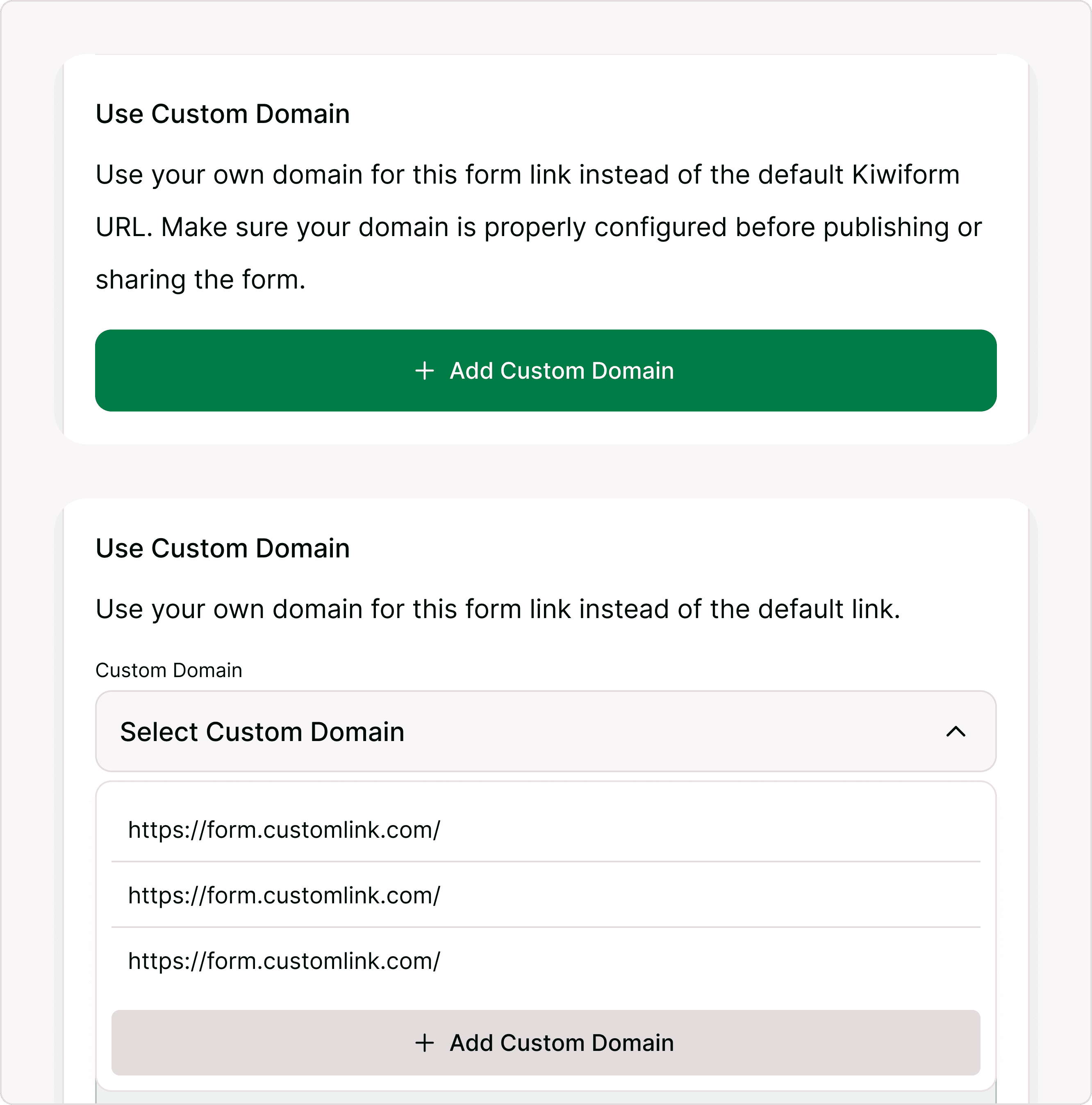
Select a domain from the Custom Domain dropdown
Save your changes
Once selected, your form link will automatically combine your domain with your chosen slug.
If you don’t see any domains available, you’ll need to add and verify one first. Use the Add Custom Domain option to go to the setup page.
See Custom Domains to learn how to add and configure your domain.
The Default Link (Always Available and Reliable)
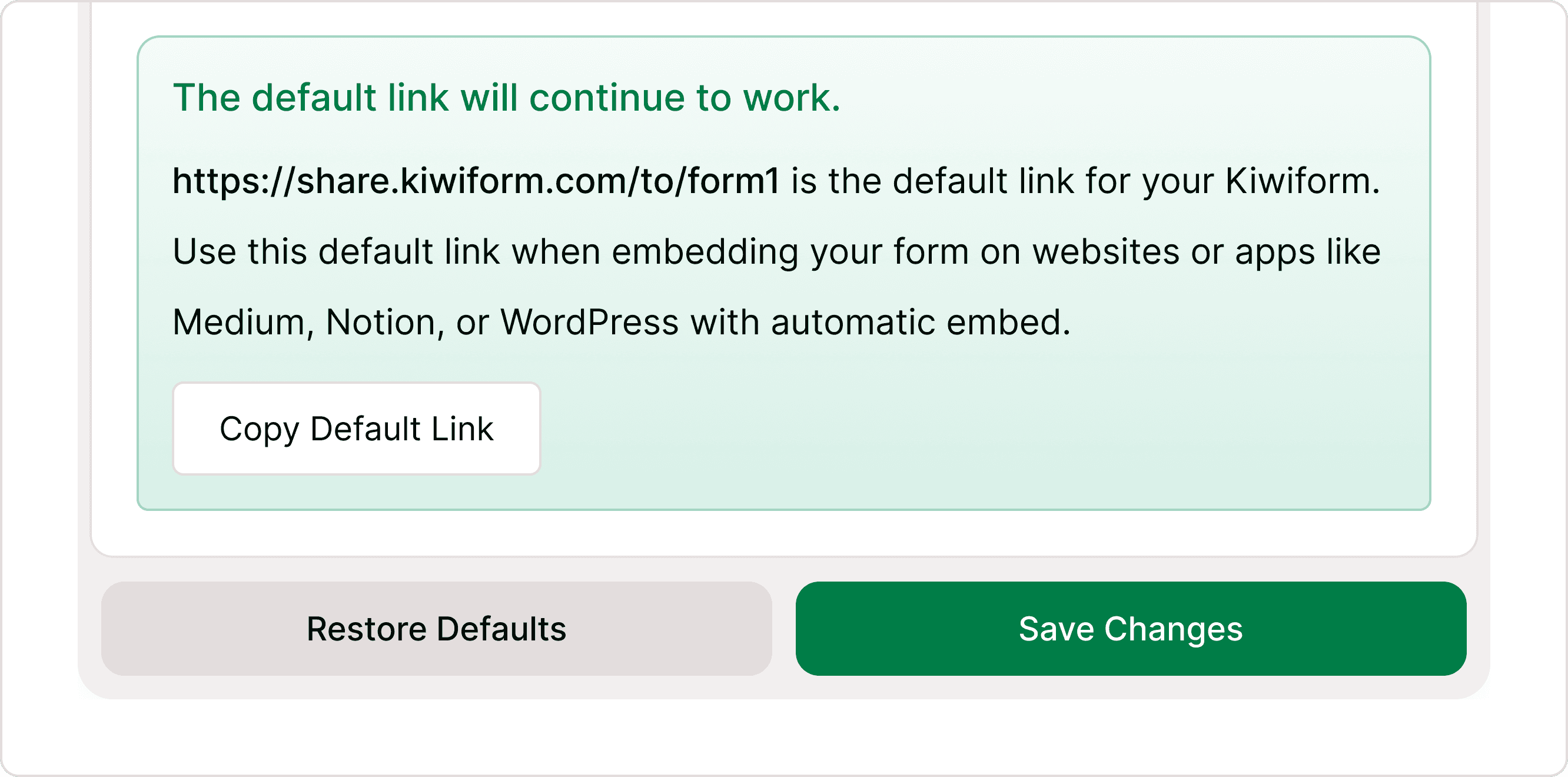
Every form has a default Kiwiform link, and it always remains active. This is shown as a sticky section inside the modal, so you can access it while making changes.
While customizing your link gives you flexibility, The default link is useful when embedding your form on platforms like Notion, Medium, or WordPress. It ensures consistent performance and compatibility.
This default link is important because:
It always works, regardless of customizations
It is recommended for embedding your form
It ensures compatibility across platforms like Notion, Medium, and WordPress
You can copy this link instantly using the Copy Default Link option.
Saving and Resetting Your Link
Once you make changes, click Save Changes to apply them. Your updated link becomes active immediately and can be shared or embedded right away.
If you want to remove all customizations, use Restore Defaults. This resets both the slug and domain back to the original Kiwiform link.
These controls are available at the bottom of the modal and apply to all link changes together.
When Should You Customize Your Link?
Customizing your shareable link is useful in many real-world scenarios:
When sending forms to clients or customers
When running campaigns or promotions
When sharing links in emails or newsletters
When using forms in public or external environments
When you want links that clearly describe the form
A clear and relevant link improves communication and reduces confusion for respondents.
Why Customizing Your Link Matters
Your form link is often the first interaction users have with your form. A generic or unclear link can reduce trust, while a well-structured link can increase confidence and engagement.
Custom links help you:
Communicate the purpose of your form instantly
Improve click-through rates
Maintain brand consistency
Create a more professional impression
This is especially valuable for businesses, teams, and creators who regularly share forms with external audiences.
How Your Link Appears to Respondents
When someone opens your form, the link is visible in their browser. A clean and meaningful URL reassures users that the form is intentional and trustworthy.
For example:
A generic link may feel temporary or unclear
A customized link feels structured and reliable
Using a custom domain further strengthens this by aligning the link with your brand or website.
Best Practices for Better Links
Use short, clear, and descriptive slugs that reflect your form’s purpose. Avoid long or complex URLs that are difficult to read or remember.
Keep consistency in naming, especially if you are sharing multiple forms. This helps users recognize and trust your links over time.
Use a custom domain when sharing forms publicly or with customers to maintain brand identity.
Always update previously shared links if you change your slug, as old links will stop working.
Important Notes
To use a custom domain, it must be added and verified in the Custom Domains section. Only active domains will appear in the dropdown.
The default Kiwiform link always works and remains unaffected by any changes. It is the safest option for embedding and universal sharing.
Summary
Customizing your shareable link in Kiwiform allows you to control how your form is presented and understood before users even open it. You can edit the link slug to make it more descriptive, use a custom domain for a branded experience, and still rely on the default link for stability and embedding. These options help improve clarity, trust, and usability across different sharing scenarios, whether you're sending forms to customers, running campaigns, or embedding them on websites.